

How-to · Lesson 2 of 19
Enterprise LLM Configuration and Model Cost Control
Connect a model provider to MagOneAI: name a config, store the API key in KeyVault, load the provider's models, set what each one is allowed to do, test it, and cap cost per token before you create it.
What You Will Learn
- Where LLM Configs live in your organization and who can manage them
- How to create a new config: name, description, provider, and endpoint URL
- How to enter the model's name and add your API key securely
- How to enable capabilities like vision and reasoning, and add custom parameters
- How to set token limits, image handling, and timeouts for production use
- How to choose your organization's default model
- How to control which projects can use which LLM
- How to track token usage, requests, latency, and errors per config
Step by step guide
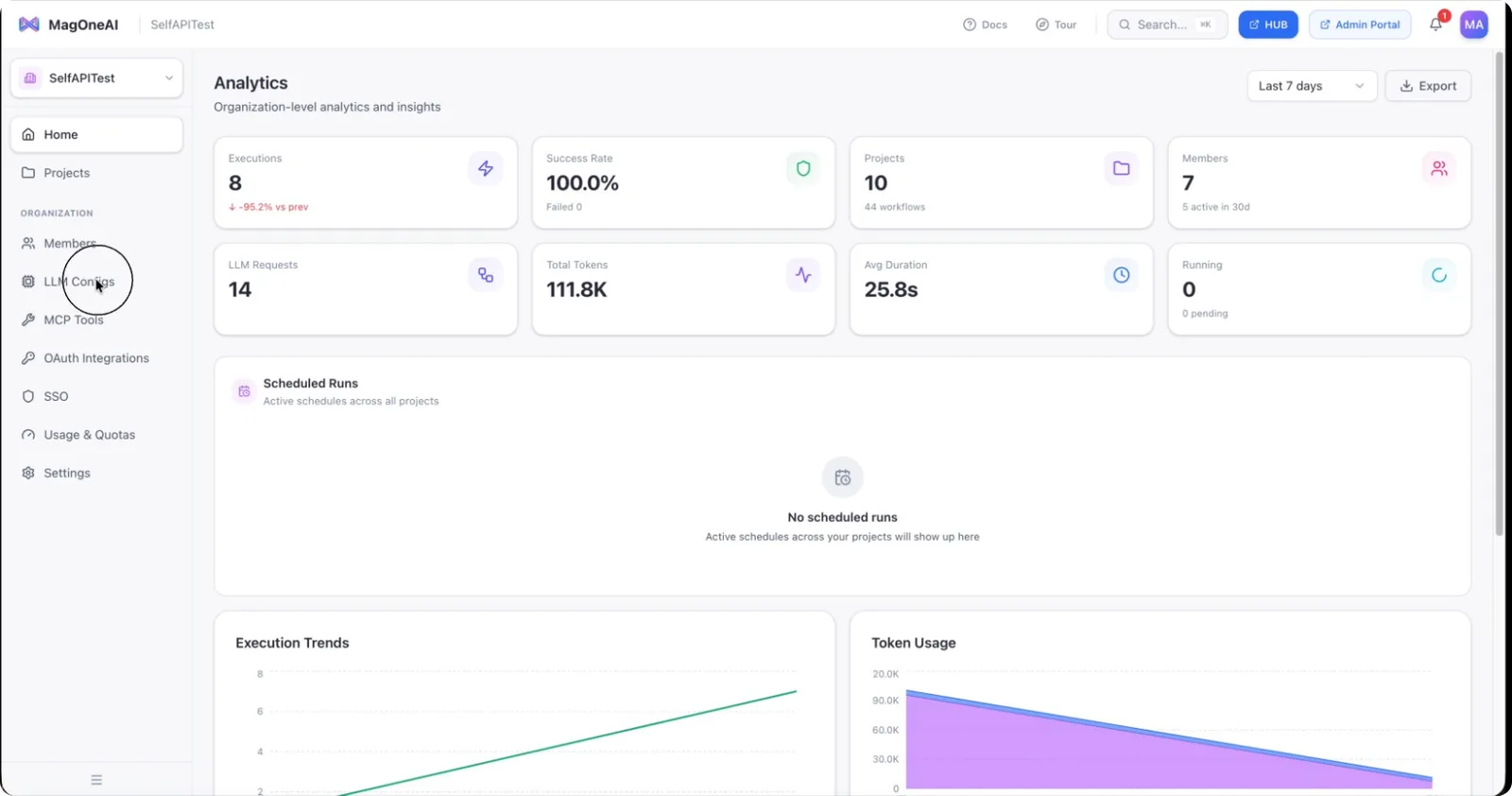
Step 1: Open the LLM Configurations Page
From your dashboard, navigate to the LLM Configs section.
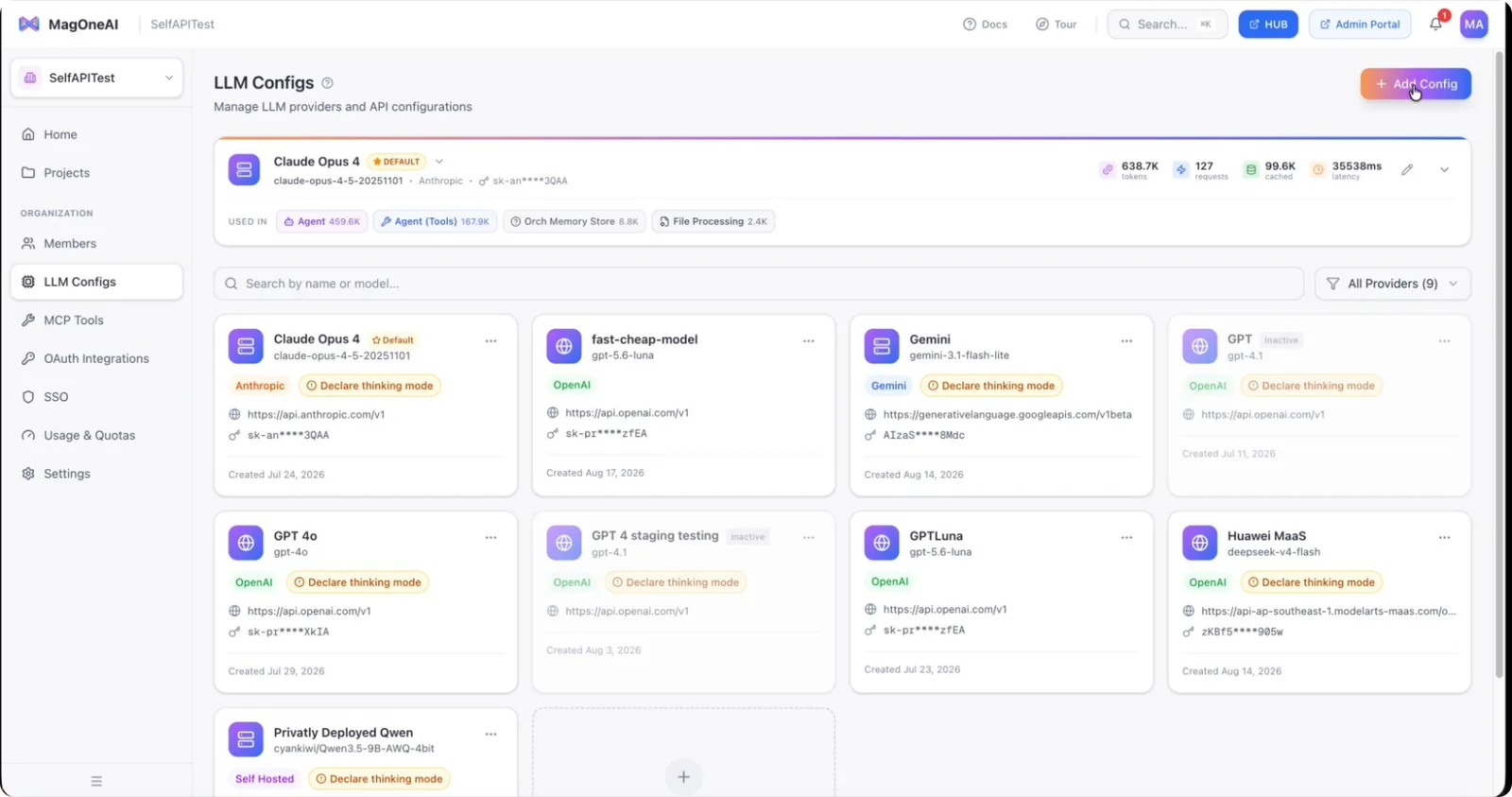
Step 2: Start Creating a New Configuration
Click Add Config to create a new LLM configuration.
Step 3: Understand Supported Model Providers
Mag One AI is a model-agnostic platform. Any model compatible with the OpenAI-style API format is supported, including:
- OpenAI
- Anthropic
- Google Gemini
- Self-hosted models
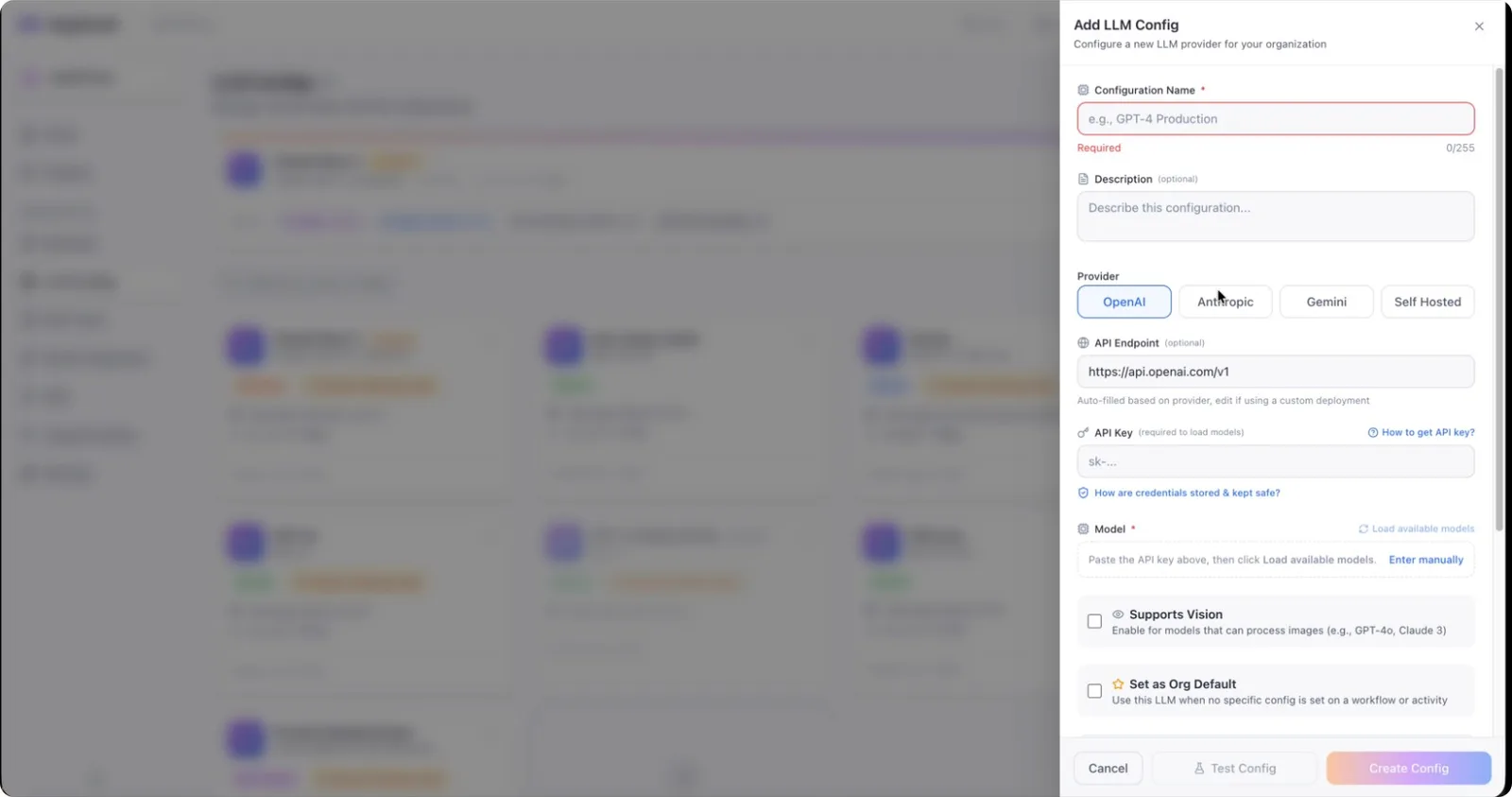
You can connect to any of these providers through a compatible API.
Step 4: Name the Configuration and Add API Key
Provide a clear, descriptive name for your configuration (for example, Fast Model), and enter the corresponding API key for the chosen provider.
API keys are stored securely in KeyVault and are never stored as plain text in the database. Every time you add an API key, it is securely encrypted and managed via KeyVault.
Step 5: Load Available Models from the Provider
Click Load Model to automatically fetch the latest available models from the provider (for example, from ChatGPT via OpenAI).
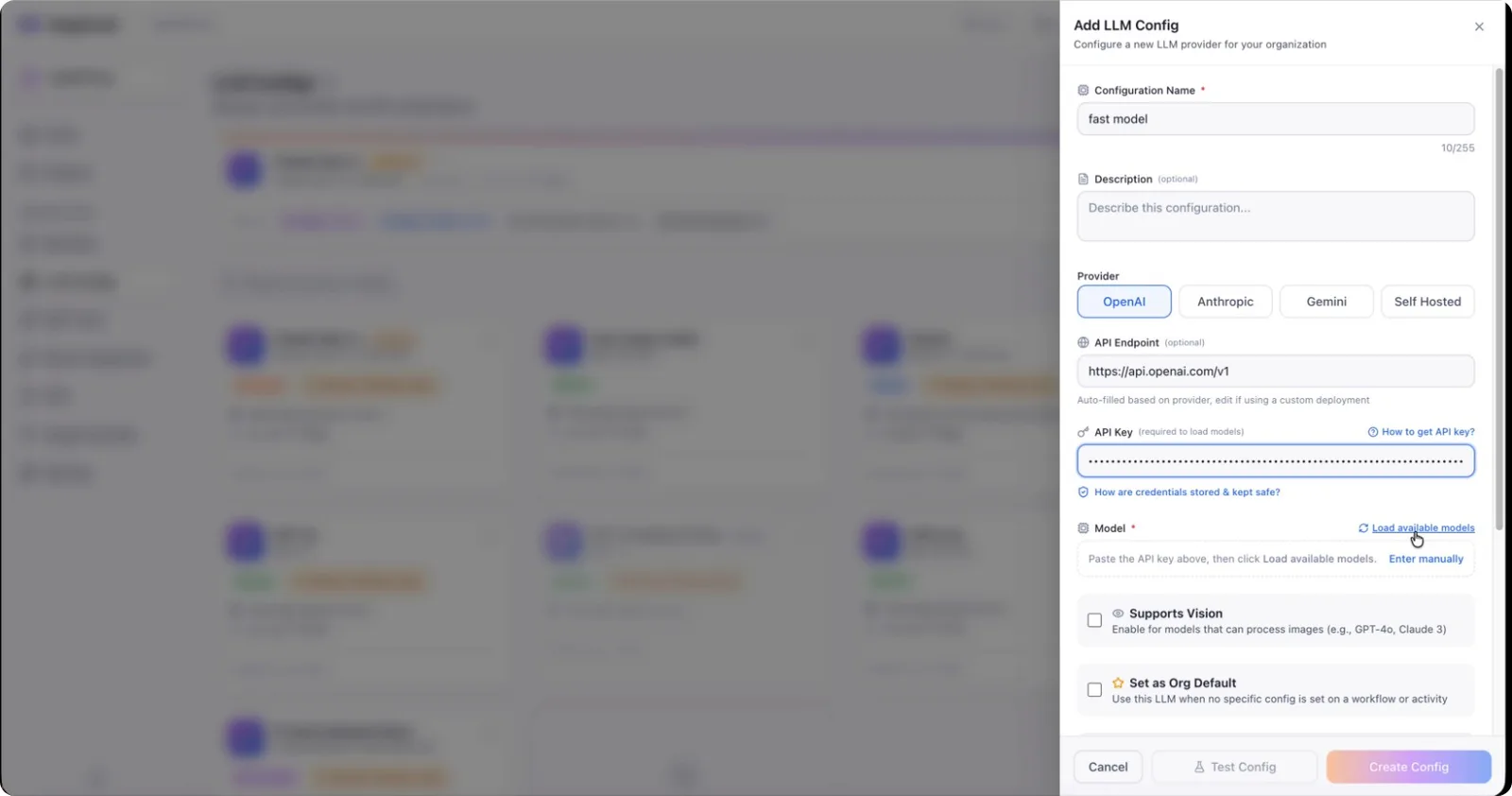
This will retrieve all current models exposed by the provider.
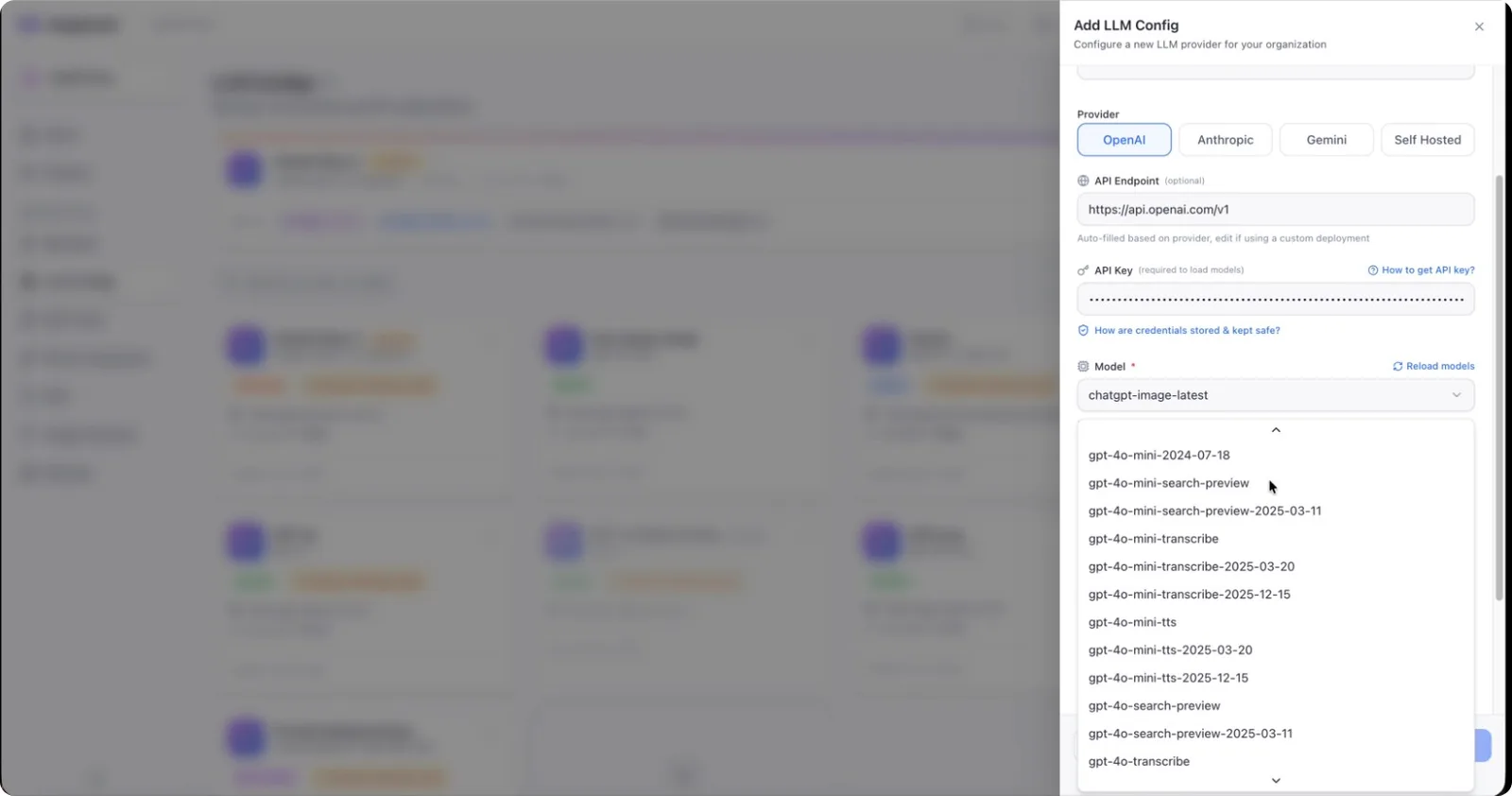
If the provider (e.g., ChatGPT) releases a new model later, it will also appear here when you reload.
Updating to newly released models is as simple as reloading and selecting the desired model.
Step 6: Configure Basic Model Capabilities
Review the available flags and capability options for the selected model.
For example, you can enable Supports Vision if the model can process images.
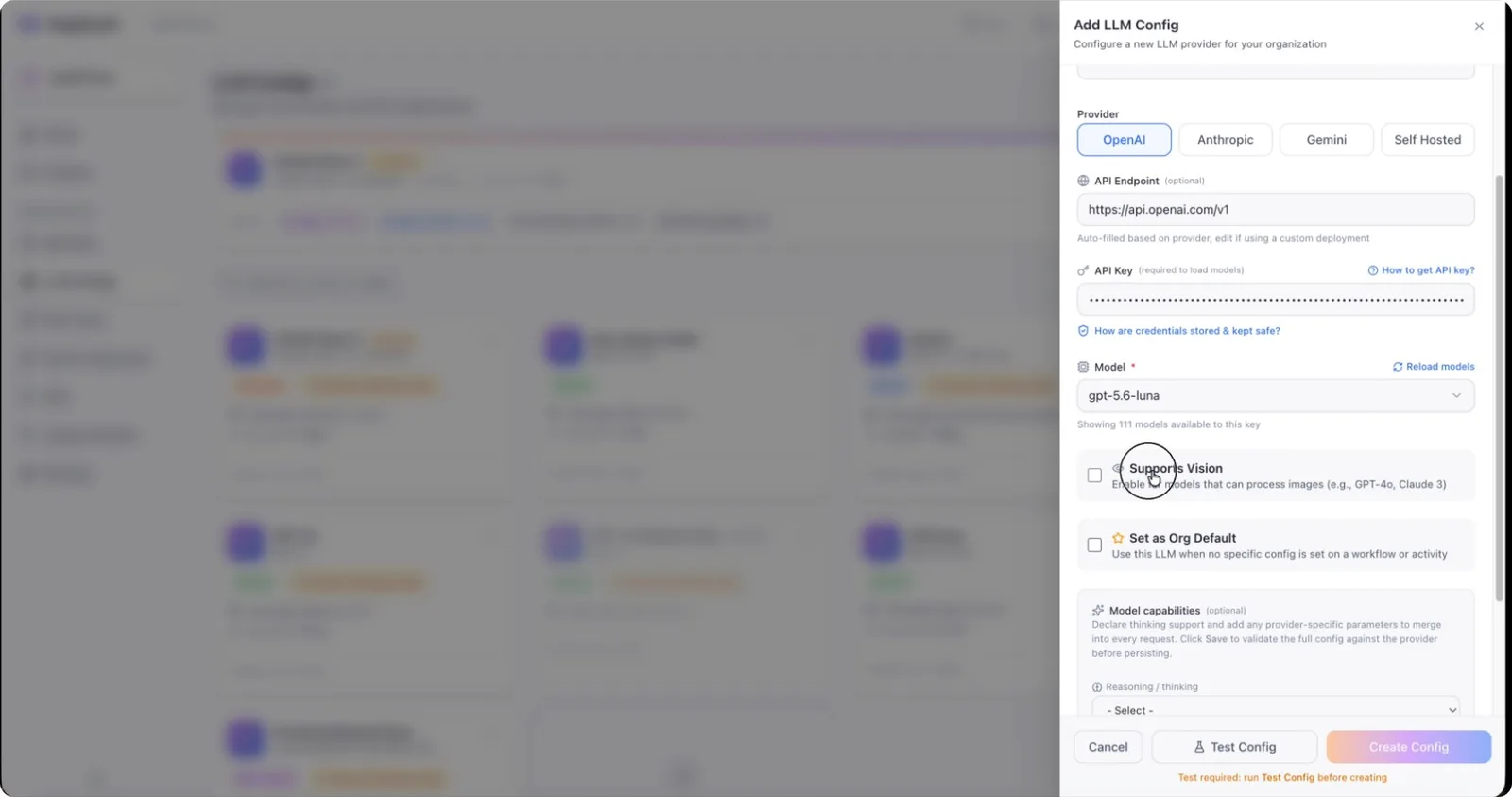
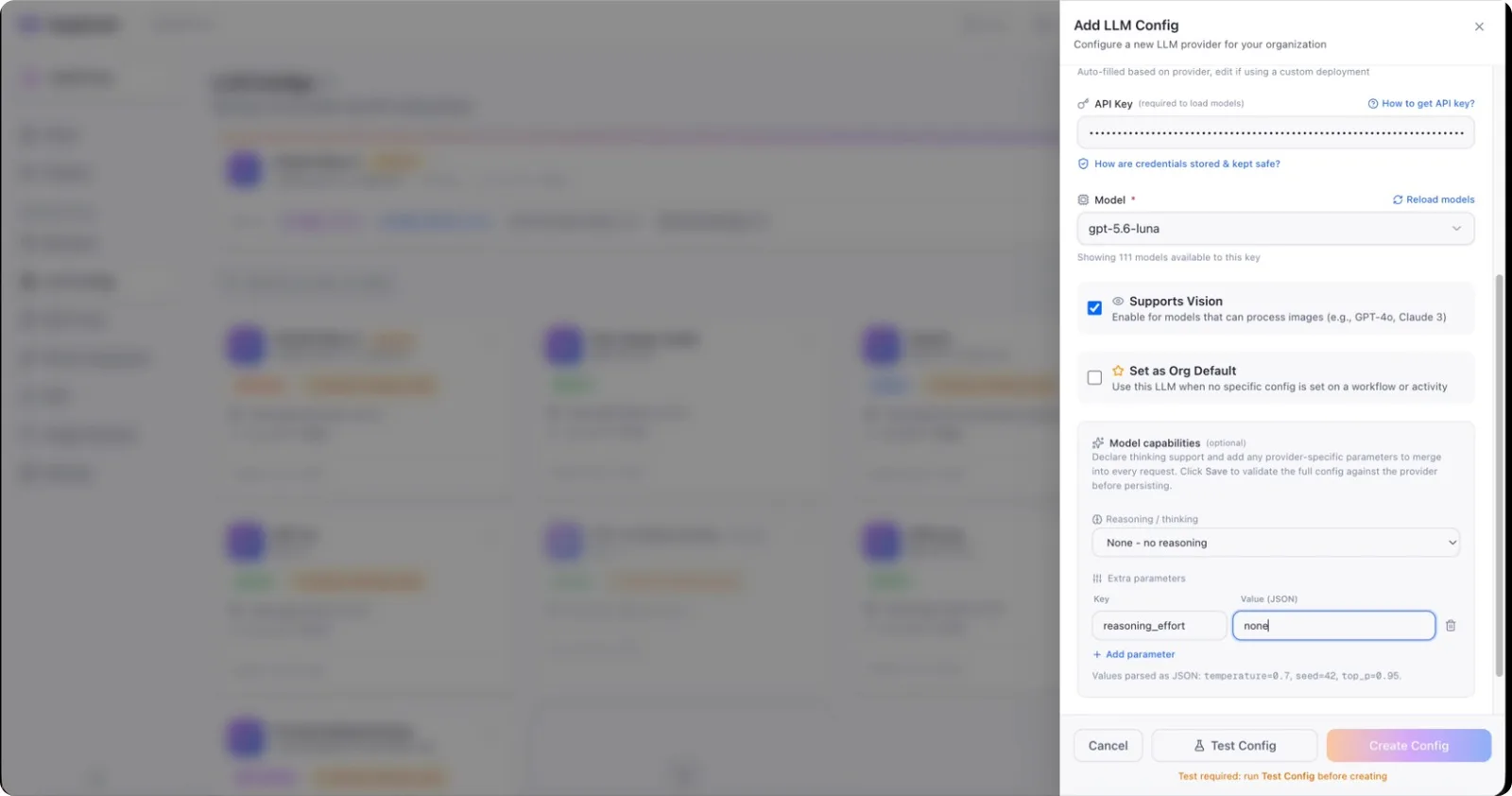
You can then refine additional capabilities such as reasoning options.
For a faster configuration, you might set Reasoning to None and Reasoning Effort to None.
Step 7: Test the Configuration
Before finalizing your LLM configuration, always run a Test Config to ensure everything works correctly.
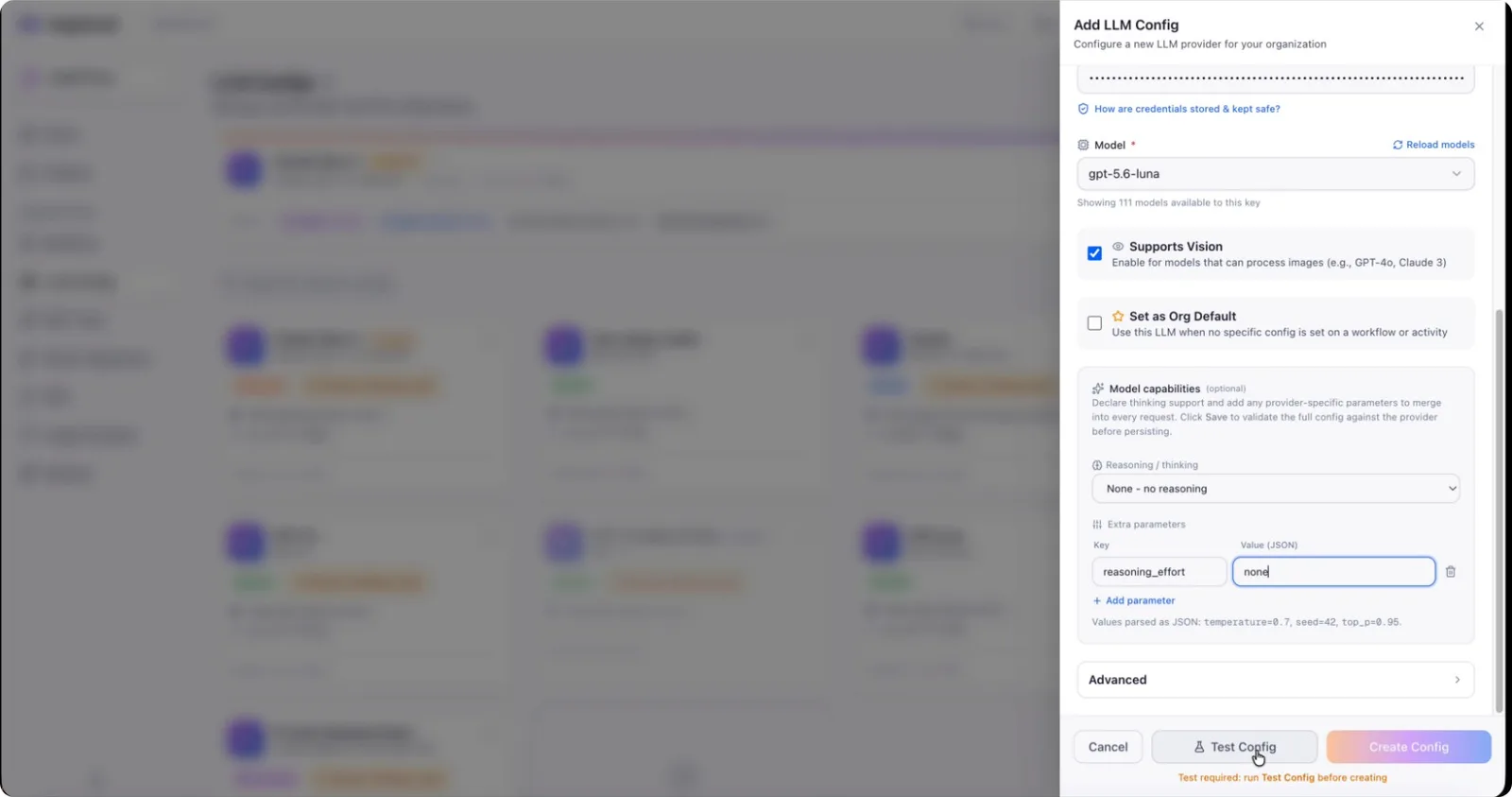
A sample request is sent (for example, “reply with a single word ‘okay’”), and you can inspect both the request and the response. If the response is as expected (e.g., okay), your configuration is functioning correctly.
Step 8: Adjust Advanced Settings and Create the Configuration
Optionally, configure advanced parameters such as:
- Maximum input tokens
- Maximum output tokens
- Image handling behavior
- Token cost per input token
- Token cost per output token
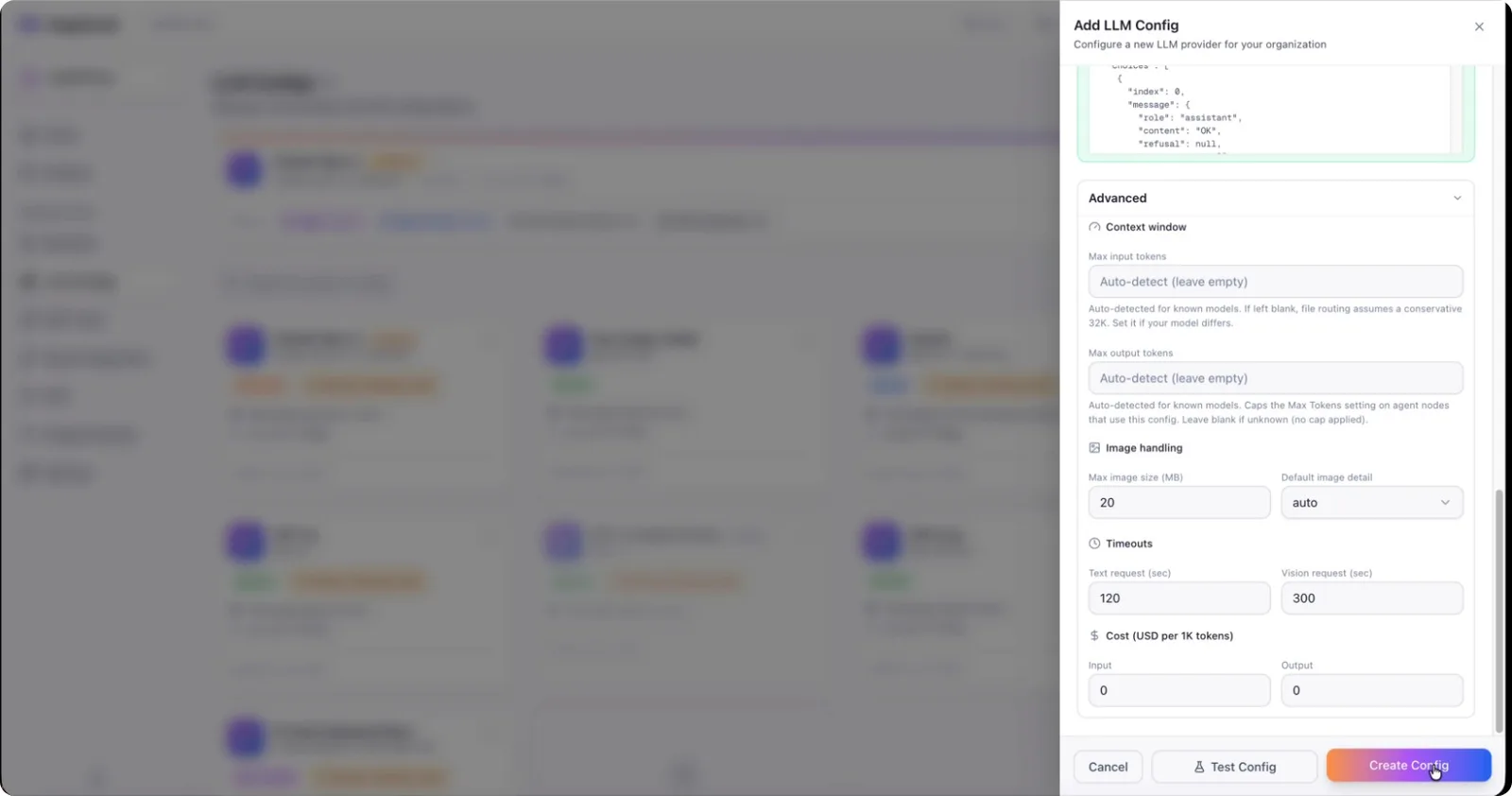
After reviewing and adjusting these settings, click Create Config to save your new LLM configuration.