

How-to · Lesson 18 of 19
LLM Usage Quotas and Cost Governance
Usage is metered as it happens, not estimated. Set token limits at organization, project, use case or user level, see what enforcement looks like at run time, and handle the increase requests that follow.
What You Will Learn
- Why usage is a ledger, not an estimate: every model call is metered as it happens
- Four ways to slice the same spend: organisation, project, workflow and user, and what each one is actually for
- Which breakdown surprises people most, and why it is usually the workflow view
- Setting limits where the budget lives, per month, week or day
- What enforcement looks like at run time: refused with a clear message, not a generic failure
- The request and approve path for raising a limit, and how top ups work
- Why you set a limit on every project on day one, especially the sandbox
Step by step guide
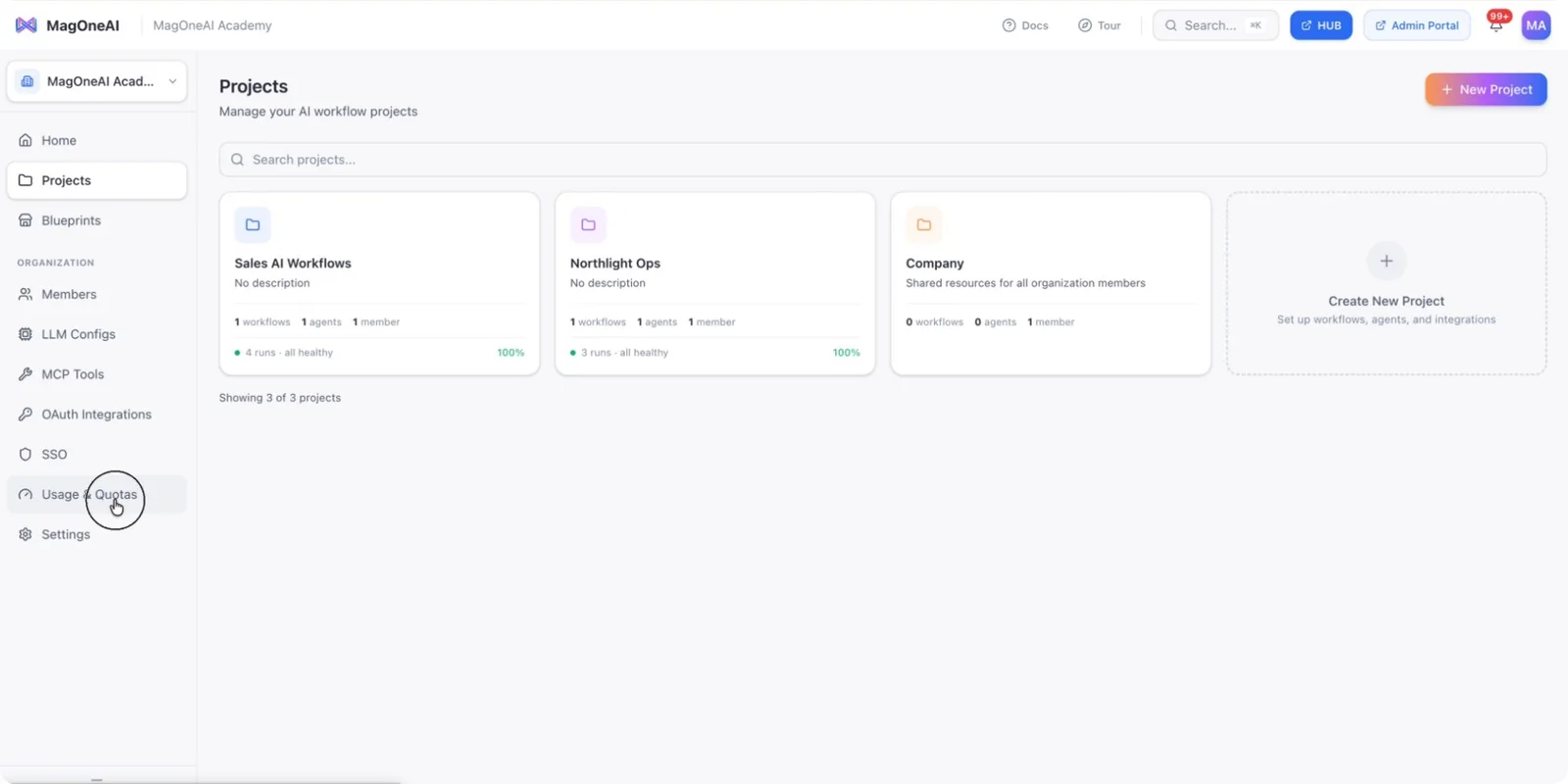
Step 1: Open the Usages and Quotas Page
Navigate to the Usage and Quotas section in your workspace settings to begin configuring limits.
Step 2: Start Configuring a New Limit
On the Usage and Quotas page, initiate the process to set a new limit.
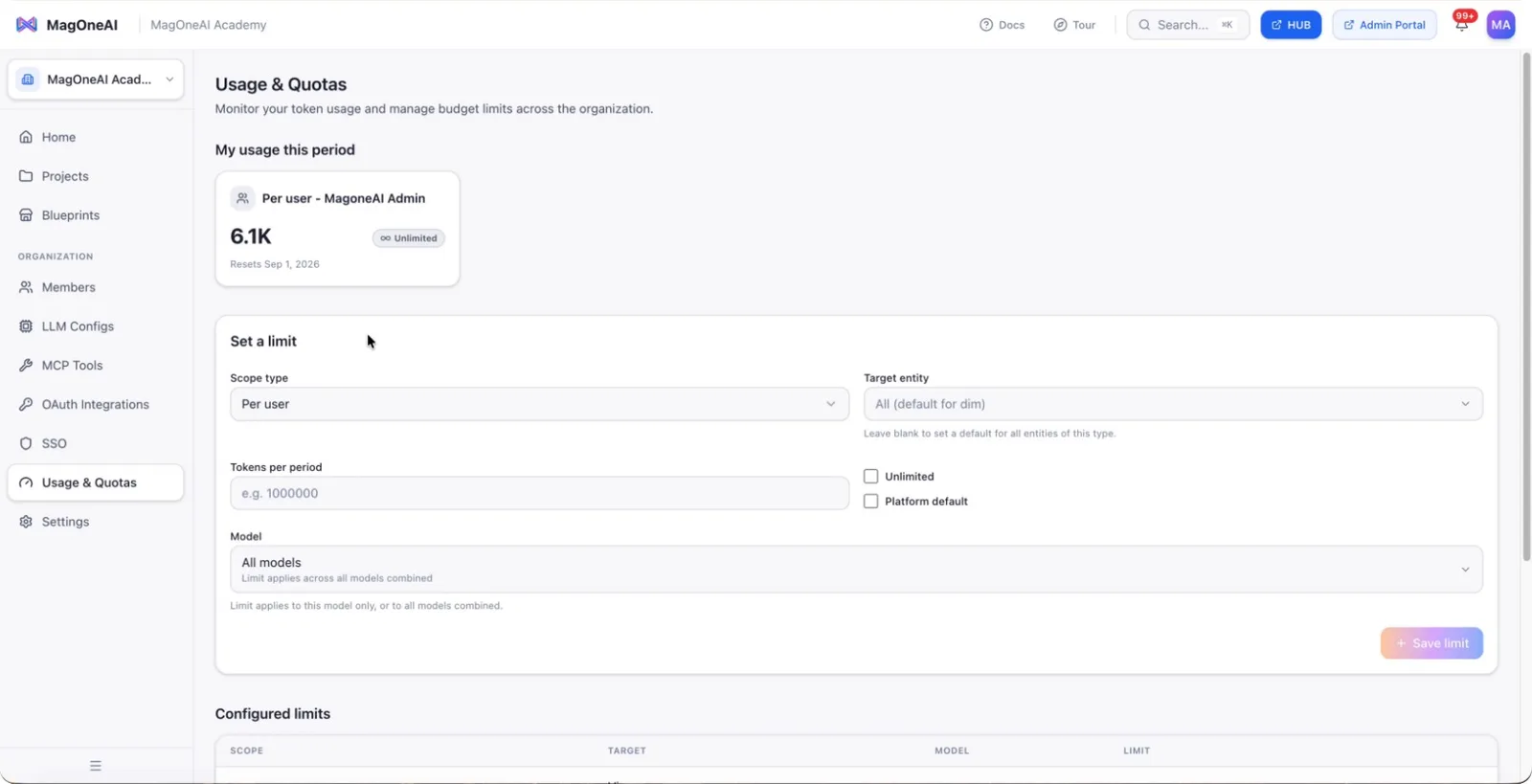
You can configure limits at different levels, including per user, use case pool, project pool, or organization. In this example, you will configure a limit for a project.
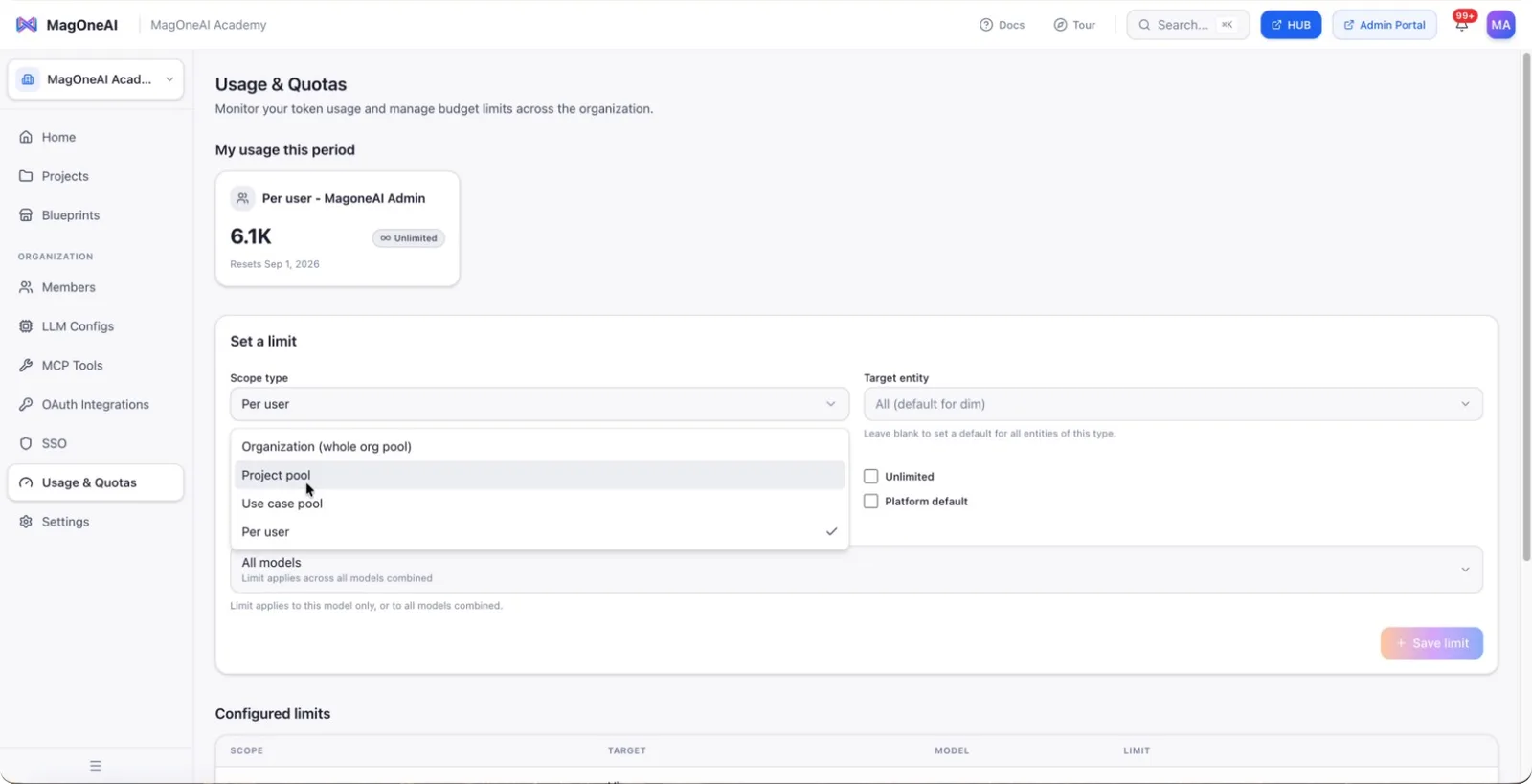
Step 3: Select the Scope
Choose the scope for your quota configuration.
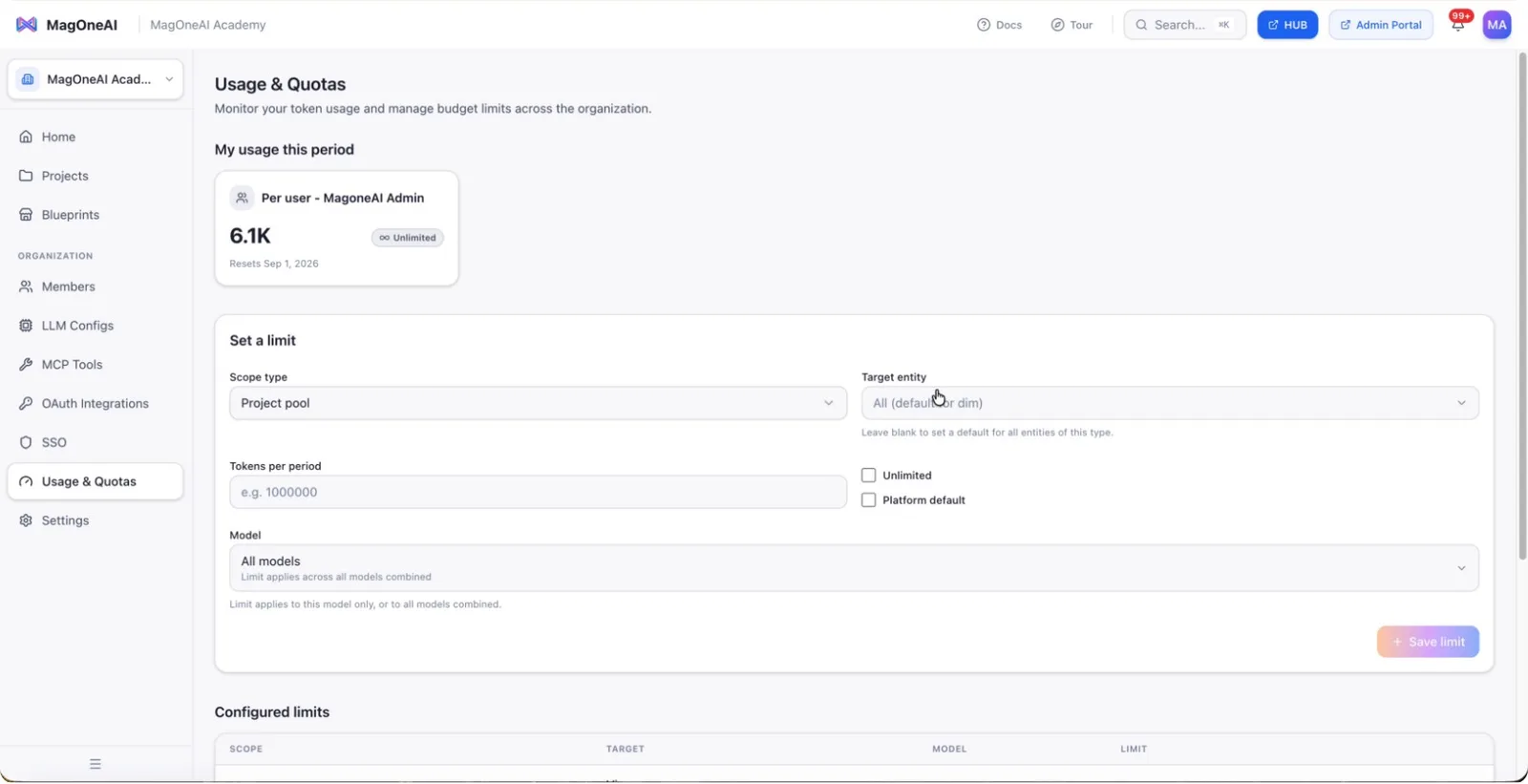
If you choose project as the scope, a list of all projects available in your workspace will be displayed.
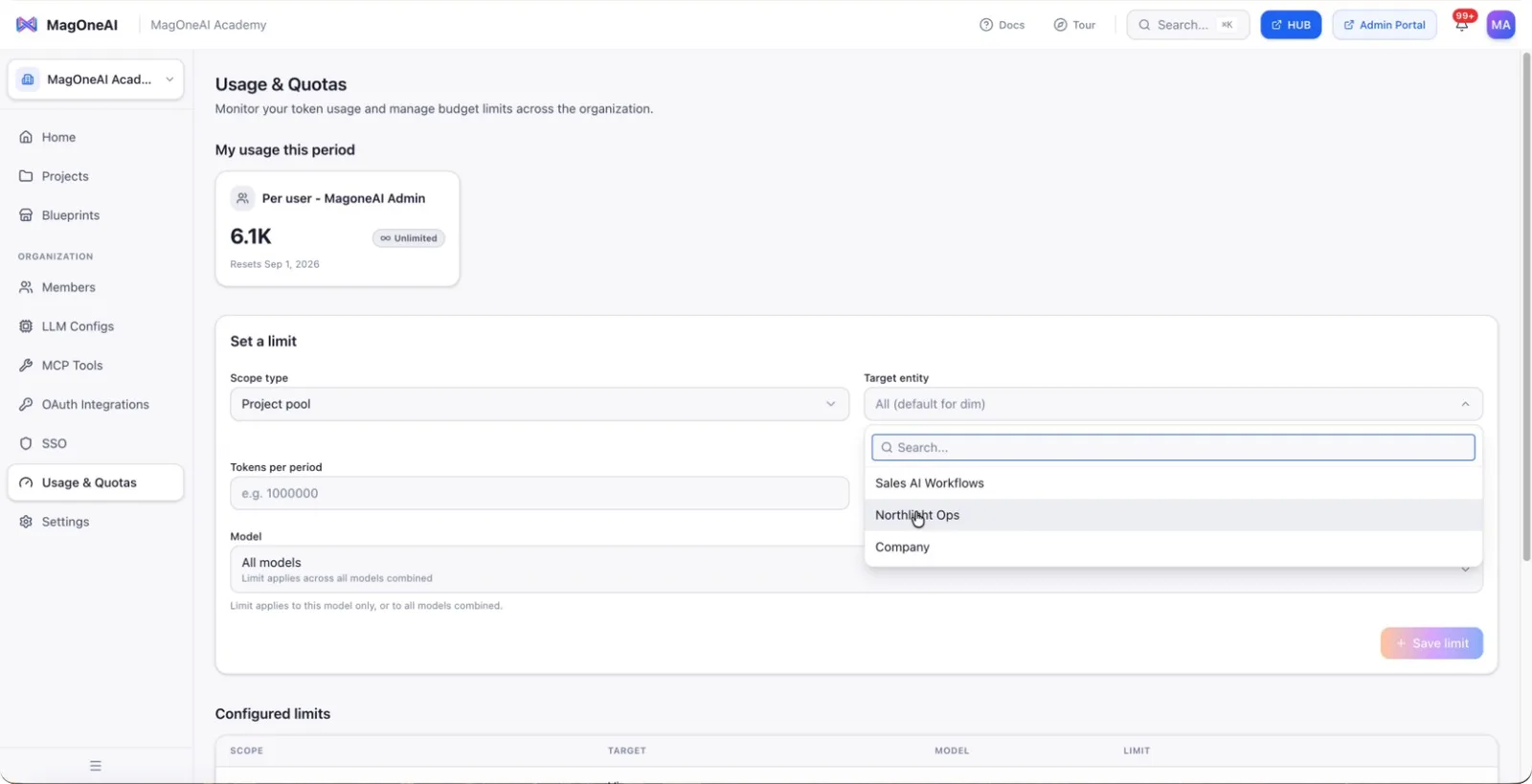
From this list, select the Northlight Ops project.
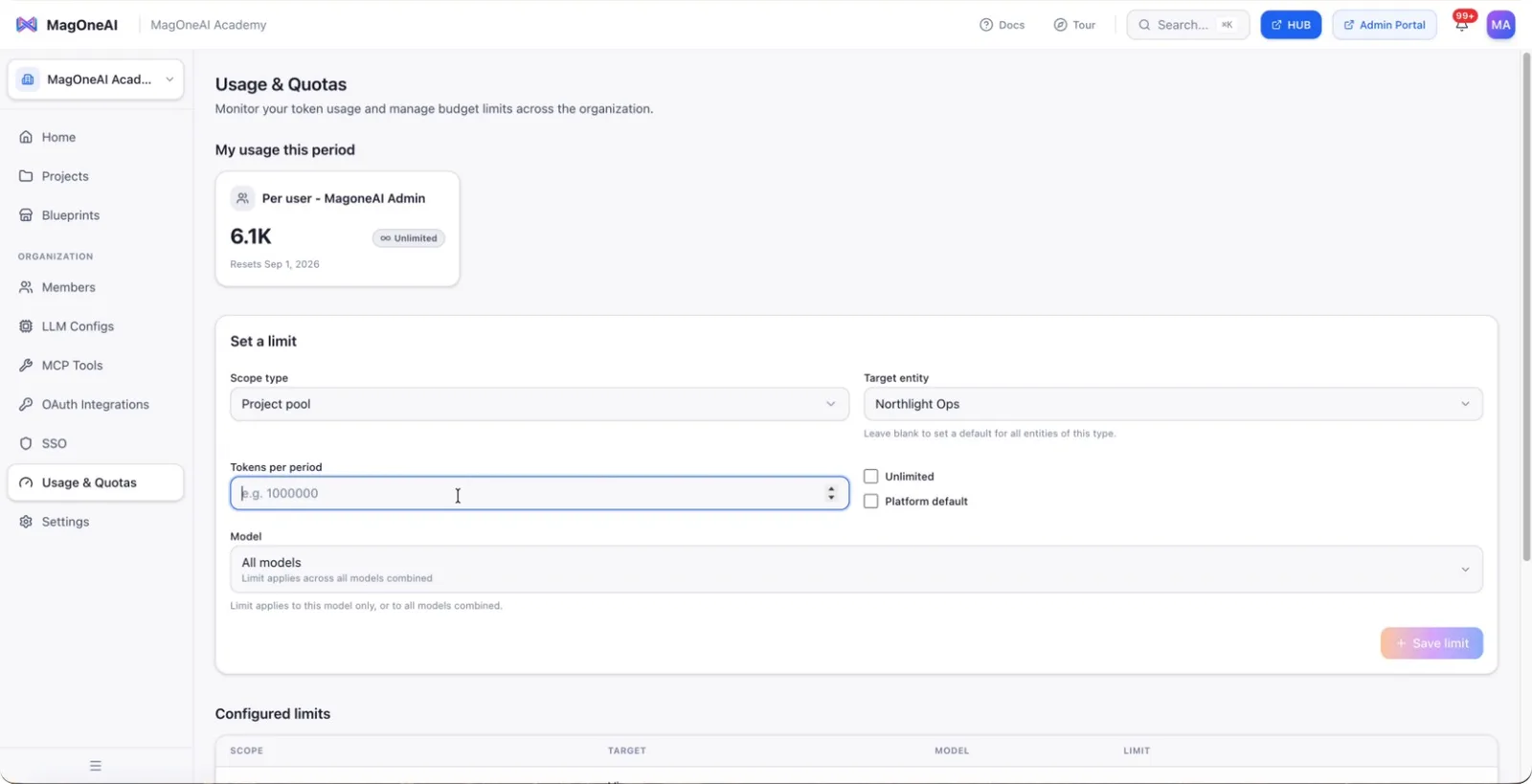
Step 4: Define the Project-Level Limit and Save
Enter the desired token limit for the selected project, for example, 1,000,000 tokens.
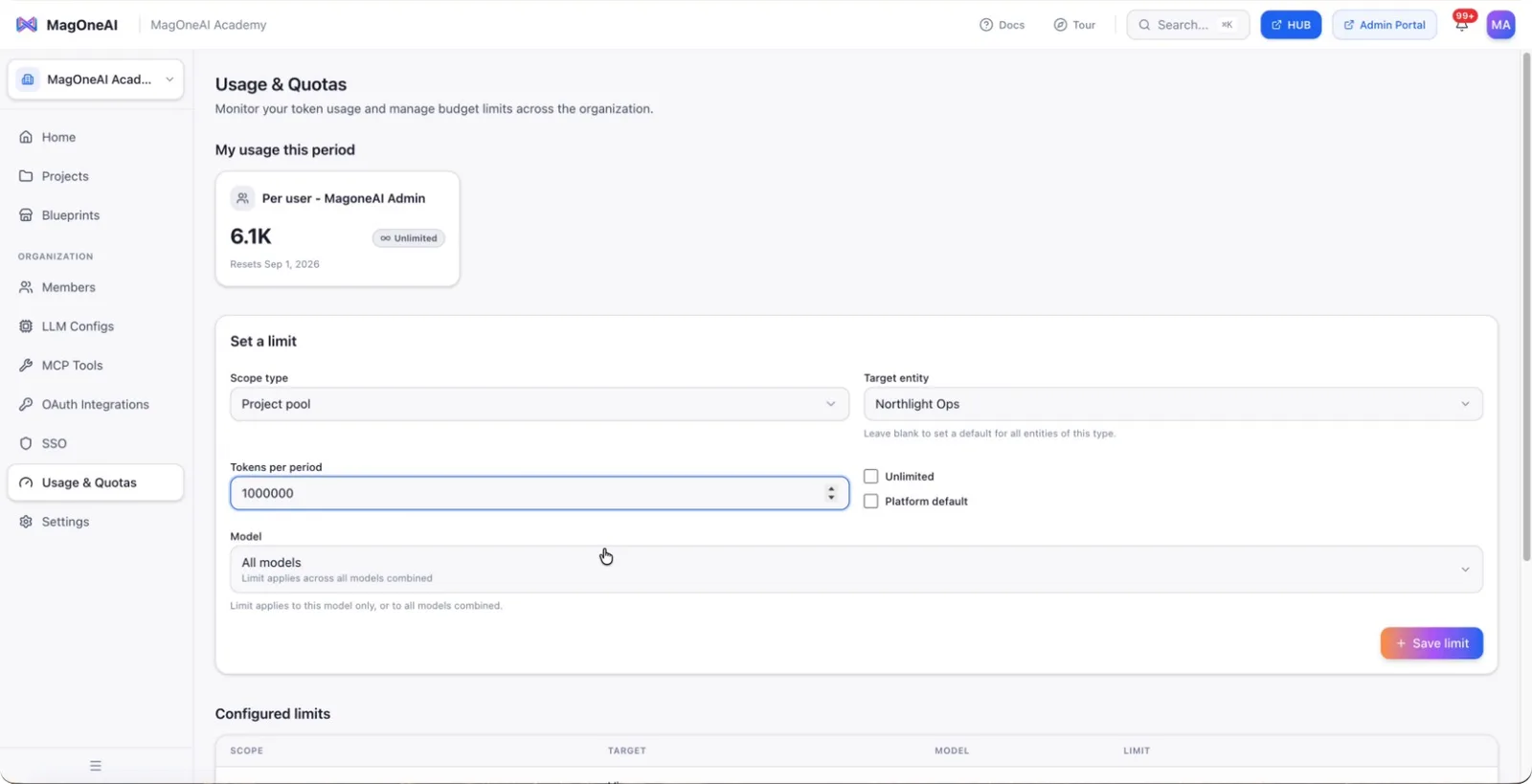
Select the models the limit applies to; in this case, choose All models. Then save the limit configuration.
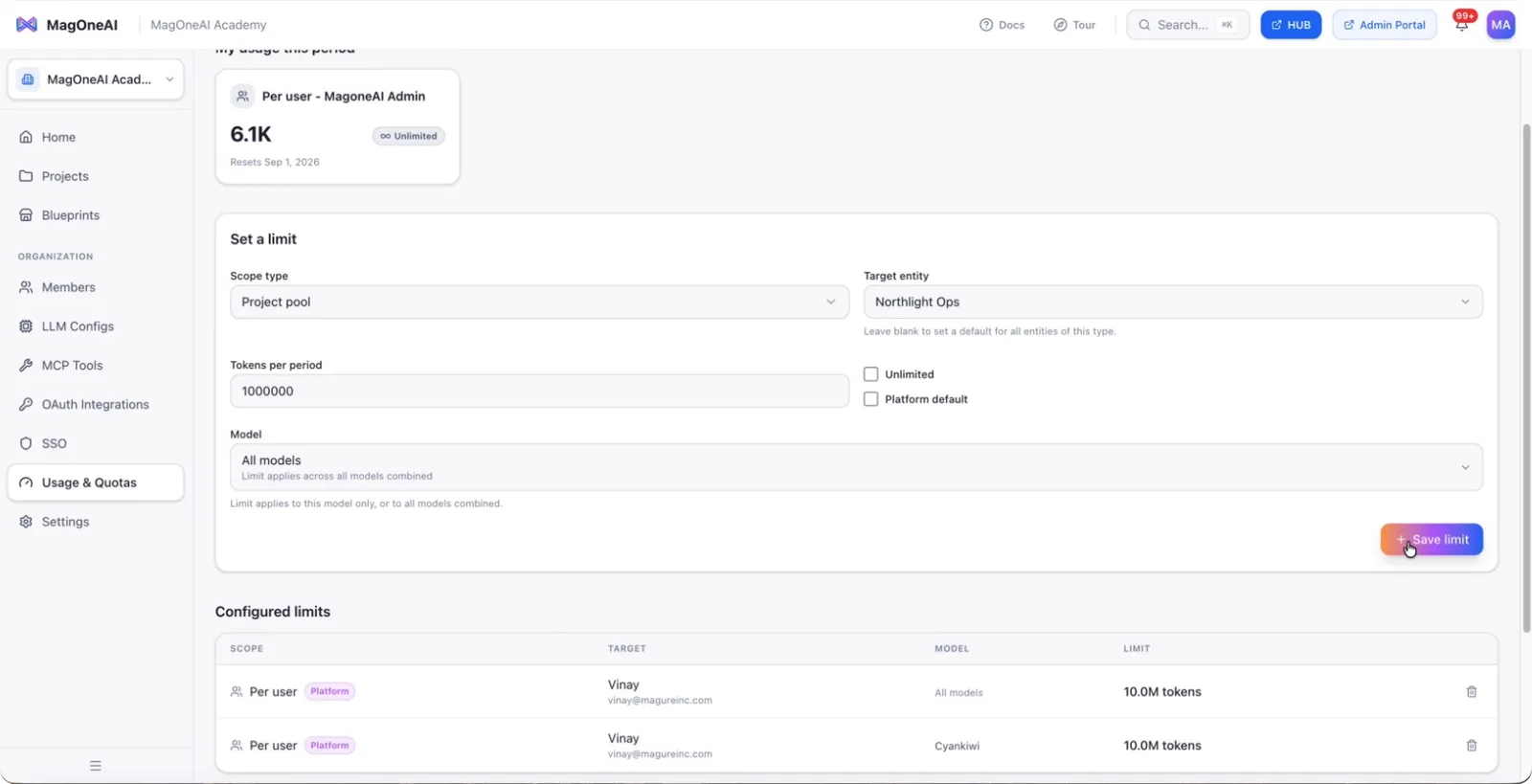
The Northlight Ops project will now show a limit of 1,000,000 tokens applied to all models.
Step 5: Configure Per-User Limits
You can additionally enforce limits at the per-user level.
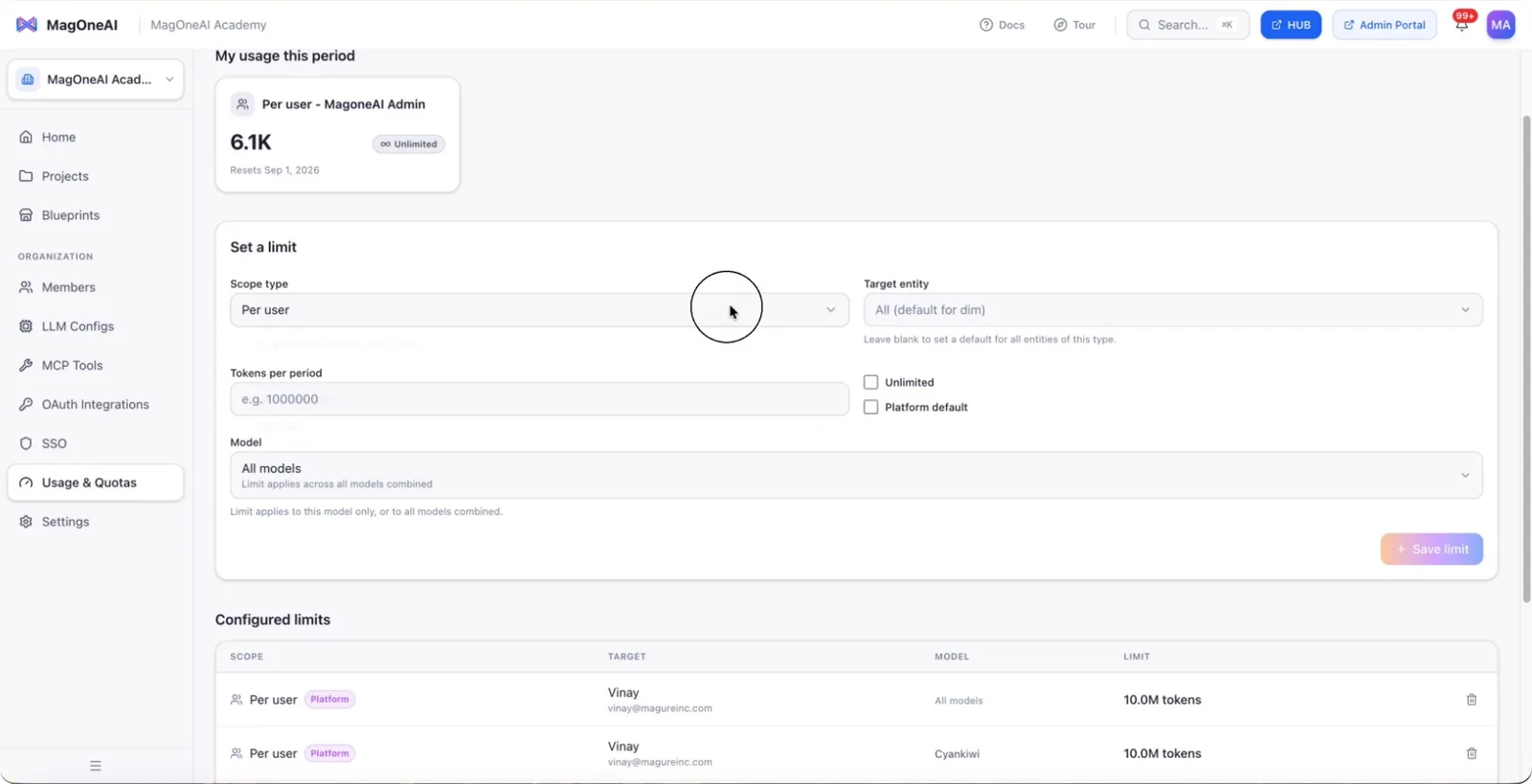
Select the user for whom you want to enforce a usage limit.
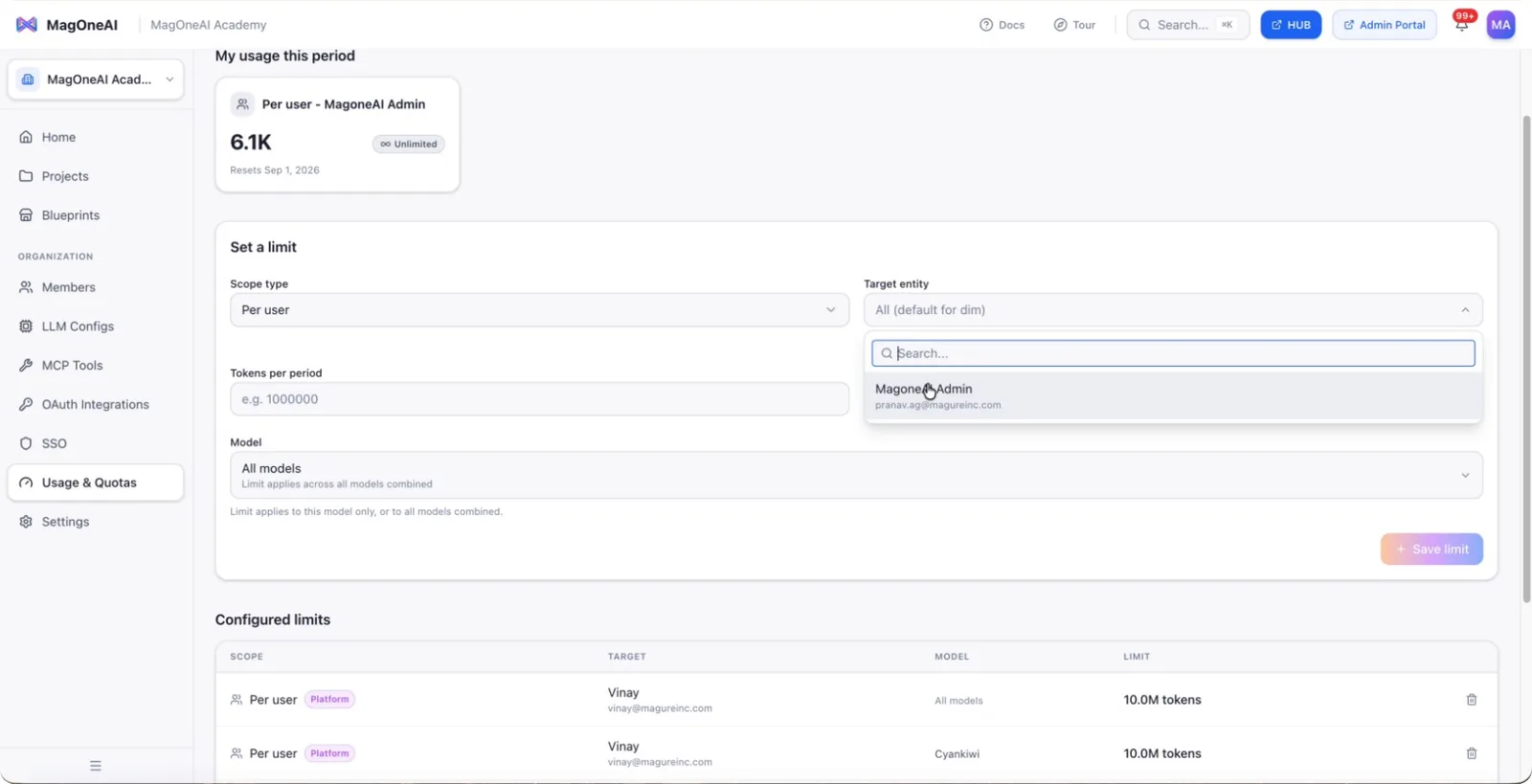
After specifying the limit details, save the configuration. Click to Save the limit to enforce it for the selected user.
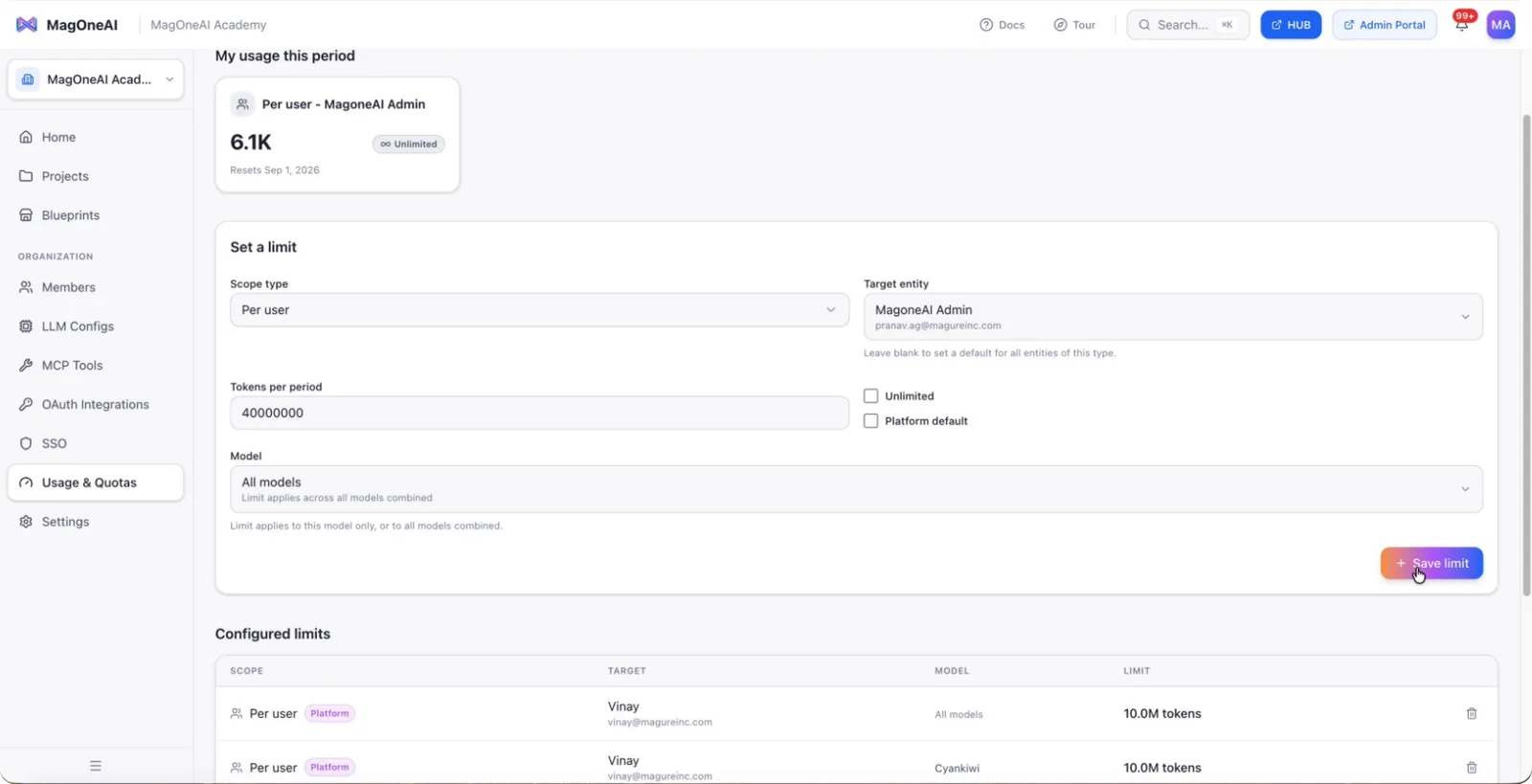
This will ensure the defined quota is applied to that user.
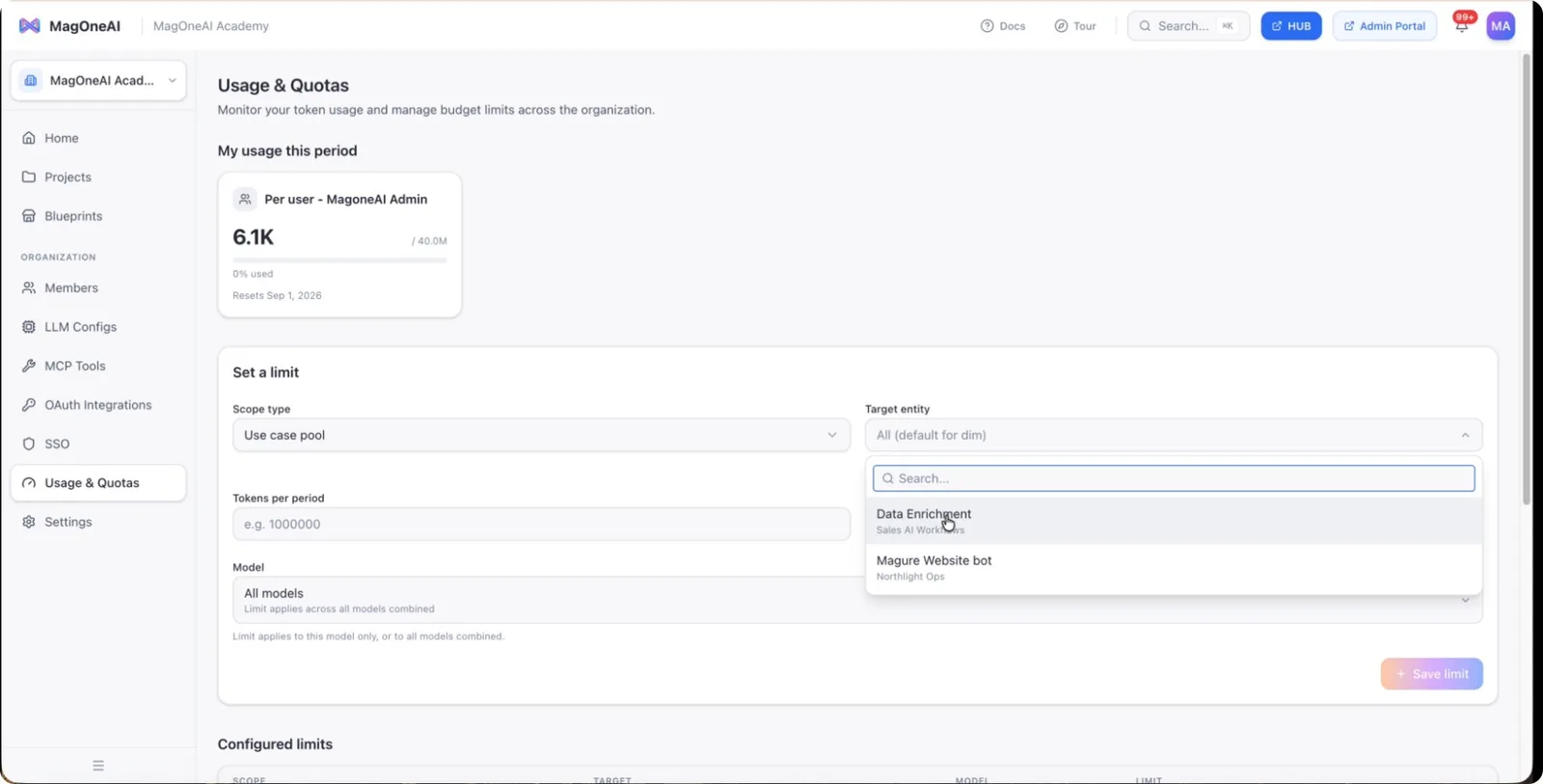
Step 6: Configure Use Case and Organization-Level Limits
You can also apply limits to specific use cases.
- Choose the use case scope, and the system will display all available use cases.
- Review the list of use cases presented.
Alternatively, you can configure limits at the organization level, applying quotas globally across all projects and users.
Once configured, if any user or project exceeds the defined quota, a usage increase request will appear in this section for your review and action.