

How-to · Lesson 12 of 19
Version Control and One-Click Rollback
Your edits do not reach users until you publish. Label versions so they still mean something in three months, publish the one you want live, and roll back to a known good state in one click.
What You Will Learn
- Why your edits do not reach users until you explicitly publish
- Taking a full snapshot on publish: nodes, agents, mappings and settings, all of it
- Labelling versions with what changed, because “version 7” tells you nothing in three months
- Watching a bad publish break Hub for real, then rolling back to a known good state in one click
- Debugging at your own pace after a rollback, instead of under pressure
- The promotion path: build in a sandbox project, export, import into production, publish
Step by step guide
Step 1: Open the Versions Panel
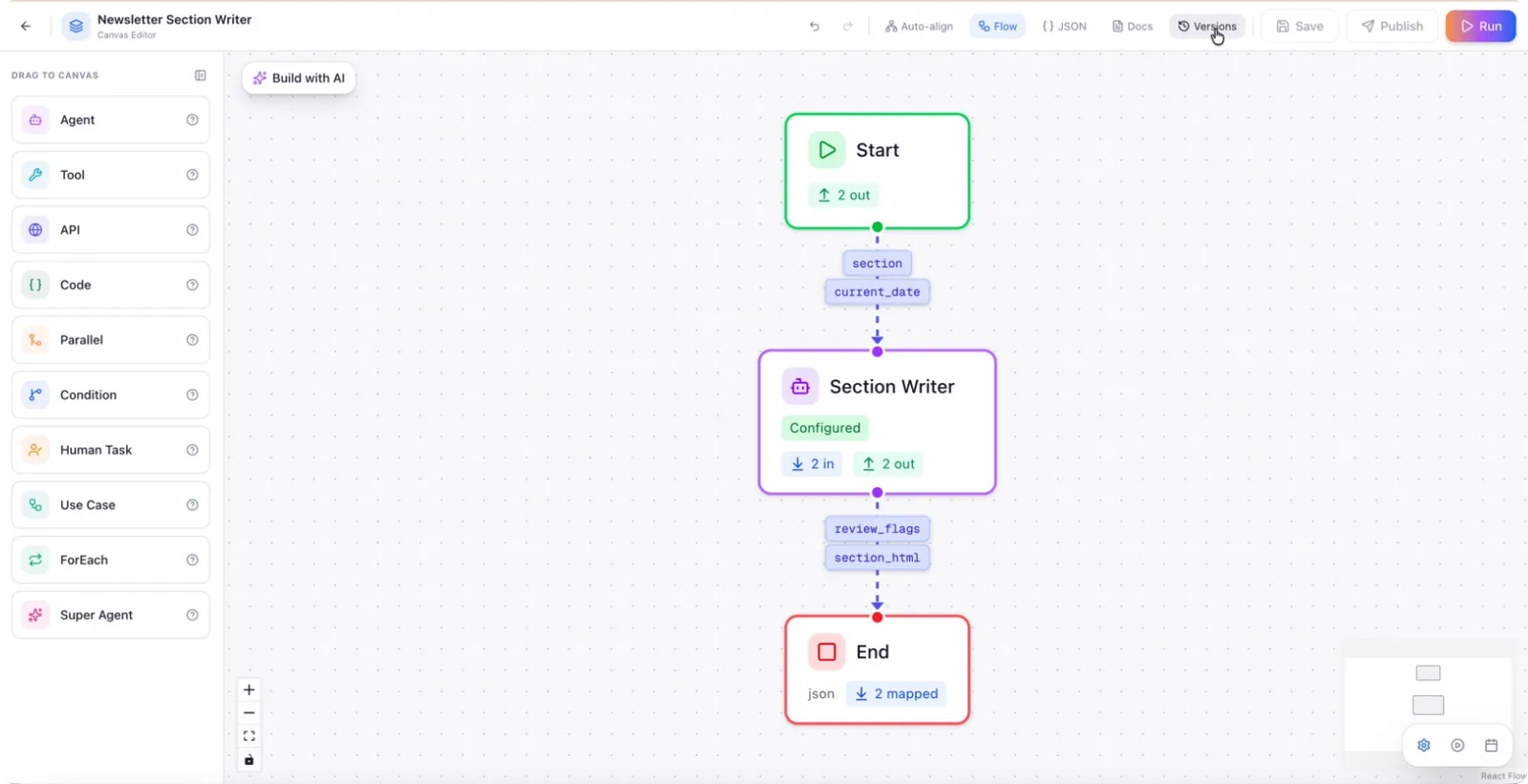
On the top of the workflow screen, click the Versions button to open the versions panel, where you can see your current and previous workflow versions.
Step 2: Assign a Custom Name to a Version
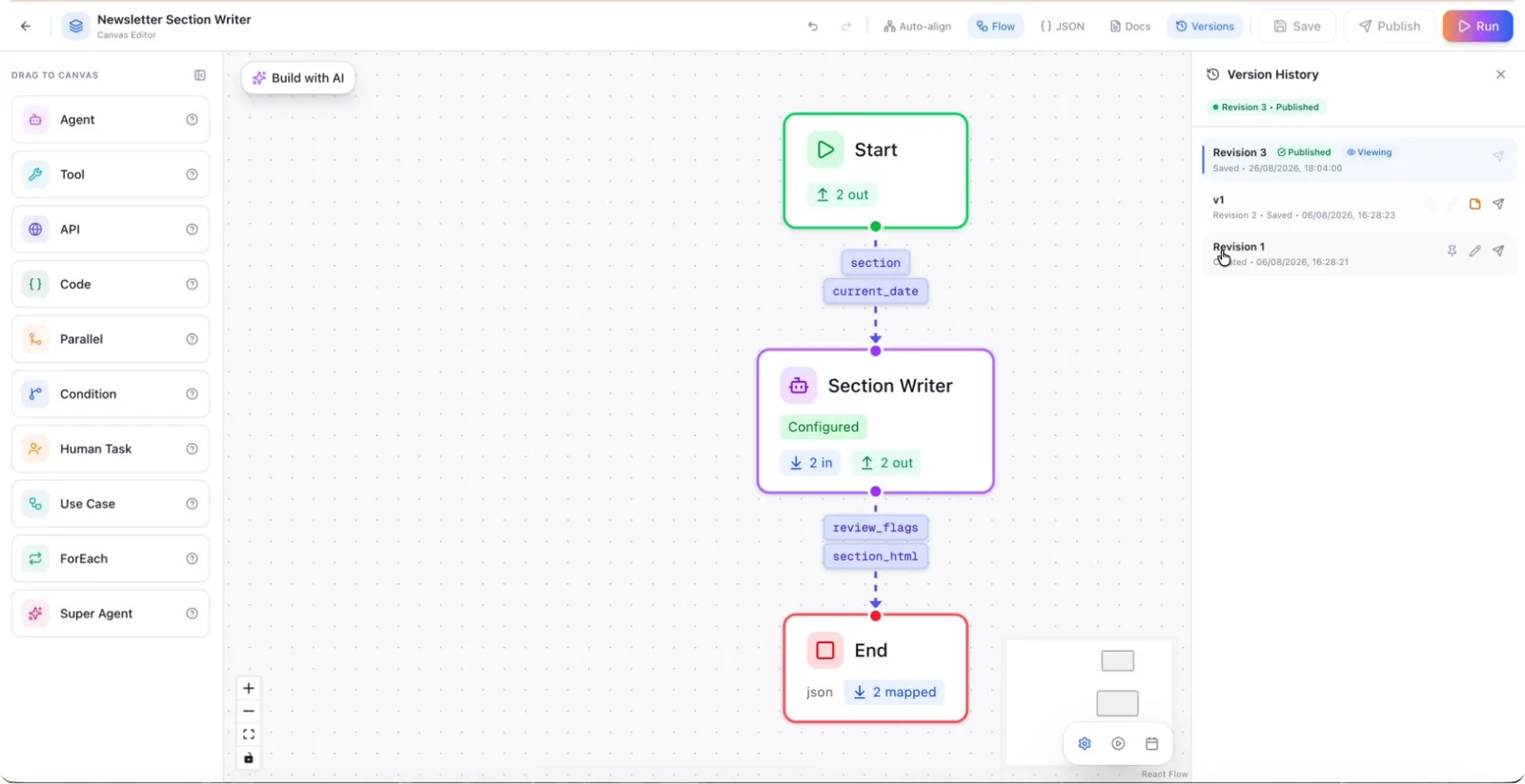
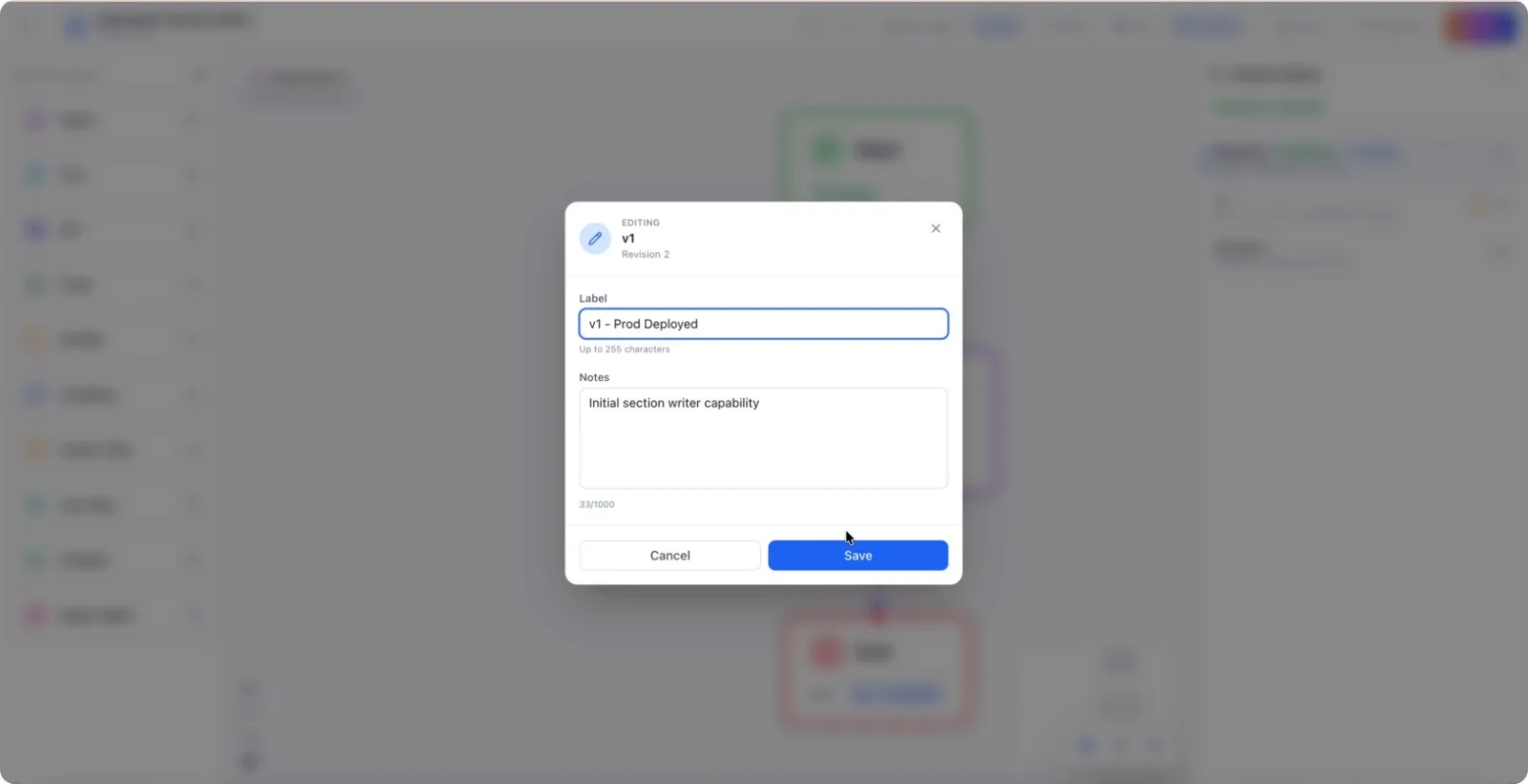
Select the version you want to label, and enter a clear, descriptive custom name (for example, V1 - Prod Deployed) in the name field.
After entering the name, save it to store this label with the selected version.
Step 3: Publish a Selected Version
To make a specific version live, click the Publish button for that version.
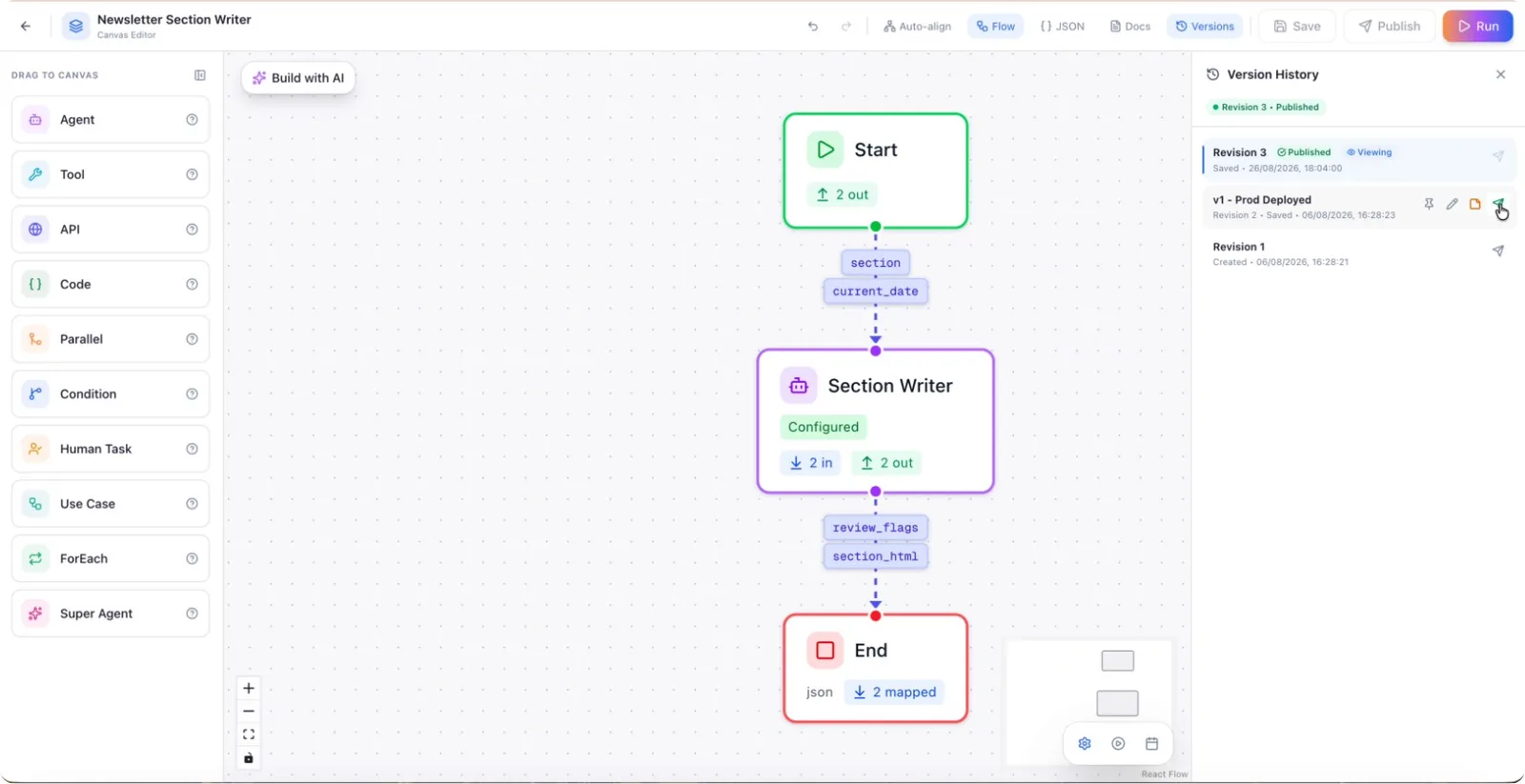
This action publishes the chosen version to your API, making it available for use.
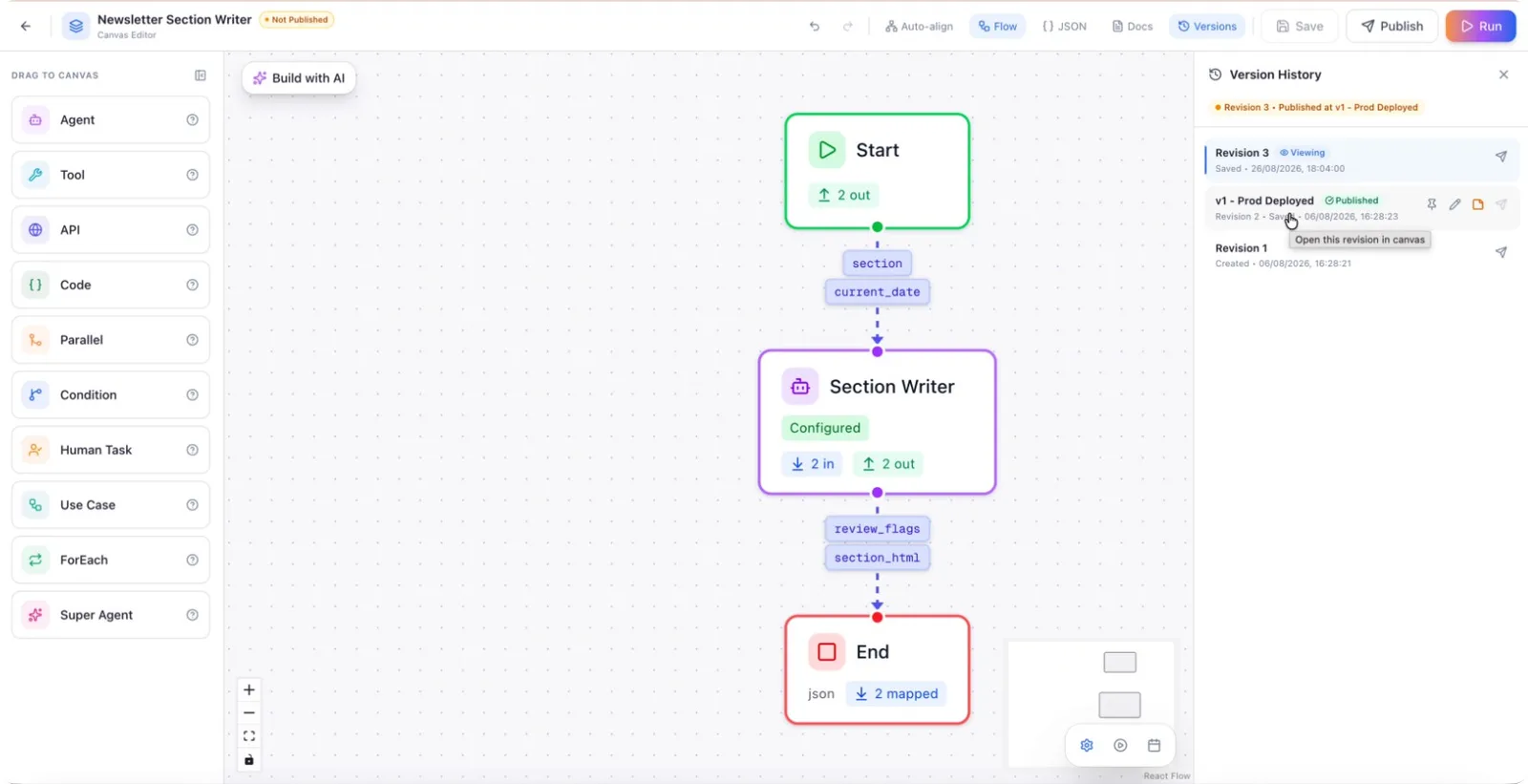
The currently published version is locked from editing, but newer versions (for example, version 3) remain editable.
Step 4: Understand Automatic Version Creation After Changes
Whenever you make changes to the workflow (for example, updating a message like “Make sure that you respond based on the details shared”) and then save your changes, a new version is automatically created.
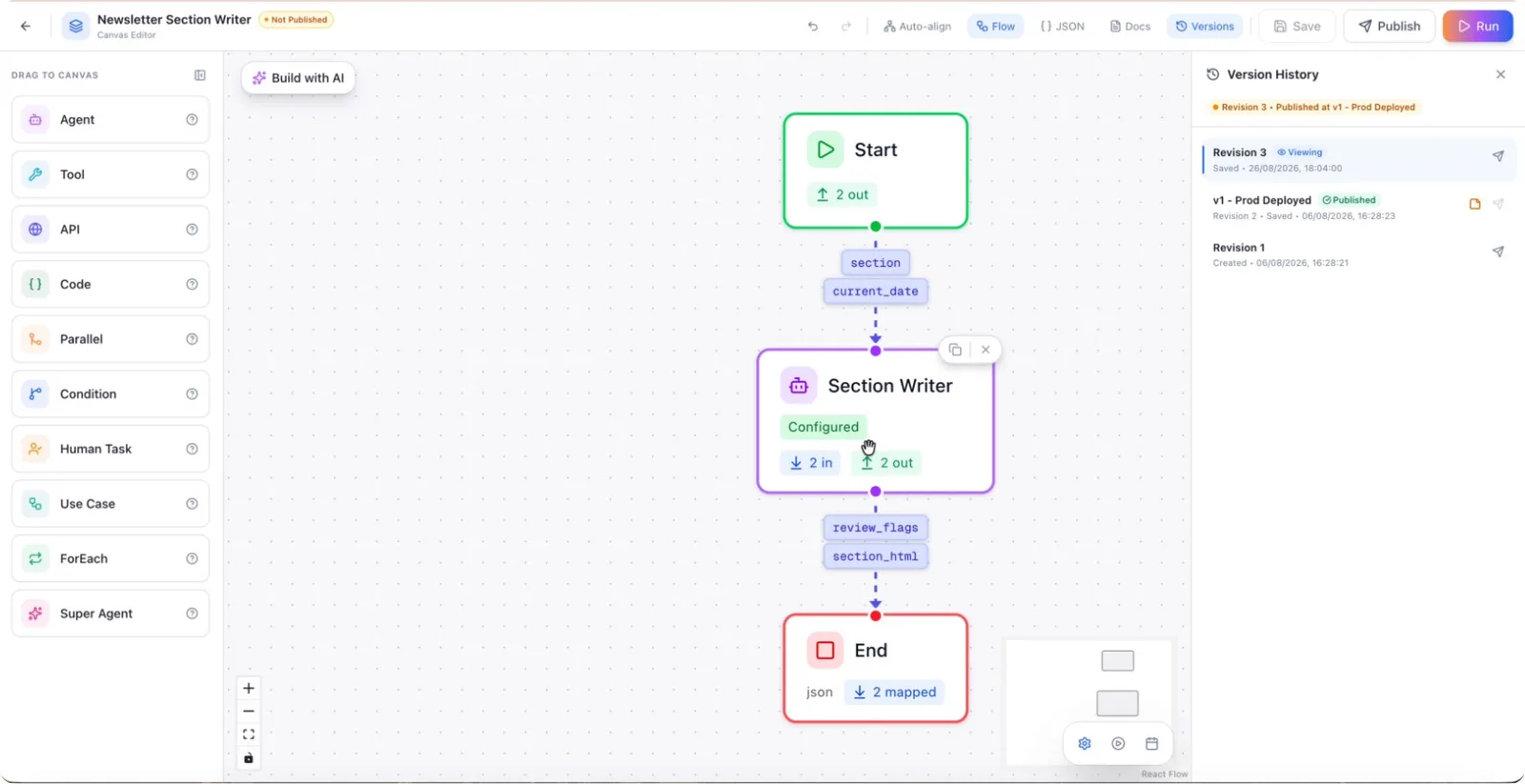
After saving, confirm that a new version entry appears in the versions panel; this is the version you are currently viewing and editing.
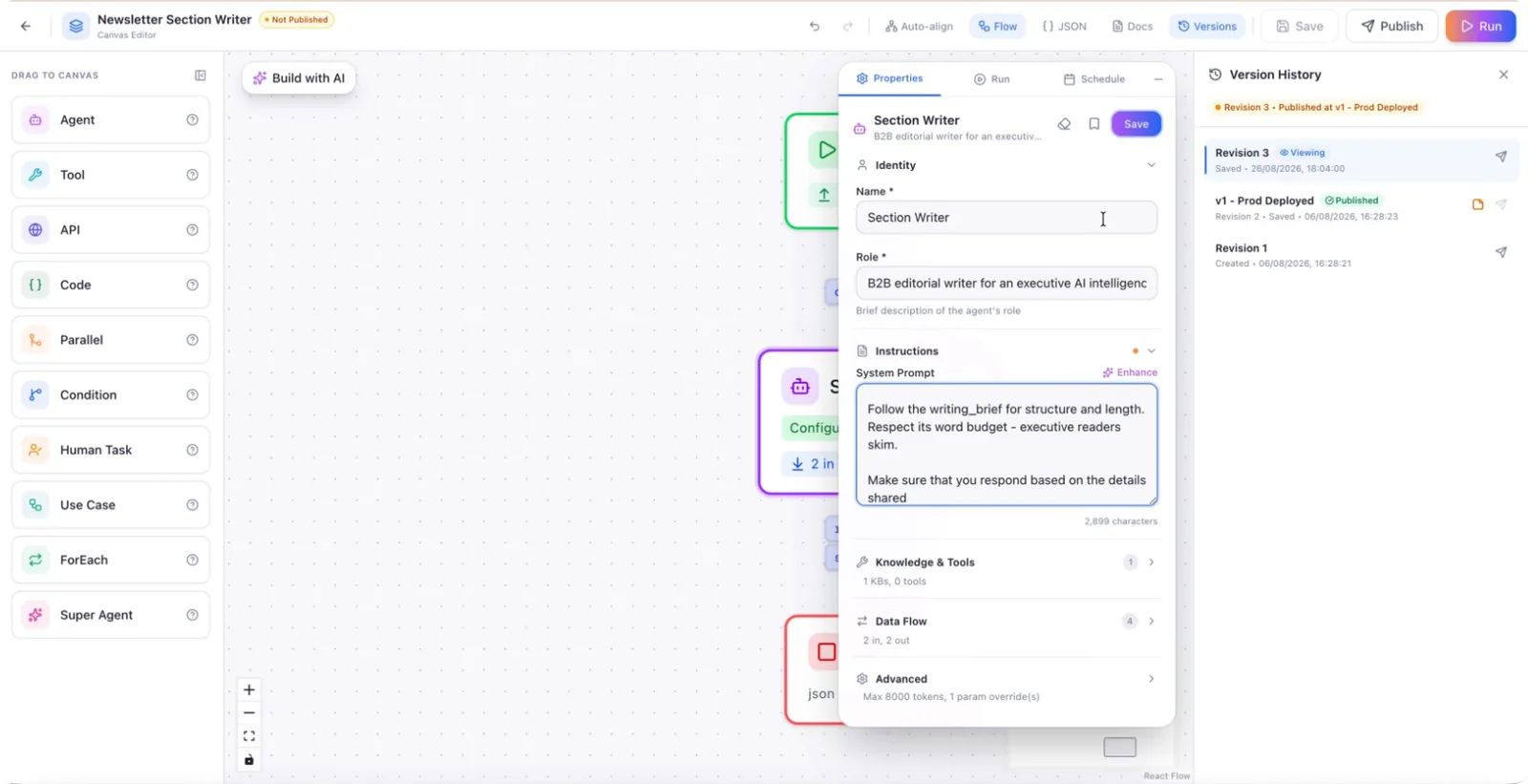
You can repeat these steps to publish the new version or roll back to any earlier version as needed.