

How-to · Lesson 15 of 19
Exposing AI Workflows as Secure APIs
Create a scoped API key so an existing workflow can be called from your own systems, store the secret the one time it is shown, and revoke it cleanly when that integration retires.
What You Will Learn
- Creating an API key per calling system, and why you name it after the system rather than yourself
- Generated usage snippets for your key and your workflow, so you never work out the signing yourself
- Why requests are signed rather than just carrying a token, and what that means for tampering
- Two ways to get your answer: wait in line for short workflows, poll token for long ones, and the rule for choosing
- Uploading and downloading files over the API, which is what makes this a real integration surface rather than just a trigger
- Per-key stats for finding the misbehaving integration without guessing
- Instant revoke, and why one key per system means one integration stops and nothing else does
Step by step guide
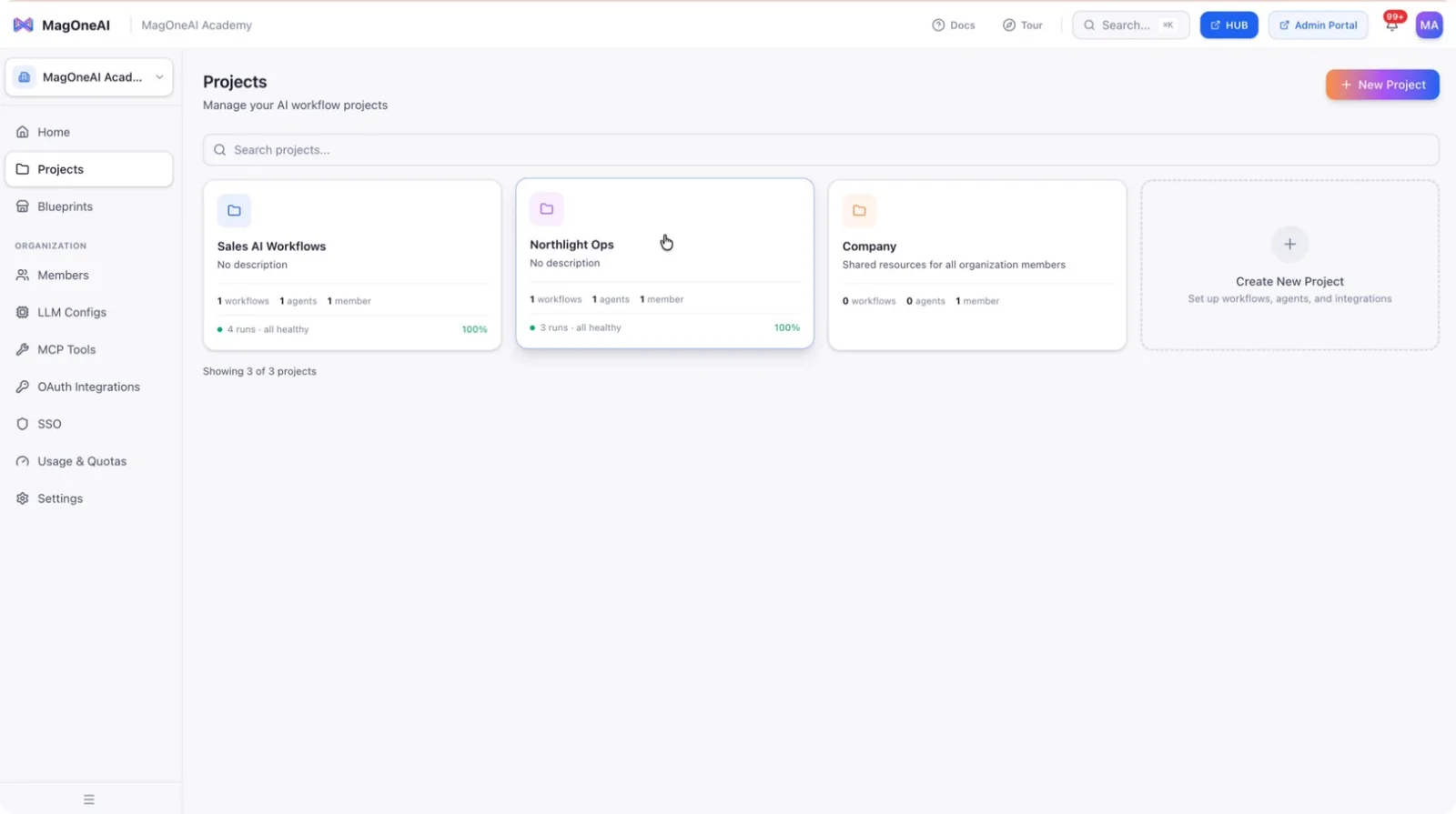
Step 1: Open Your Project from the Dashboard
From your main dashboard, open the project that contains the workflow you want to expose as an API, or create a new project if needed.
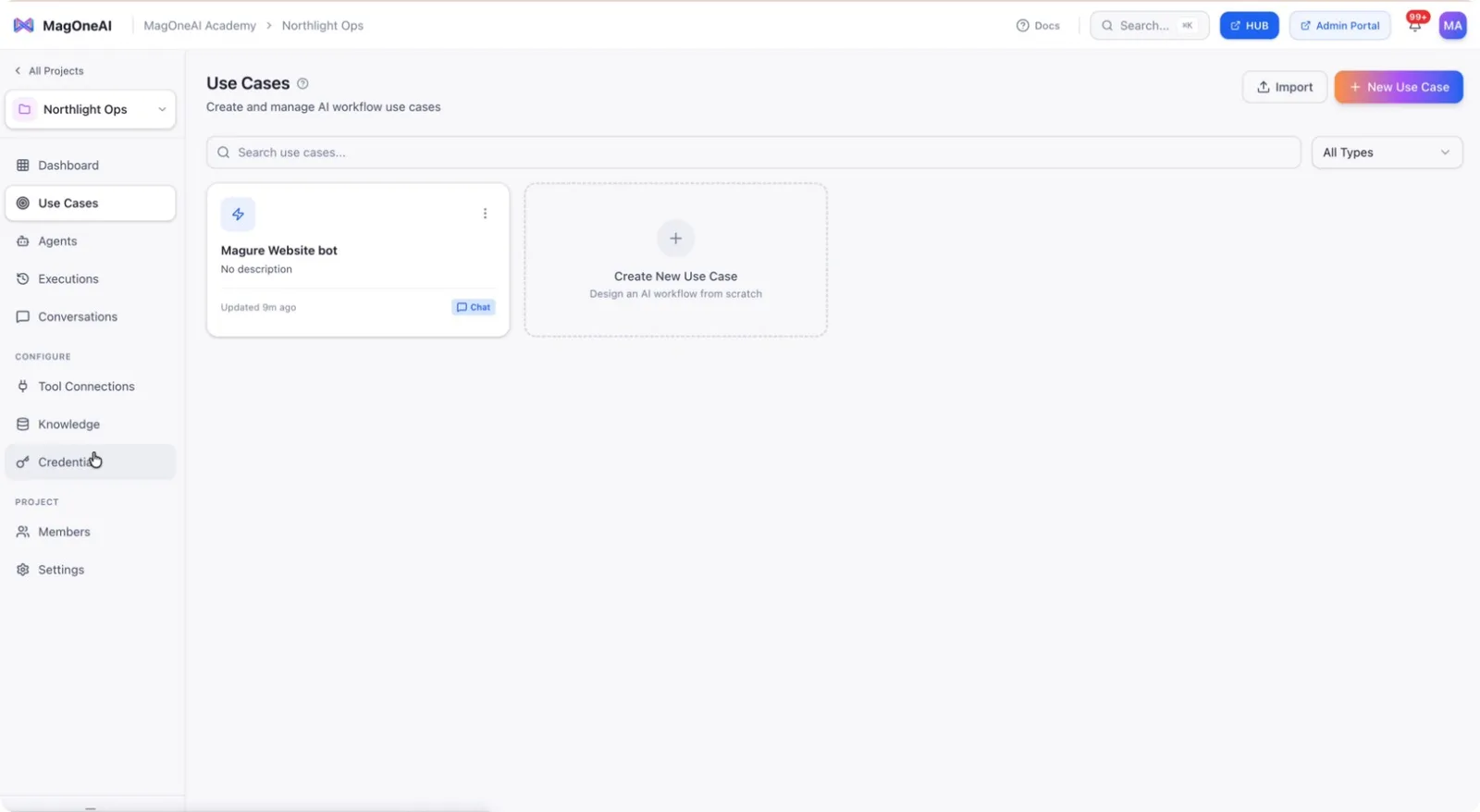
Step 2: Navigate to the Credentials Section
Within the selected project, go to the Credentials section where you manage API keys and related access.
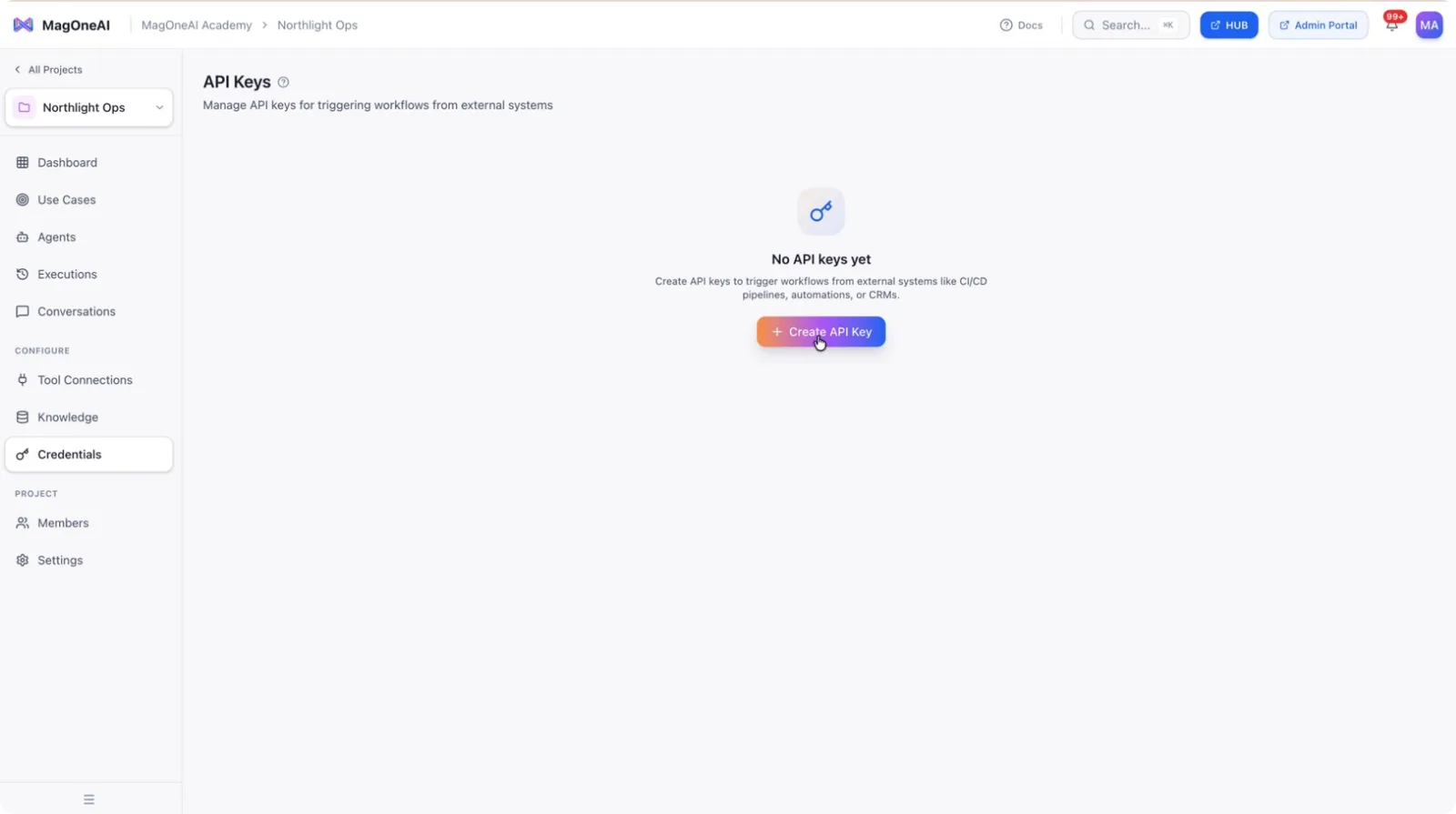
Step 3: Start Creating a New API Key
In the Credentials section, click on Create API Key to begin defining a new key that will allow external access to your workflow.
Step 4: Choose the Scope of the API Key
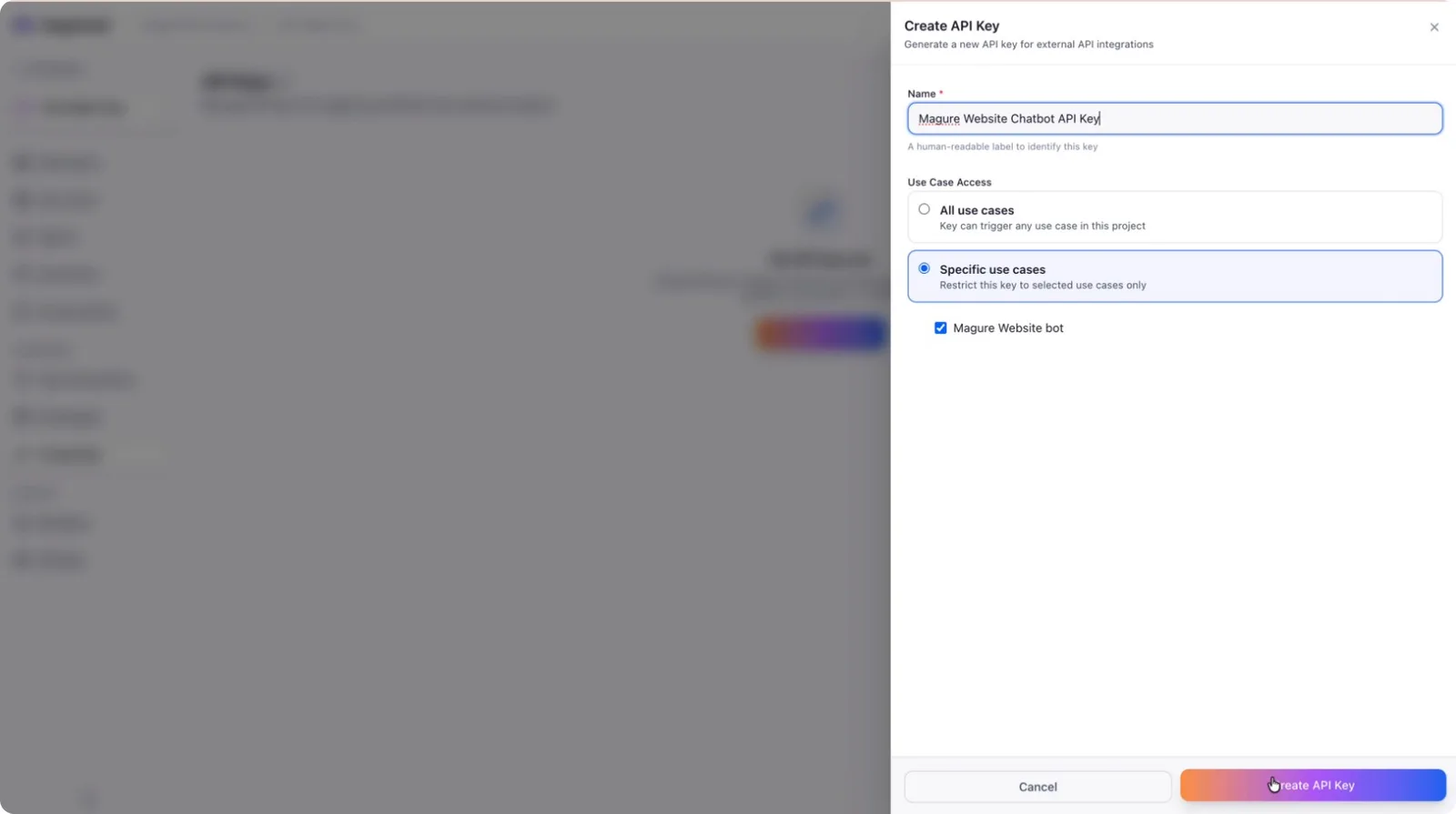
Decide whether this API key should have access to all use cases in the project or only to a specific use case, depending on your security and integration needs.
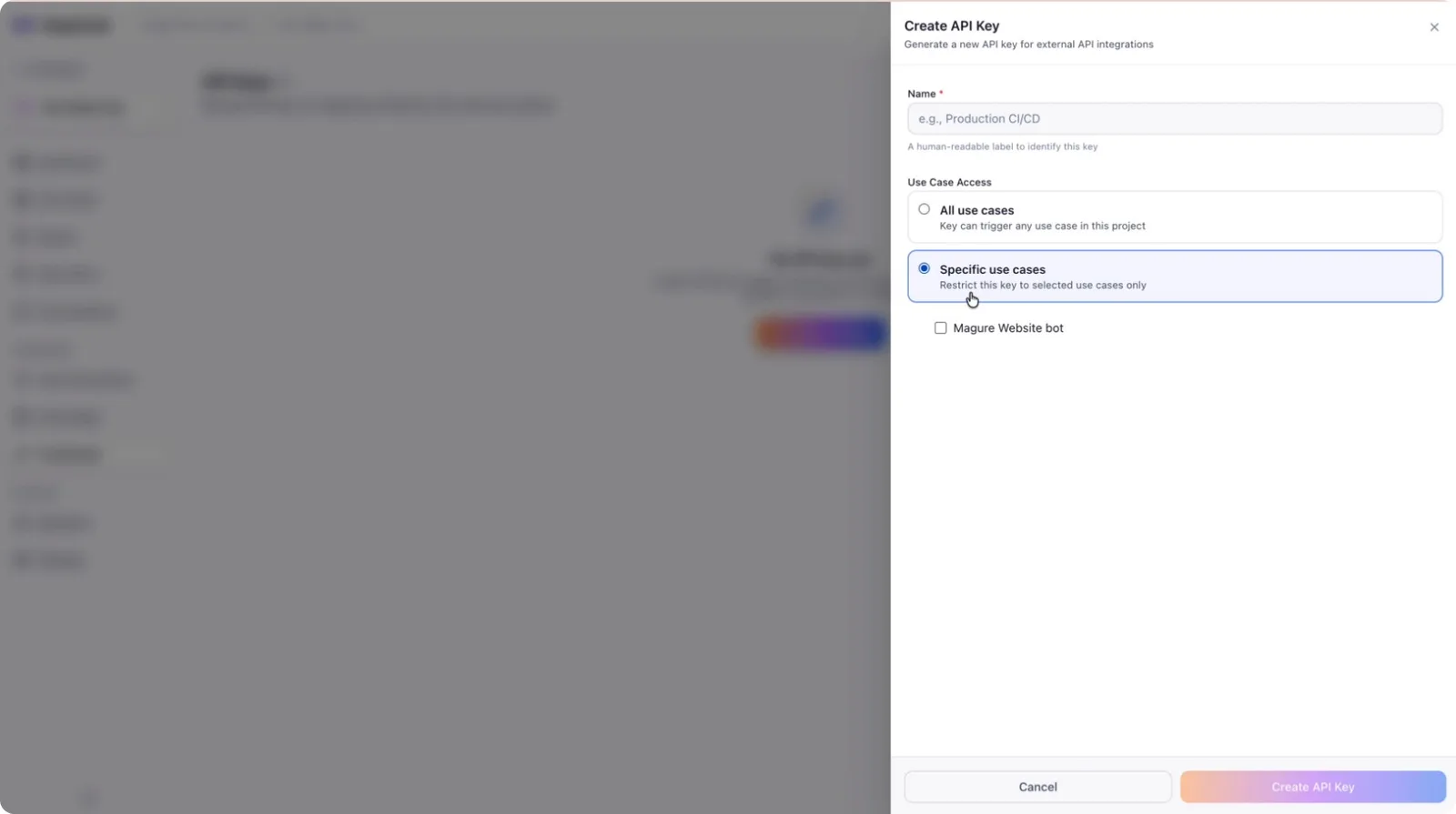
Step 5: Name the API Key and Create It
Select the specific use case you want to expose.
Give the API key a clear, descriptive name (for example, Magure Website Chatbot API Key) so you can easily identify it later and then confirm to create the API key.
Step 6: Review and Securely Store API Credentials
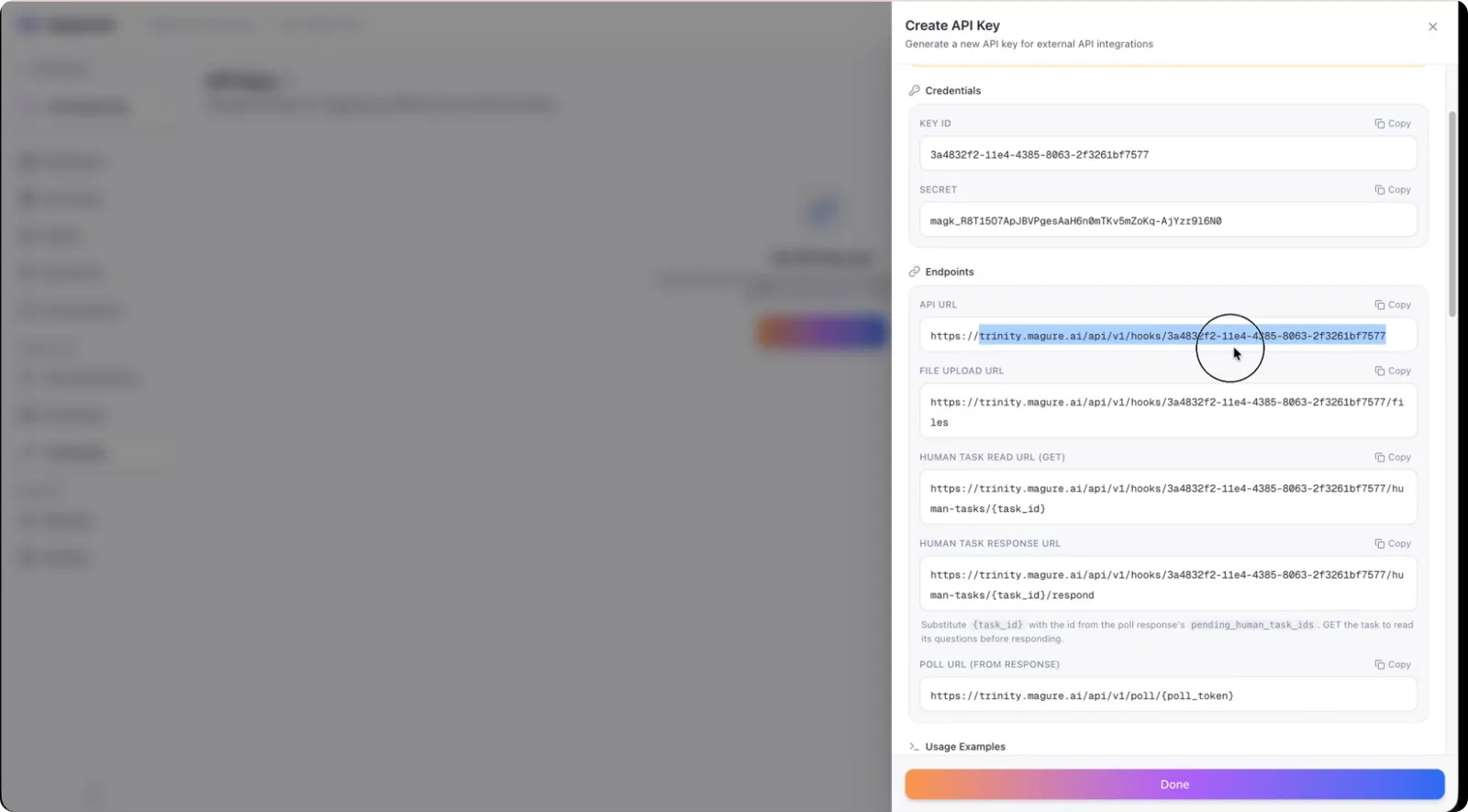
After the key is created, review the following details:
- Key ID and Secret
- Endpoint URLs, including:
- Base API URL
- File upload endpoint
- Human task endpoint
- Sample code snippets in multiple languages (Python, cURL, Node.js, Go, PHP), including examples for:
- Uploading files
- Responding to human tasks
- Polling workflow status
- Creating chats in hybrid use cases
Copy the secret immediately and store it securely (e.g., in a password manager or secrets vault). The secret will not be shown again after you leave this page.
Step 7: Revoke the API Key When No Longer Needed
If you need to disable access in the future, return to the Credentials section, locate the API key, and click Revoke to invalidate it. This ensures that any external applications using that key will no longer be able to access your workflow.