

Node Explained · Lesson 6 of 12
API Node: Direct REST Integration
Call a third-party REST API straight from the canvas: method, URL, query parameters, headers and body, then the settings that keep it safe in production: timeout, max response size, redirects, and which status codes count as failure.
What You Will Learn
- When an API node is the right answer and when the work belongs behind an MCP server instead
- Configuring method, URL, headers and body, with values mapped from earlier steps
- The rule that matters most: never paste a token into a header field, reference the stored credential instead
- Why a pasted secret is a real problem, because it is now inside a workflow definition that gets exported and shared
- Making the response available to every step downstream
- Reading the call in the execution log like any other step
Step by step guide
Step 1: Add and Name the API Node
Drag and drop the API node onto your workflow canvas.
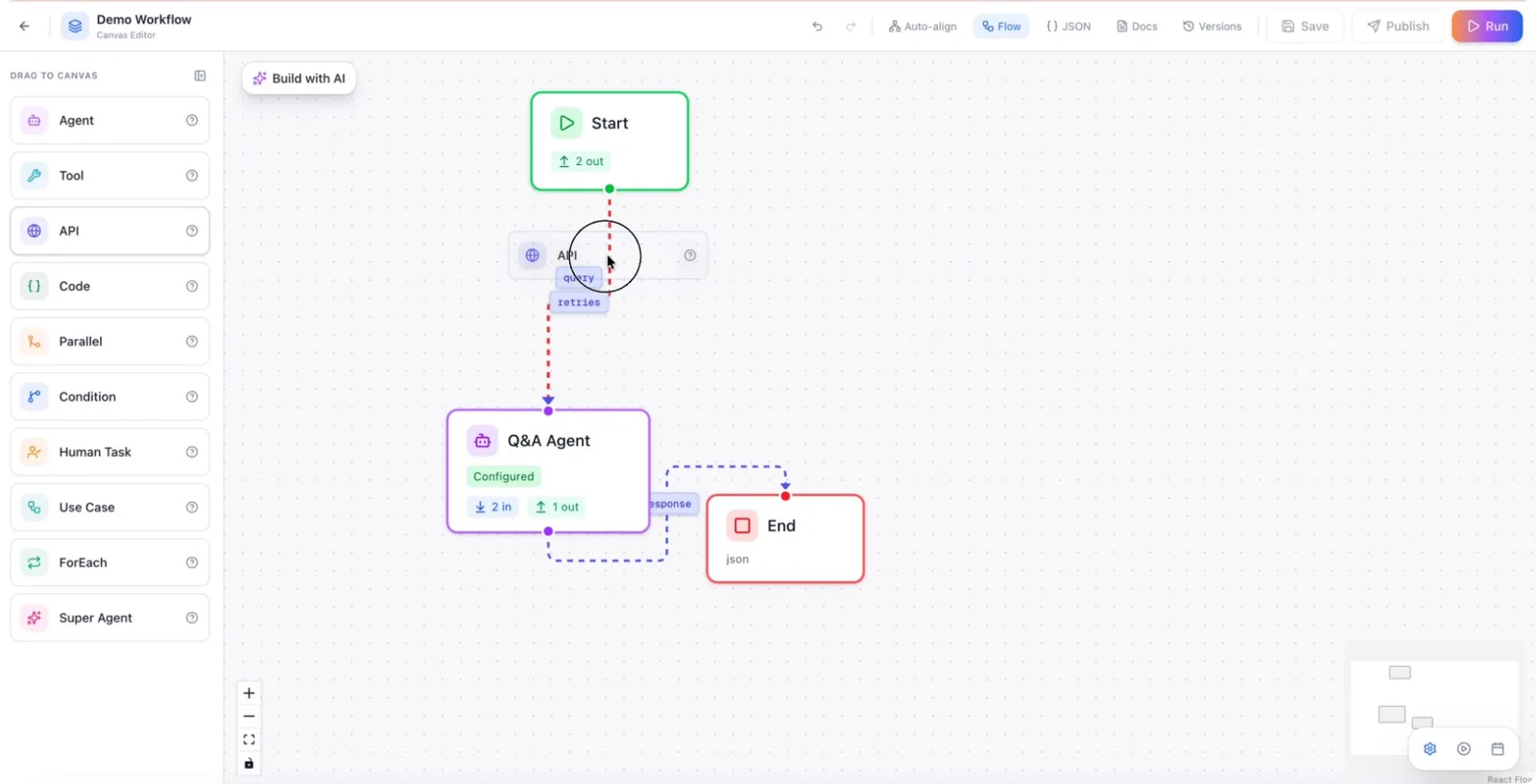
In the node configuration panel, give the node a clear, descriptive name, such as Authenticate API.
Step 2: Choose the HTTP Method
Select the appropriate HTTP method for your request (e.g.,GET POST, PUT, PATCH, DELETE, HEAD, or OPTIONS).
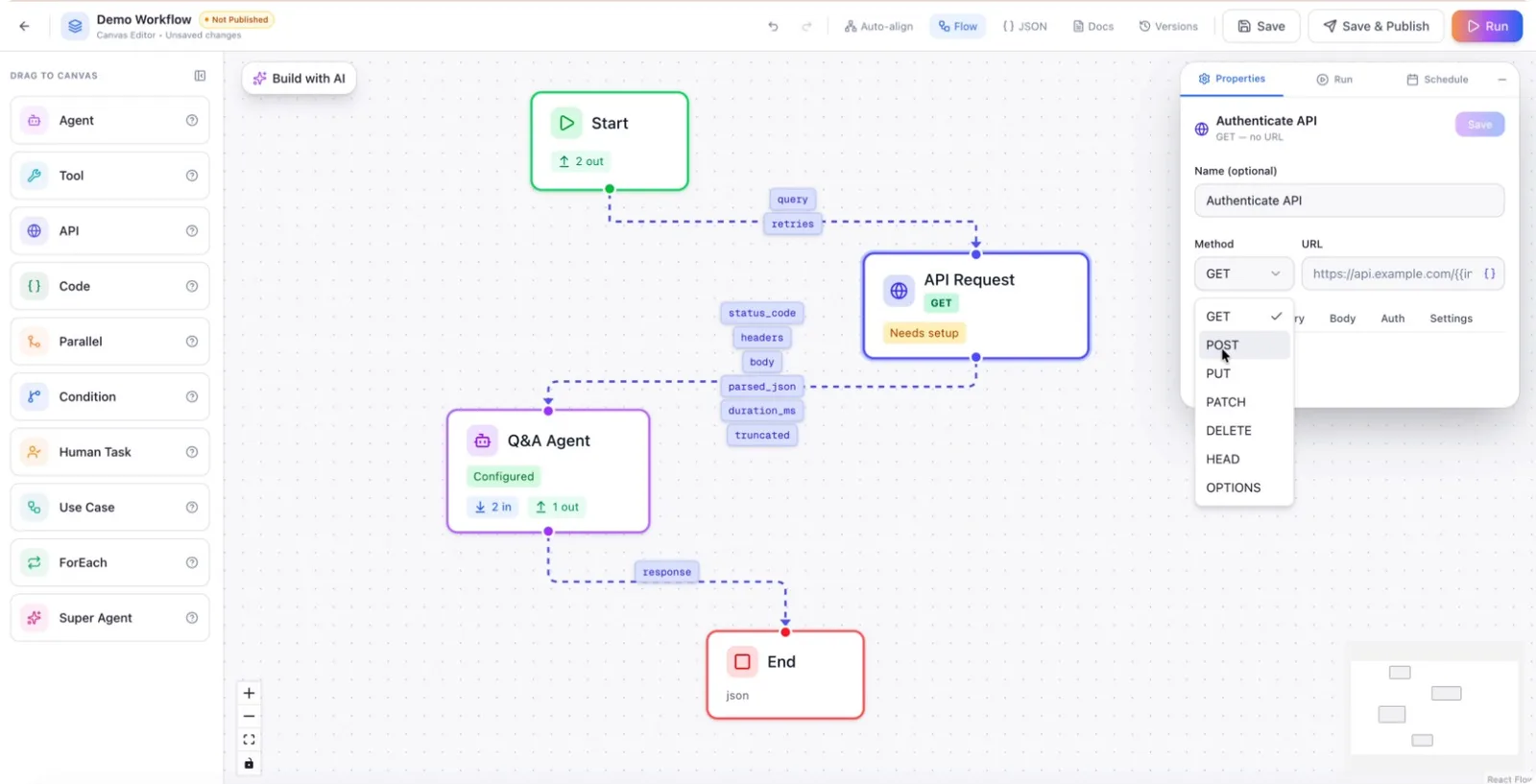
For example, choose POST when creating or submitting data to the API, then enter the target API URL.
Step 3: Configure Query Parameters and Headers
If the API requires query parameters, add them in the query section (e.g., input.query or other dynamic inputs from your workflow).
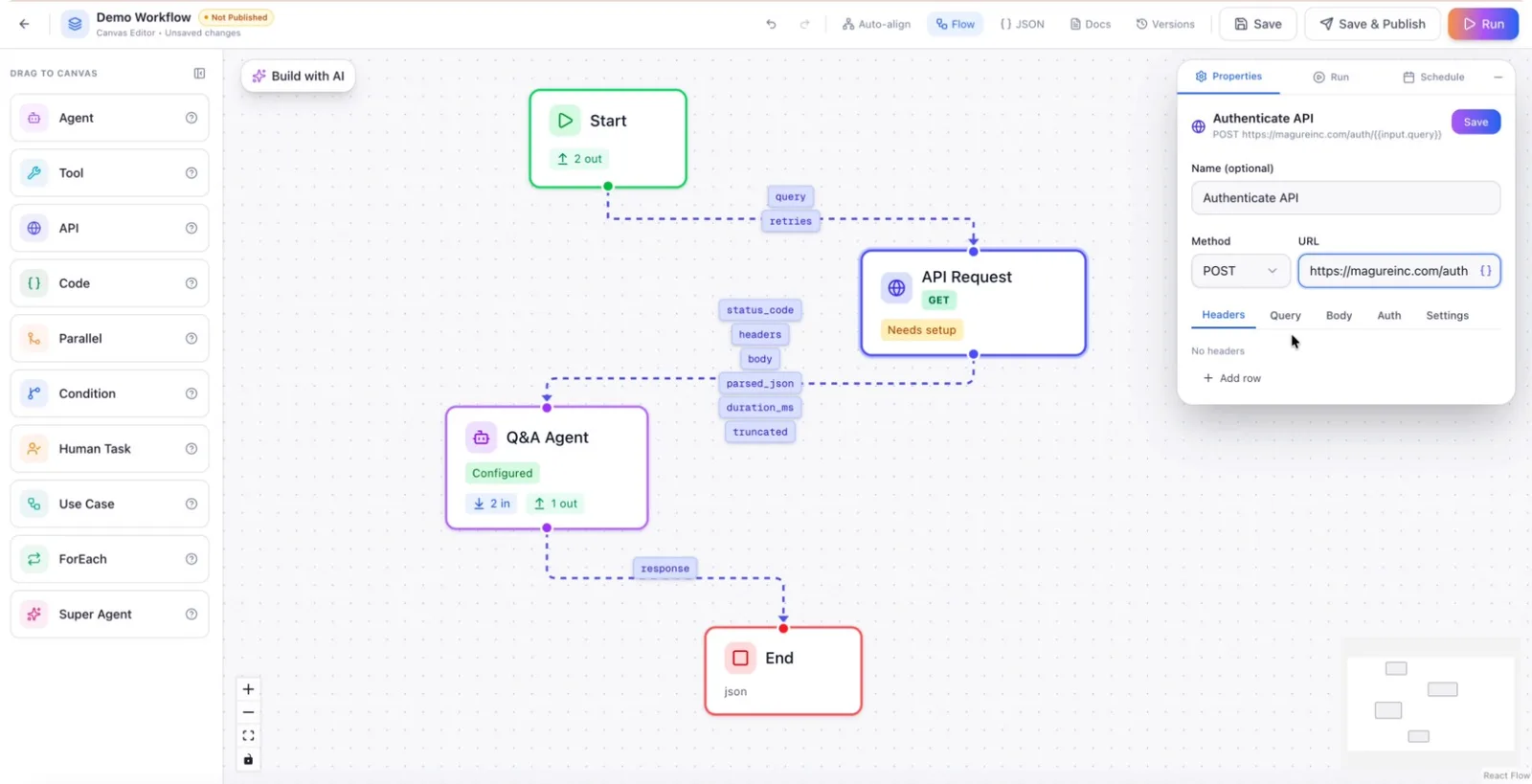
Add any necessary HTTP headers, such as Content-Type, Accept, or custom headers required by the third‑party API.
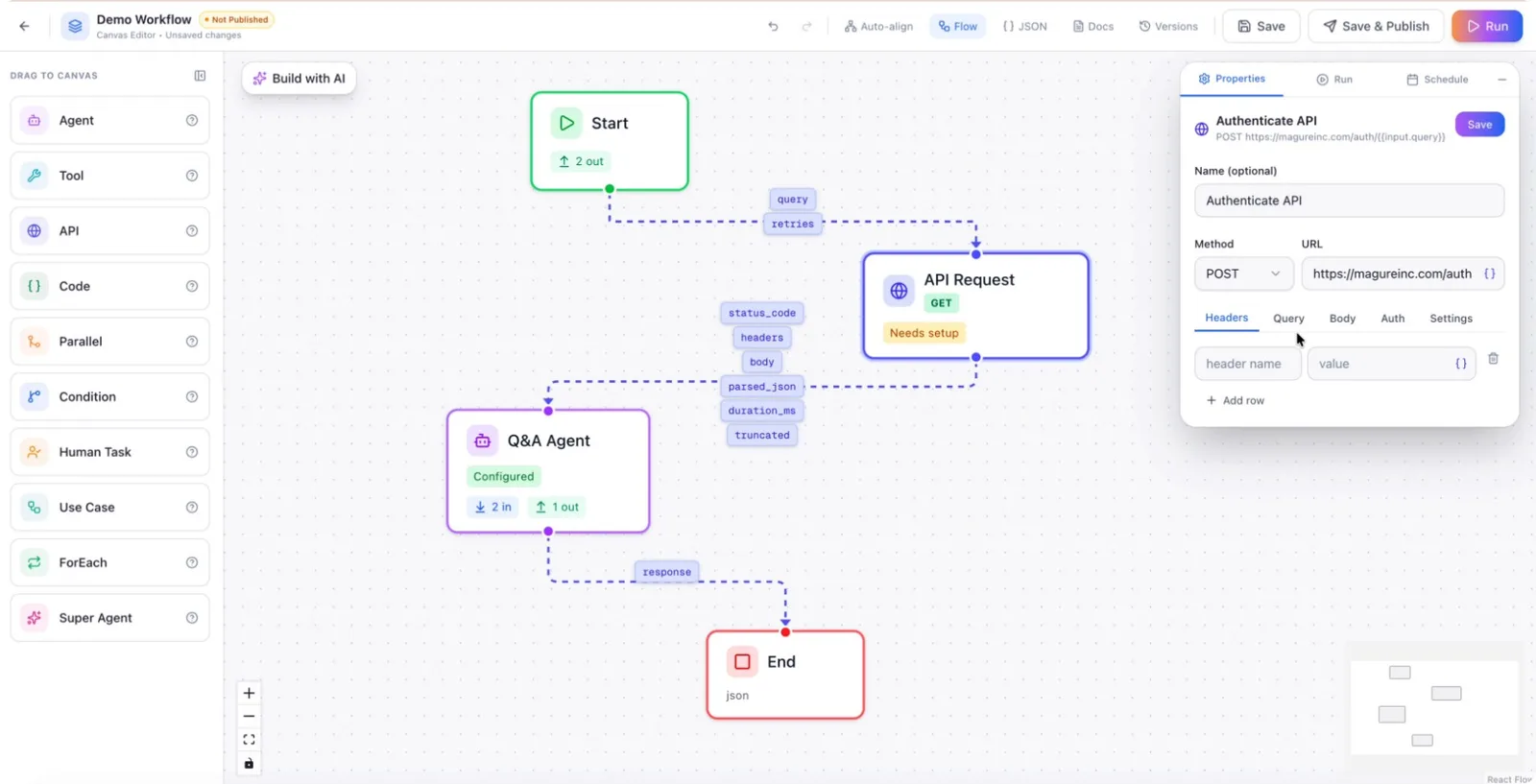
Step 4: Add Custom Parameters and Request Body
Include any additional custom parameters the API expects. Select and configure the request body format according to the API specification, such as JSON, plain text, form data, or multipart (for file uploads).
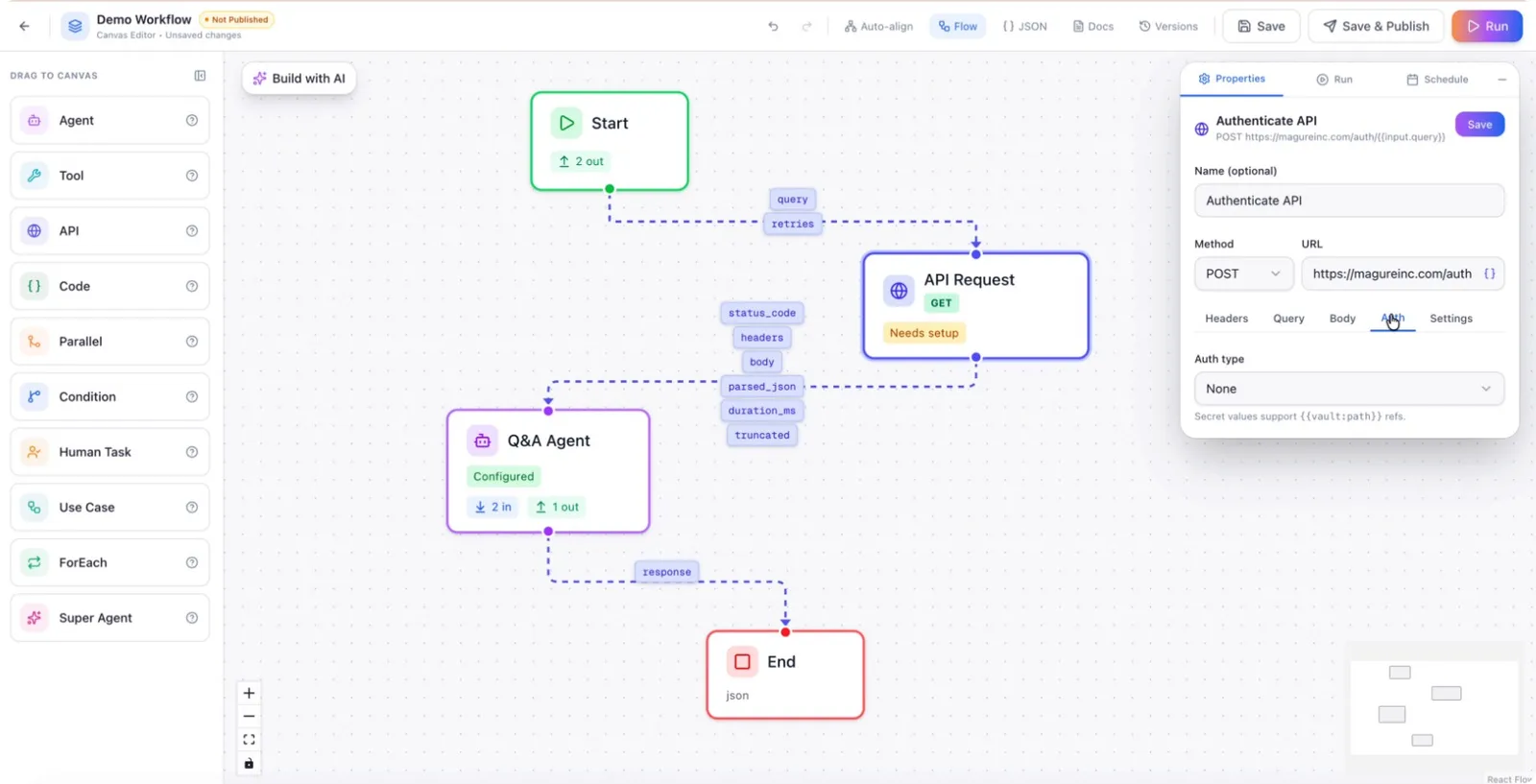
Step 5: Set Authentication and Advanced Settings
Configure authentication as required by the API, such as Bearer token, API key, or HMAC signature. Then review and adjust advanced settings:
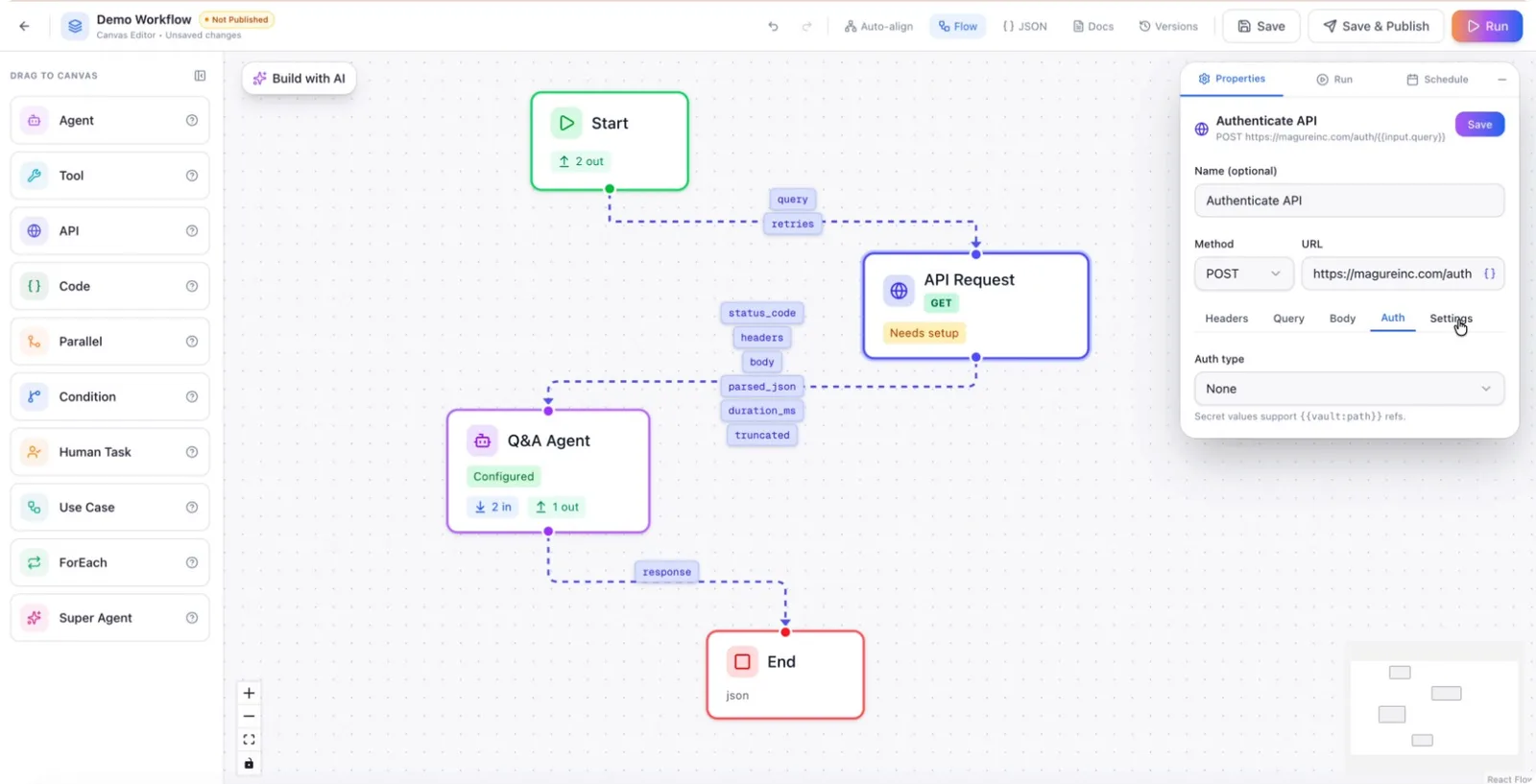
- Timeout: Set how long the node should wait for the API to respond.
- Max response size: Limit the response size for security and performance.
- Response capture: Choose whether to store body + parsed JSON, body only, or parsed JSON only.
- Redirects: Decide whether to follow HTTP redirects.
- Error handling: Specify whether HTTP 4xx and 5xx responses should be treated as failures.
Once configured, the API node will be able to call custom third‑party APIs and pass their responses into your workflow for further processing.