
Node Explained · Lesson 11 of 12
PARALLEL Node: Concurrent Execution and Merge Strategies
Run agents at the same time instead of one after another. Give each its own branch, add conditions if a branch should only sometimes run, then choose a merge strategy for how the results come back together.
What You Will Learn
- Spotting steps that are independent and queuing behind each other for no reason
- Wrapping them in a PARALLEL node and giving each one its own branch
- The three join modes and when each applies: combine everything, take whichever answers first, or fail if any branch fails
- Why combine is the usual answer, first success is for redundant sources, and all required is for when a missing piece makes the result wrong rather than merely incomplete
- Handing every branch to a single agent afterwards to pull together
- The one warning: parallelising steps that actually depend on each other makes things worse, not faster
Step by step guide
Step 1: Add a Parallel Node to the Workflow
Drag and drop a Parallel node from the components panel onto your workflow canvas.
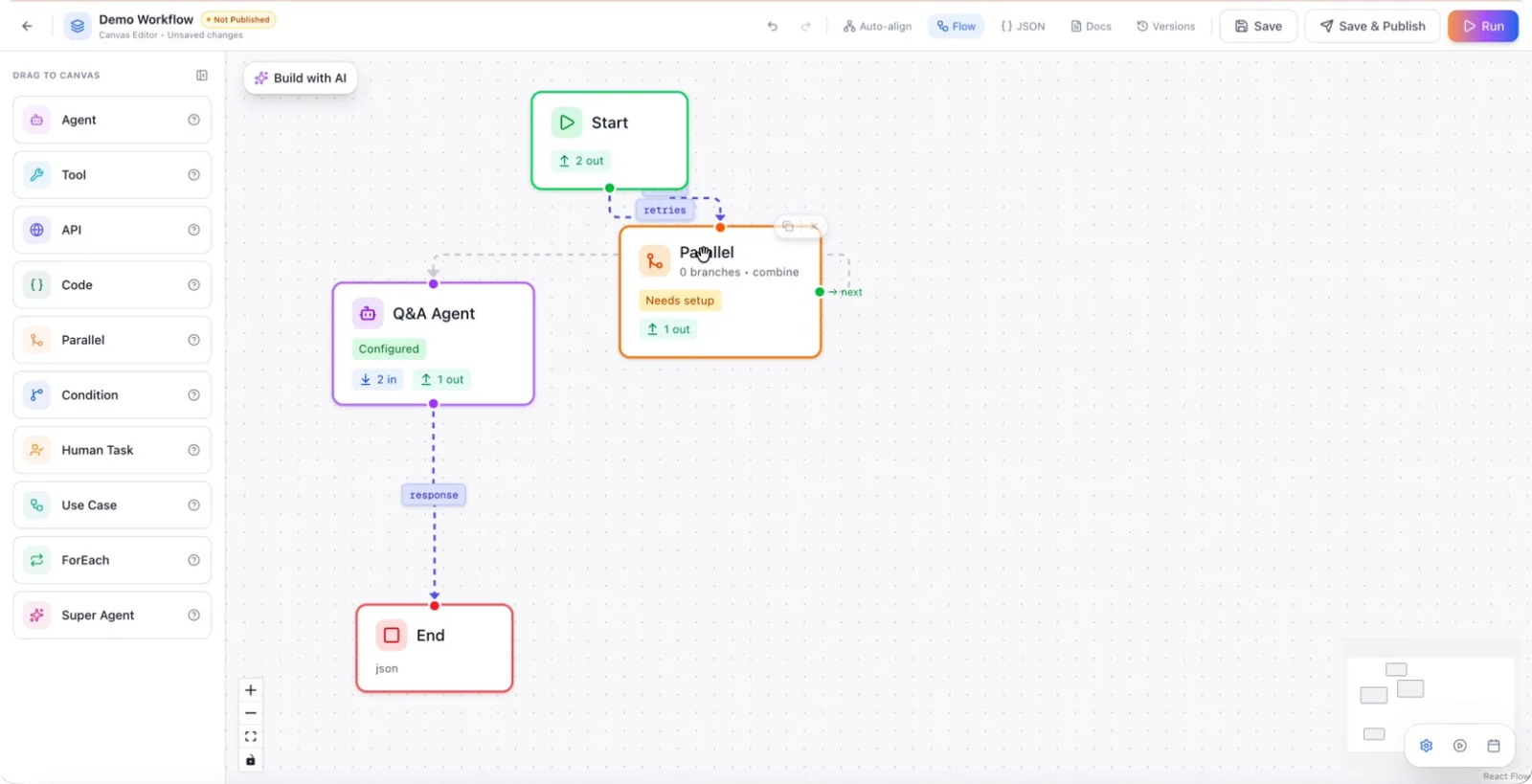
Position the node where you want parallel execution to begin.
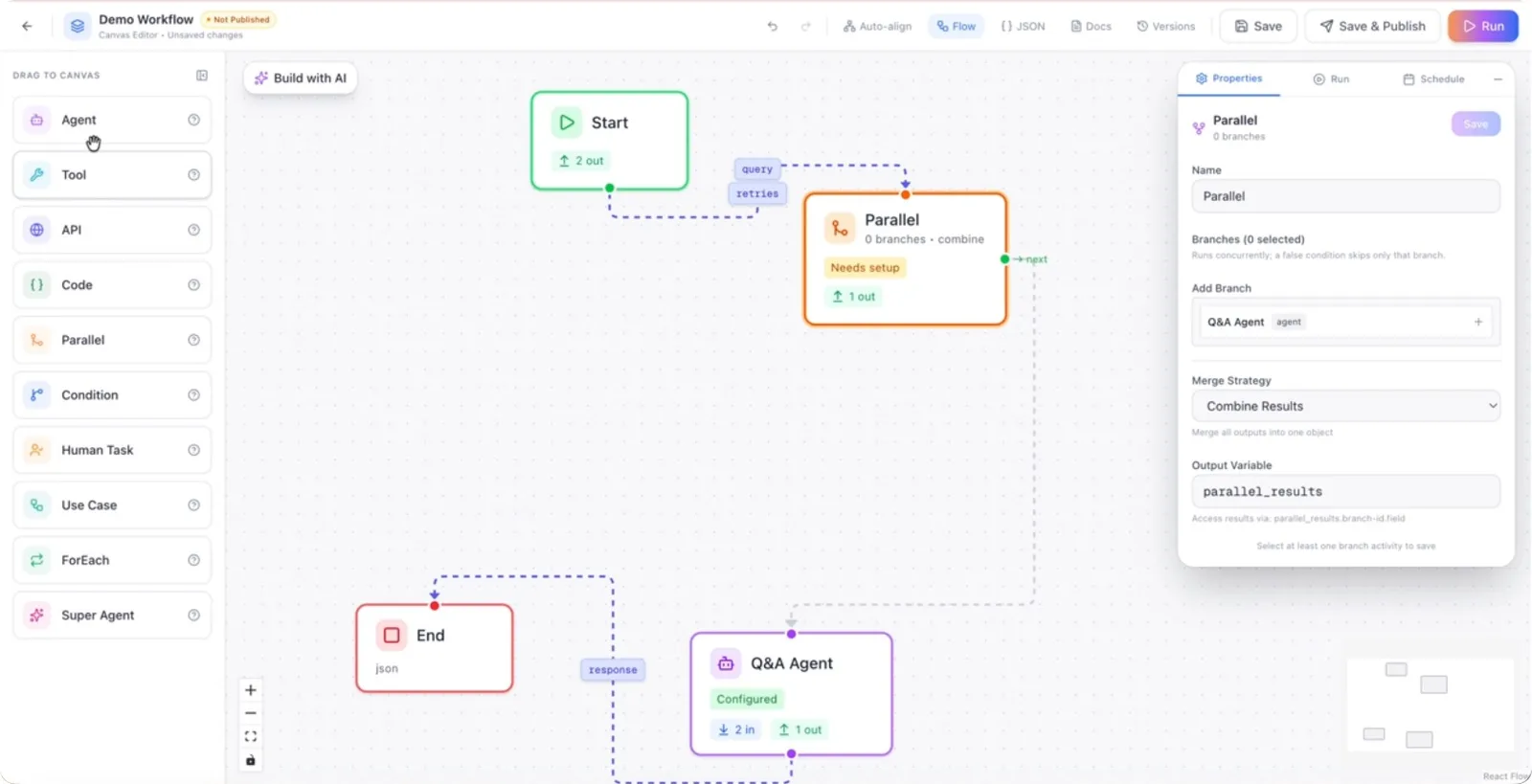
Step 2: Understand the Purpose of the Parallel Node
Use the Parallel node when you want to run multiple agents or tools simultaneously instead of sequentially.
Step 3: Add and Connect Agents to the Parallel Node
Attach agents to the Parallel node by adding them on the canvas and linking them from the Parallel node’s output ports.
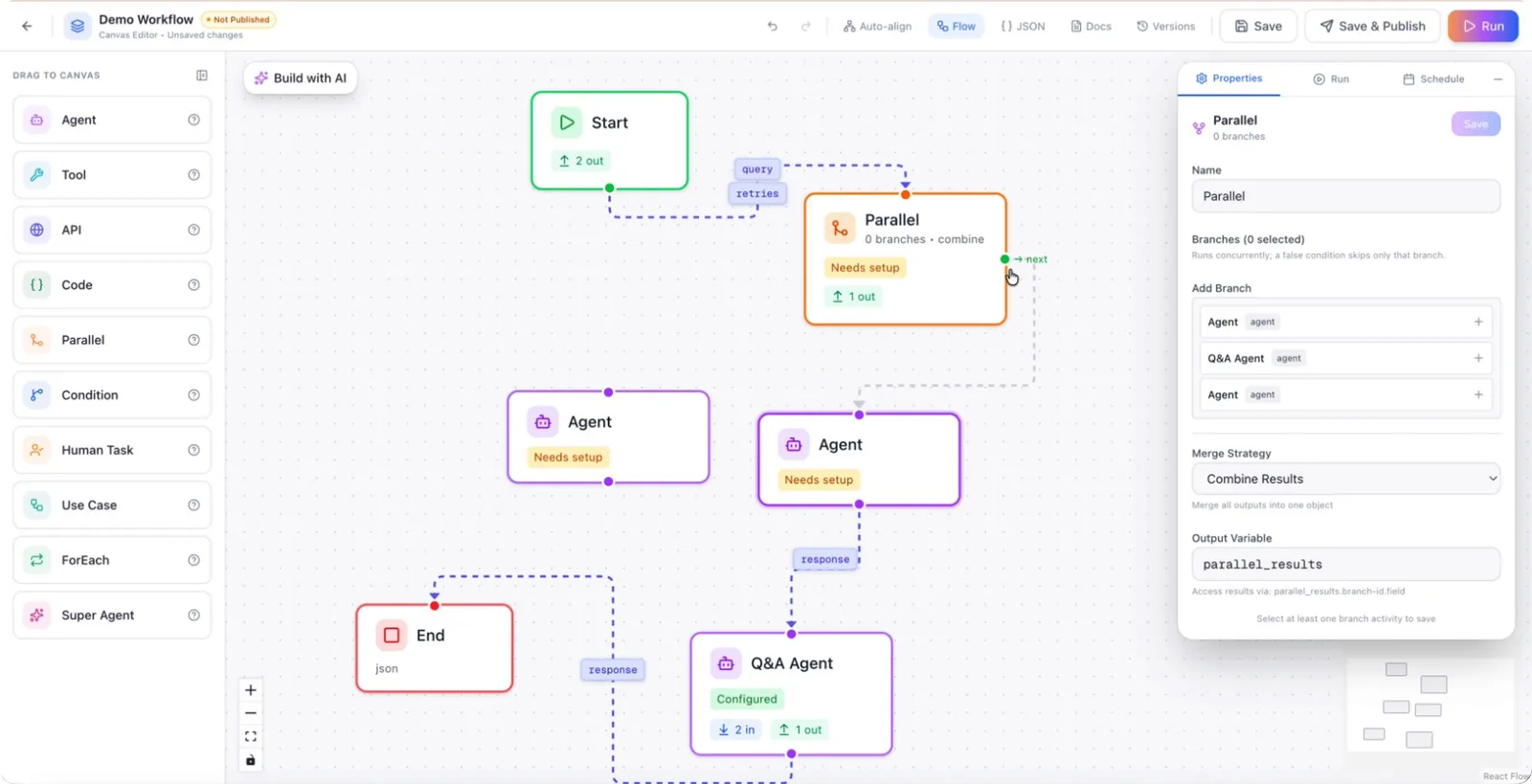
Connect the node(s) so that the workflow flows from the previous step into the Parallel node and then into the agents. Remove any old or unnecessary connections that no longer apply to this new structure.
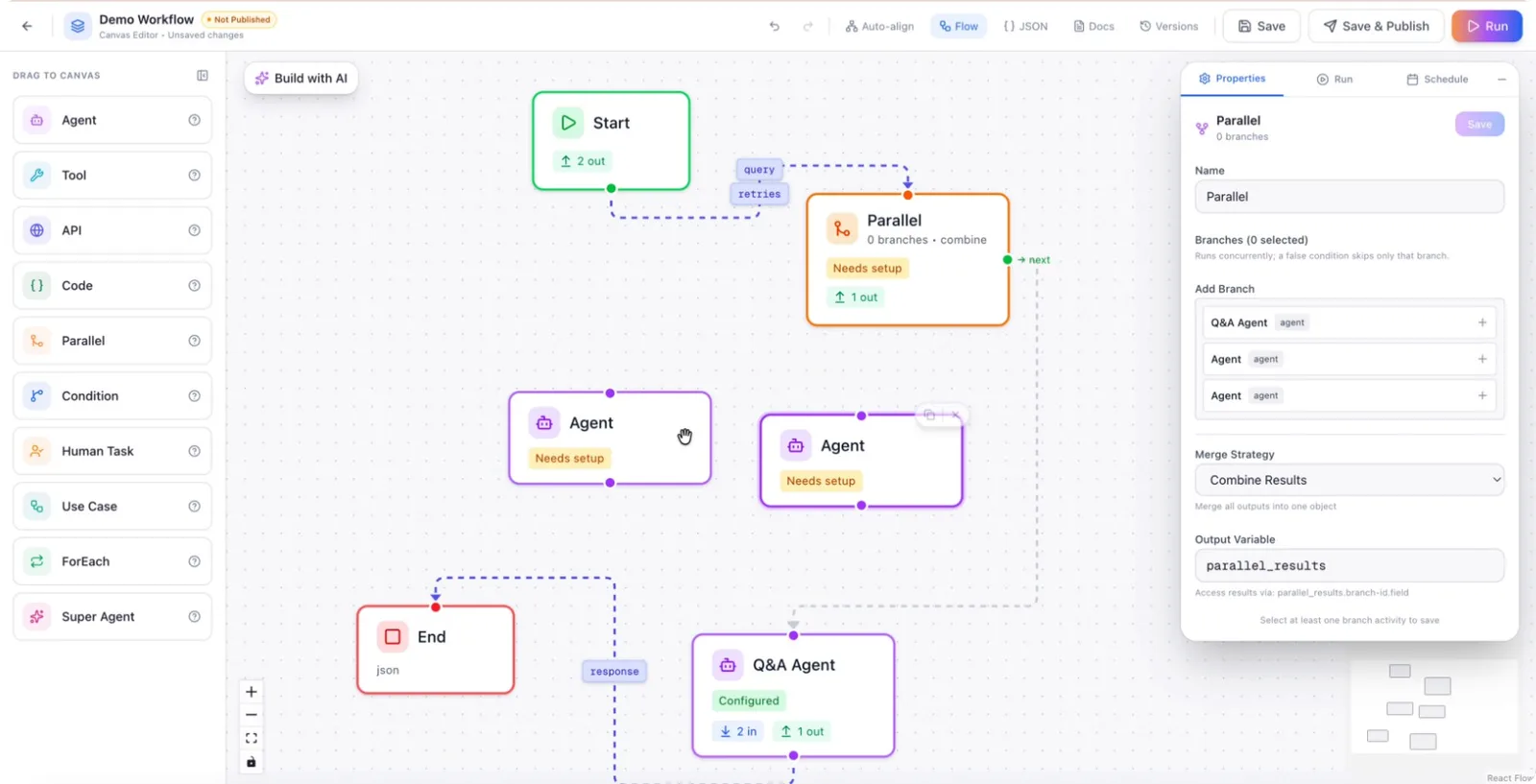
Step 4: Name the Agents for Clarity
Rename the first agent to “Web Agent 1” (or a similar descriptive name) so it is easy to identify in the workflow. Rename the second agent to “Web Agent 2” and save your changes.
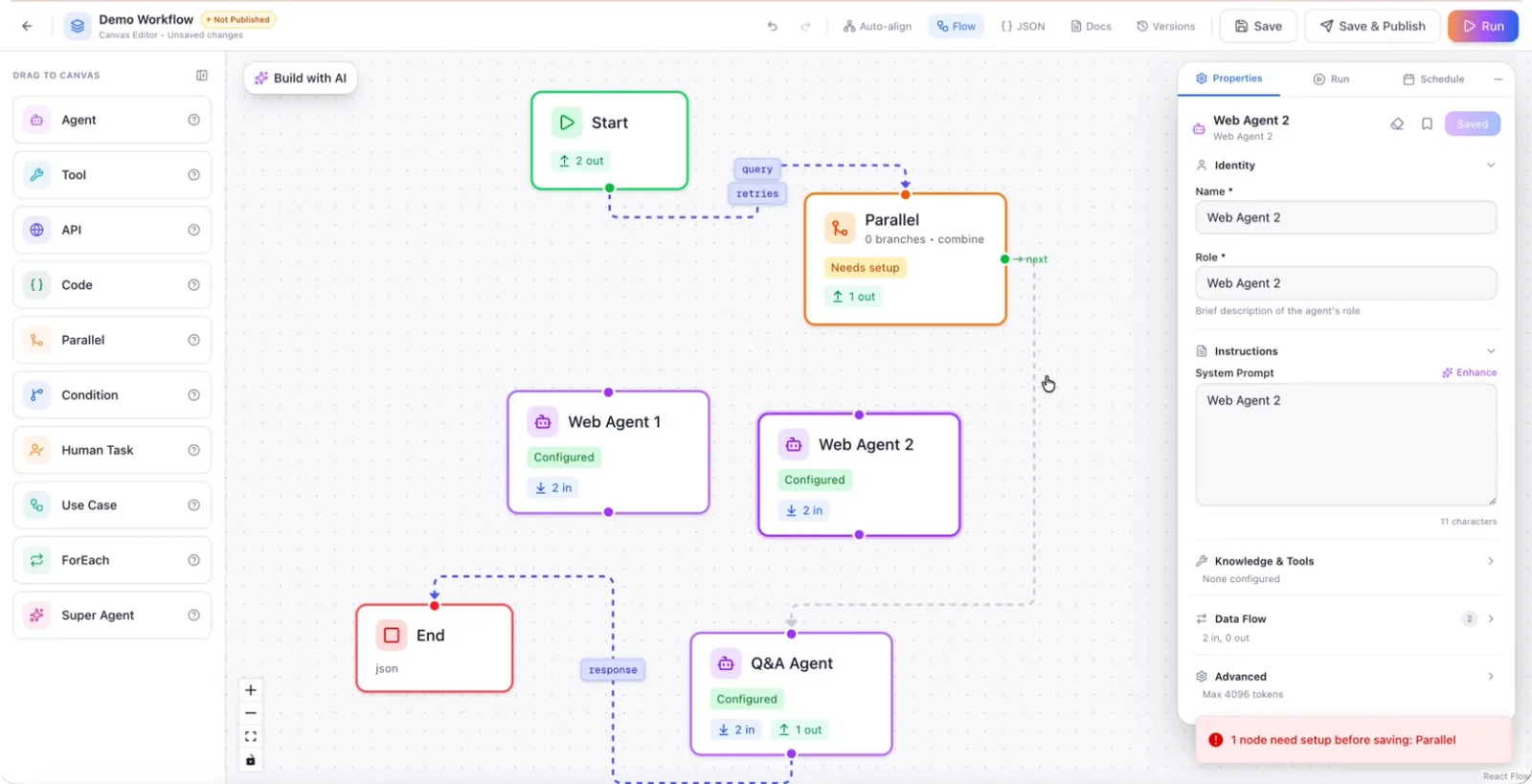
Step 5: Configure Parallel Execution from the Parallel Node
Open the Parallel node’s configuration and click the plus (+) icon to add branches or outputs that will run in parallel.
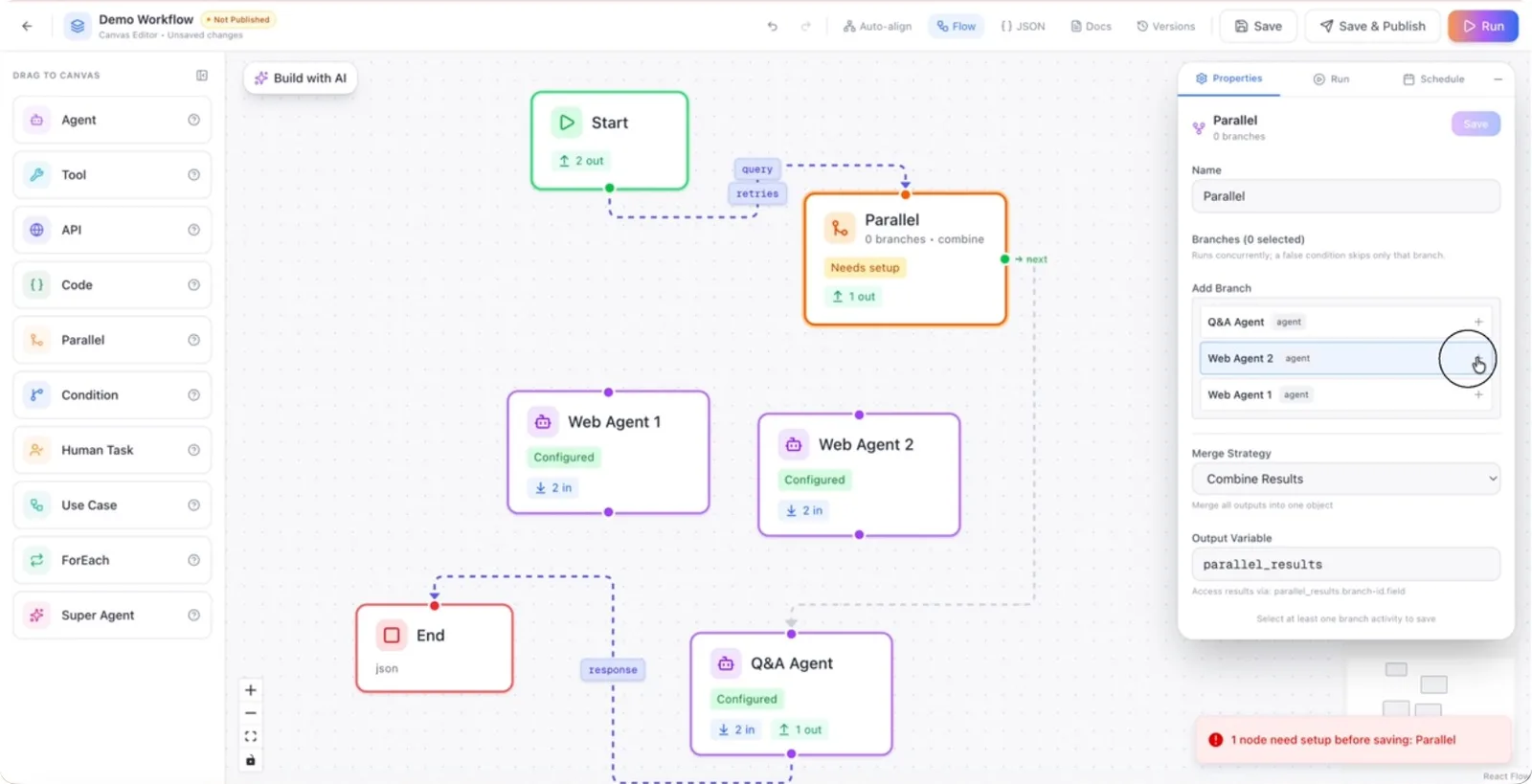
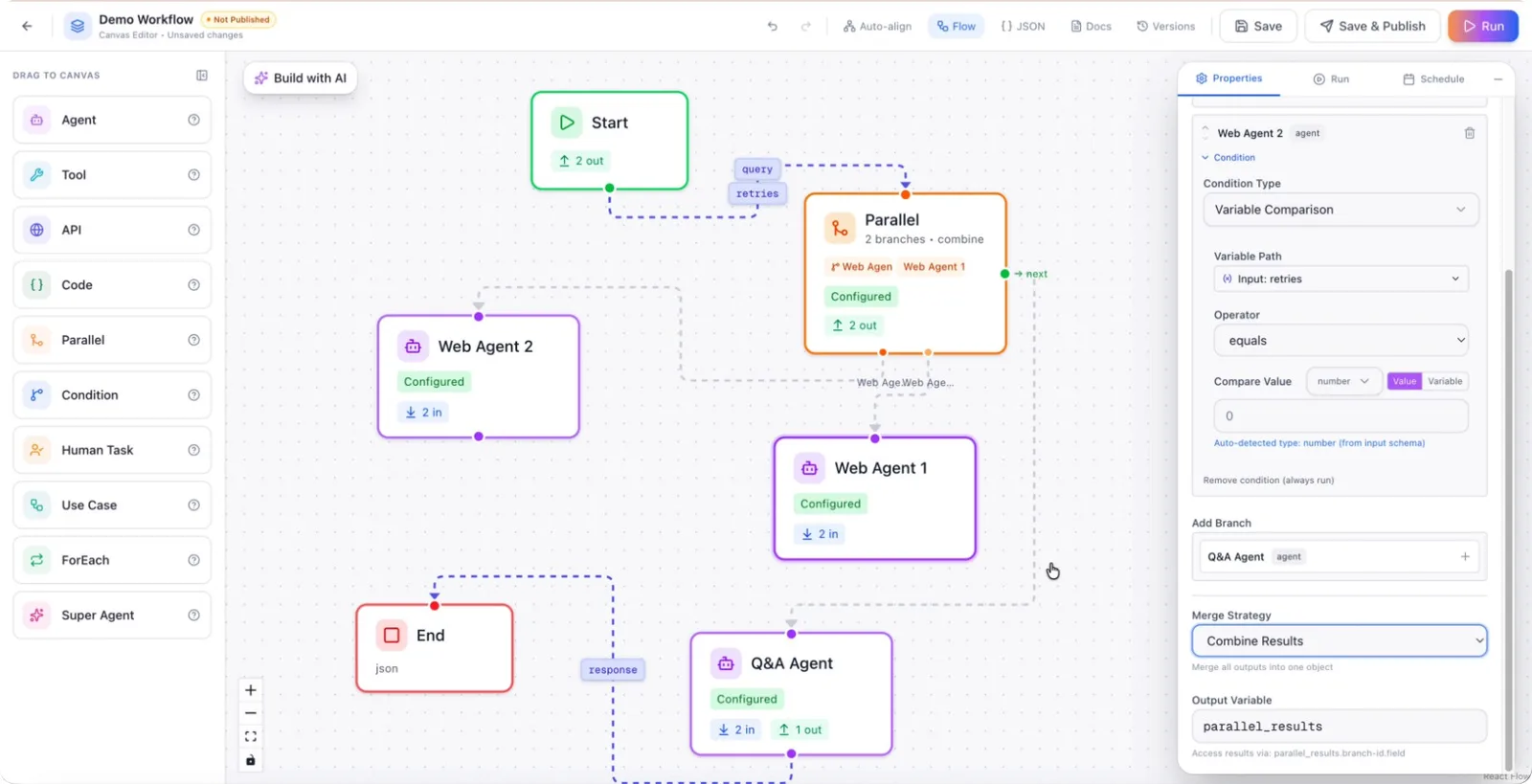
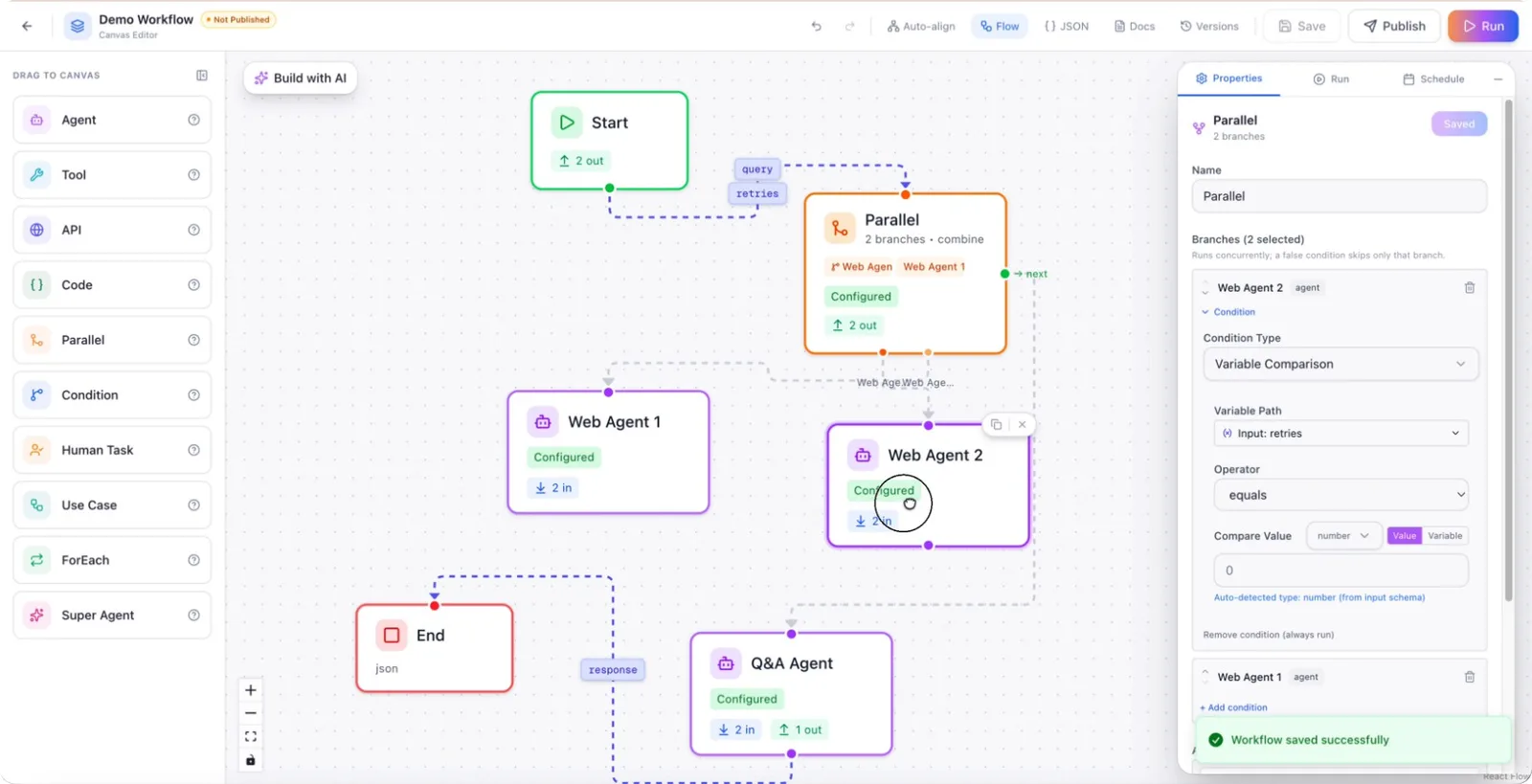
Set up these branches so that both Web Agent 1 and Web Agent 2 are triggered from the Parallel node and will execute at the same time.
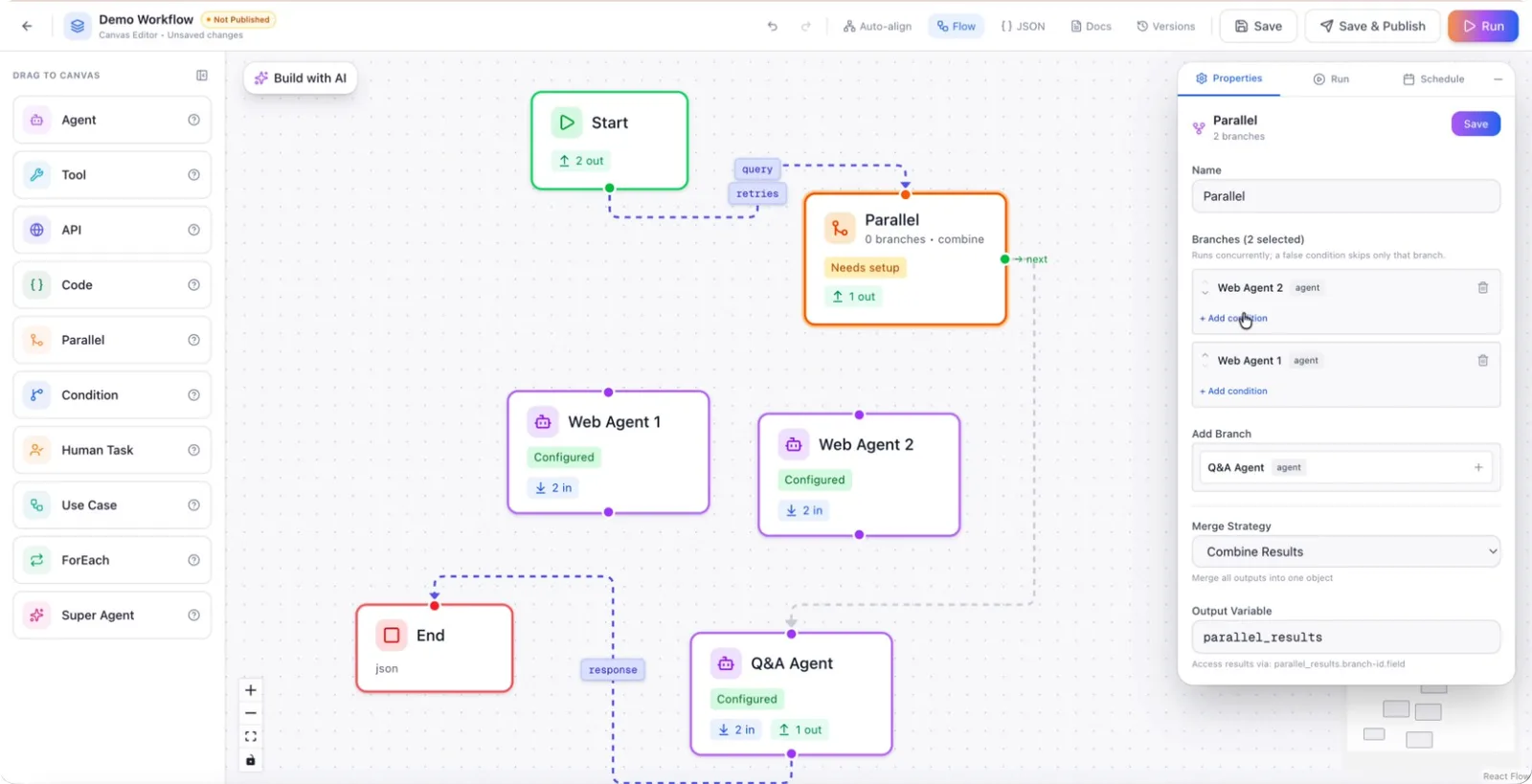
Step 6: Add Optional Conditions for Parallel Branches
Configure conditions on each branch if you want them to run only when specific criteria are met (for example, variable comparisons or expression).
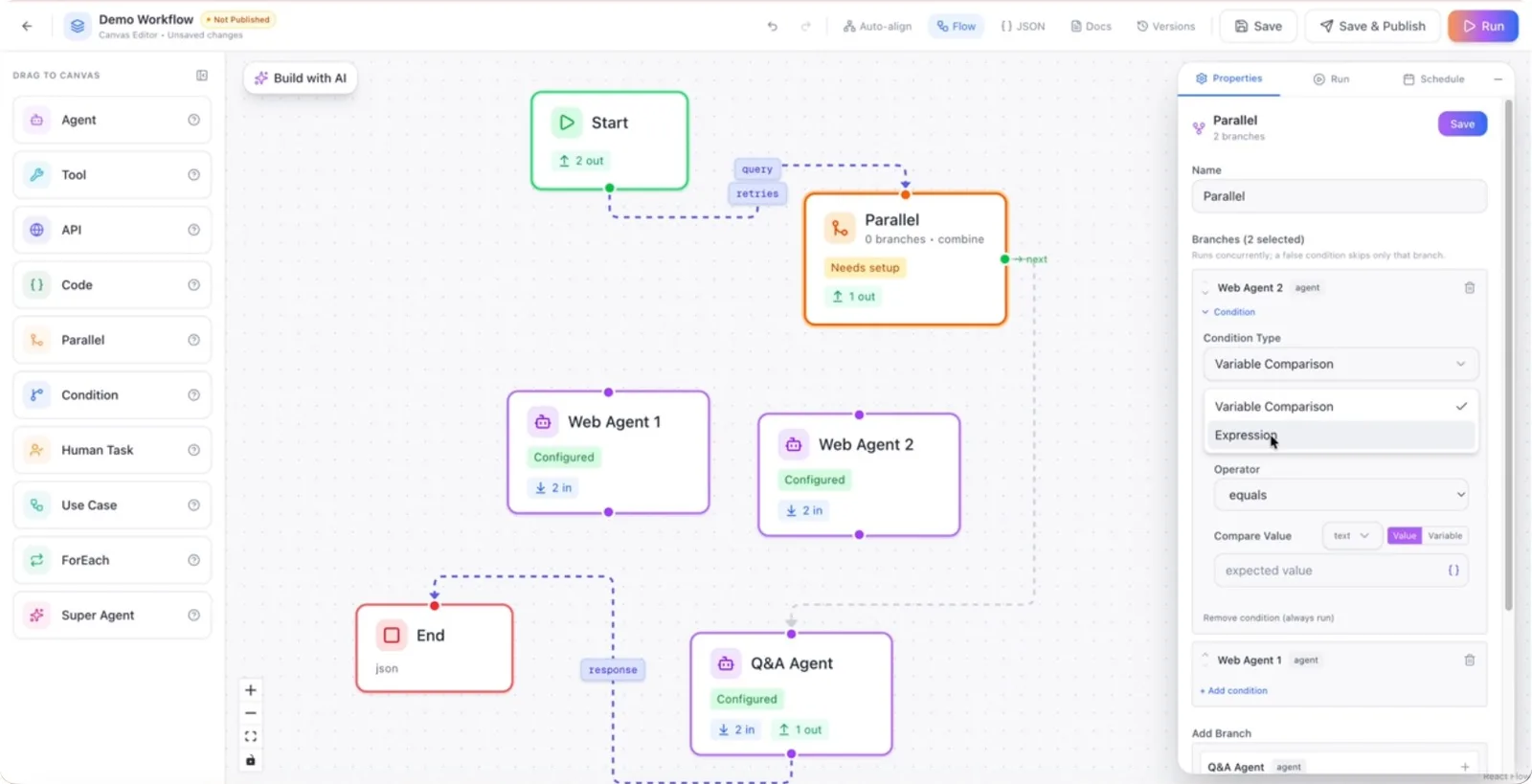
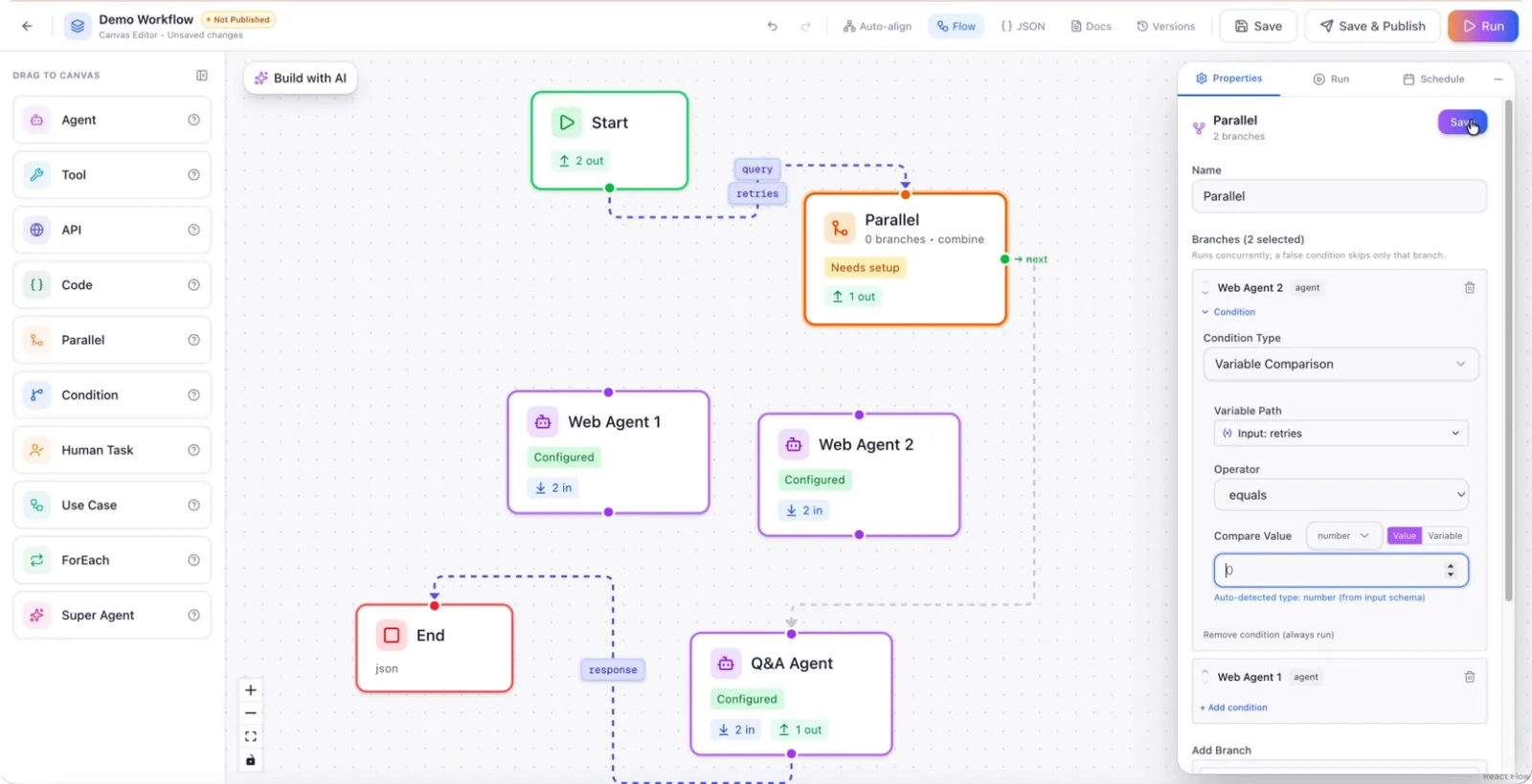
Define a condition such as “retries = 1” (or any other expression) to control when a particular agent is run in parallel with the others.
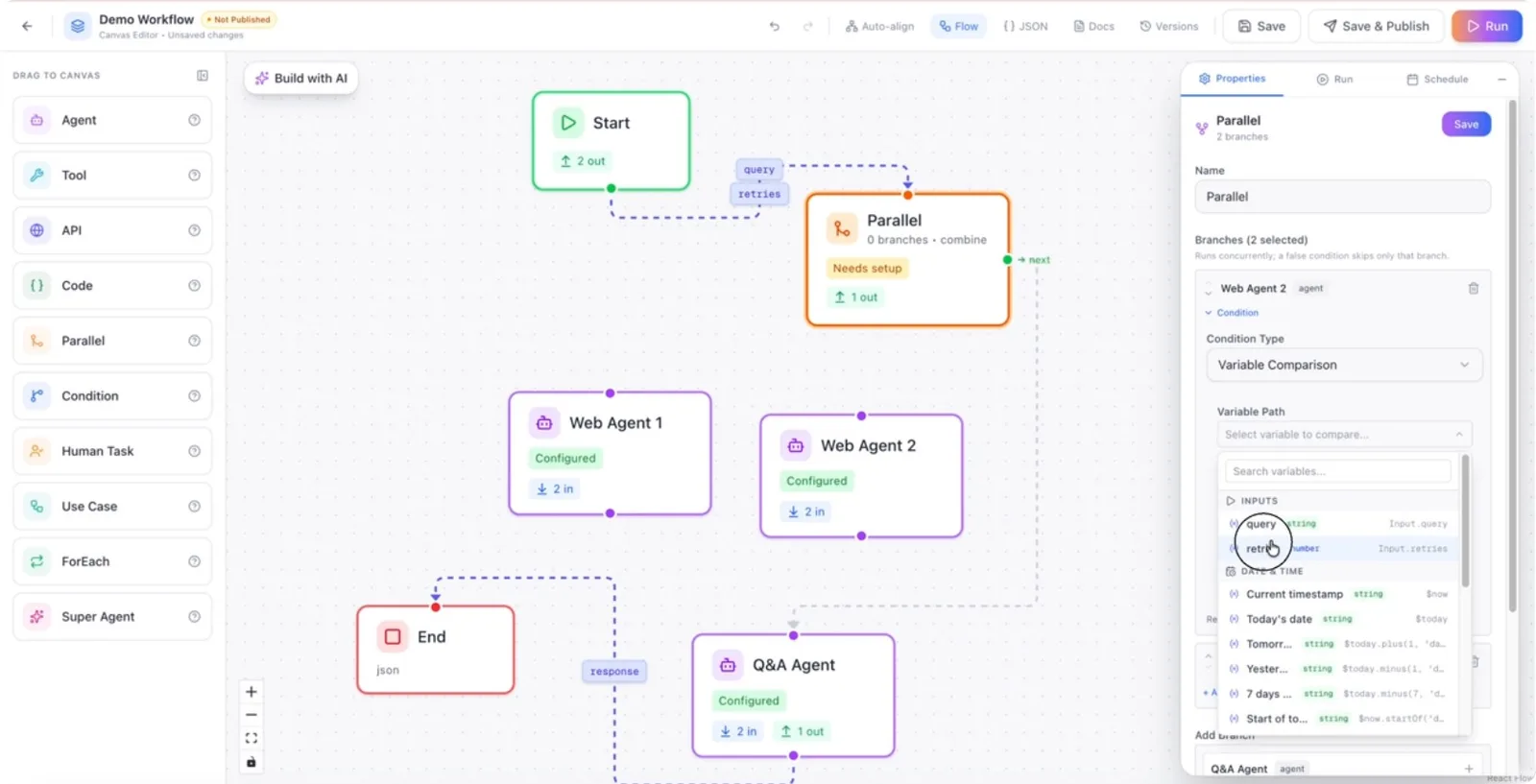
After setting your conditions, save the Parallel node configuration.
Confirm that both Web Agent 1 and Web Agent 2 are now configured to execute in parallel.
Step 7: Configure Merge Strategy and Next Step
Once both parallel branches complete, configure how their results should be merged using the Parallel node’s merge strategy settings. Choose an appropriate merge strategy, such as:
- Proceed when results are received from both agents
- Proceed when at least one agent succeeds
- Require all agents to succeed before moving on
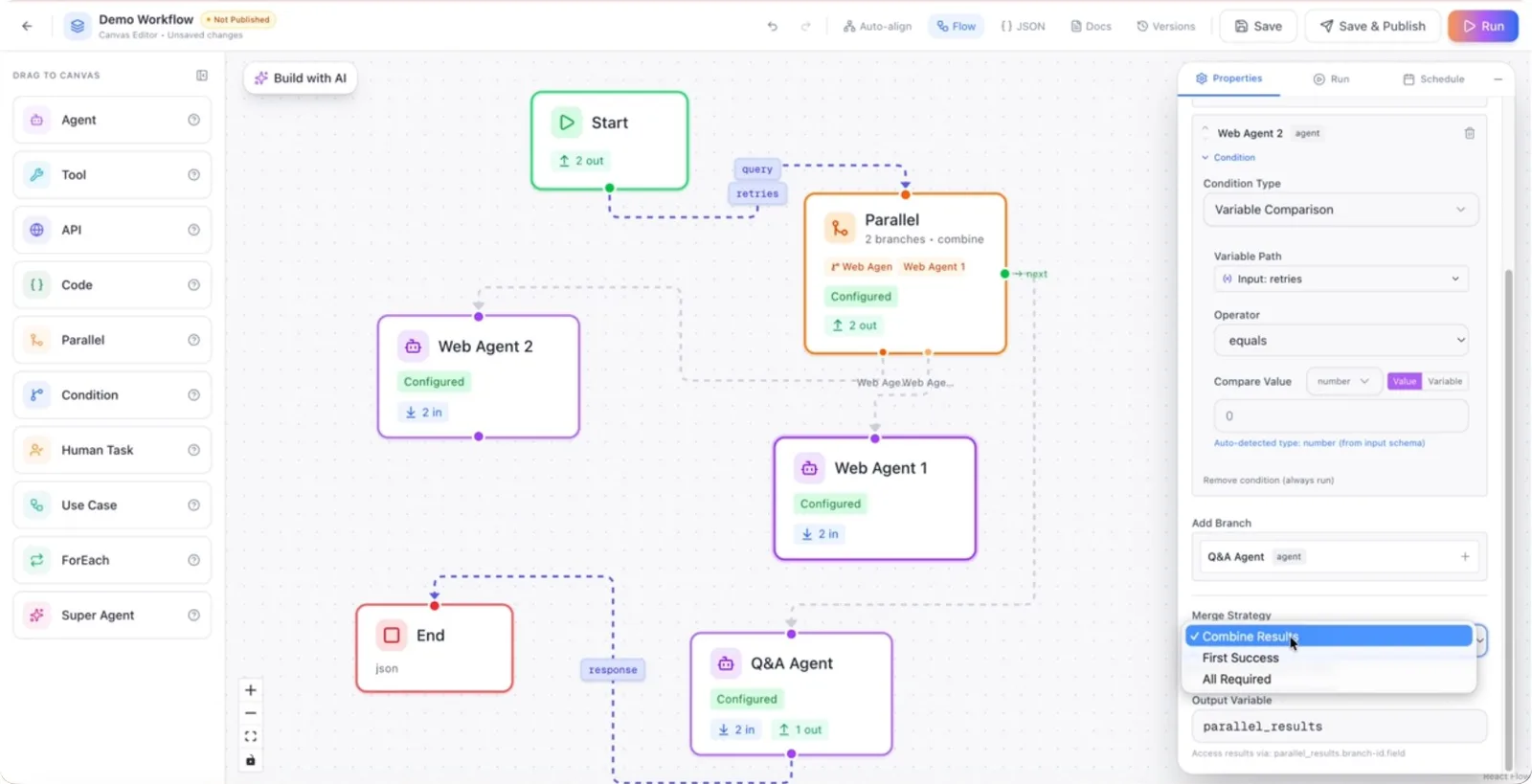
Connect the Parallel node’s merged output to the next node in the workflow, such as a Q&A agent, so execution continues after the parallel tasks finish.