

Node Explained · Lesson 1 of 12
START Node: Workflow Inputs and Validation
Open the Start node and declare what a workflow needs: pick the default model, choose how data moves between nodes, then define input fields (string, number, enum, array, object, image, media, file) with the constraints each type allows.
What You Will Learn
- What START does: you declare what the workflow needs and the form builds itself, with no interface code
- The field types and why the type is not decoration: text, number, true or false, file, and list of files
- Why a file field is not a string with a filename in it, and the extraction pipeline declaring one sets off
- Marking fields required, and writing descriptions as helper text your user reads in Hub
- The interaction choice that lives here: form, chat or hybrid, and why it changes how the whole thing feels
- How the same declaration becomes your API request schema, so the integration payload comes free
Step by step guide
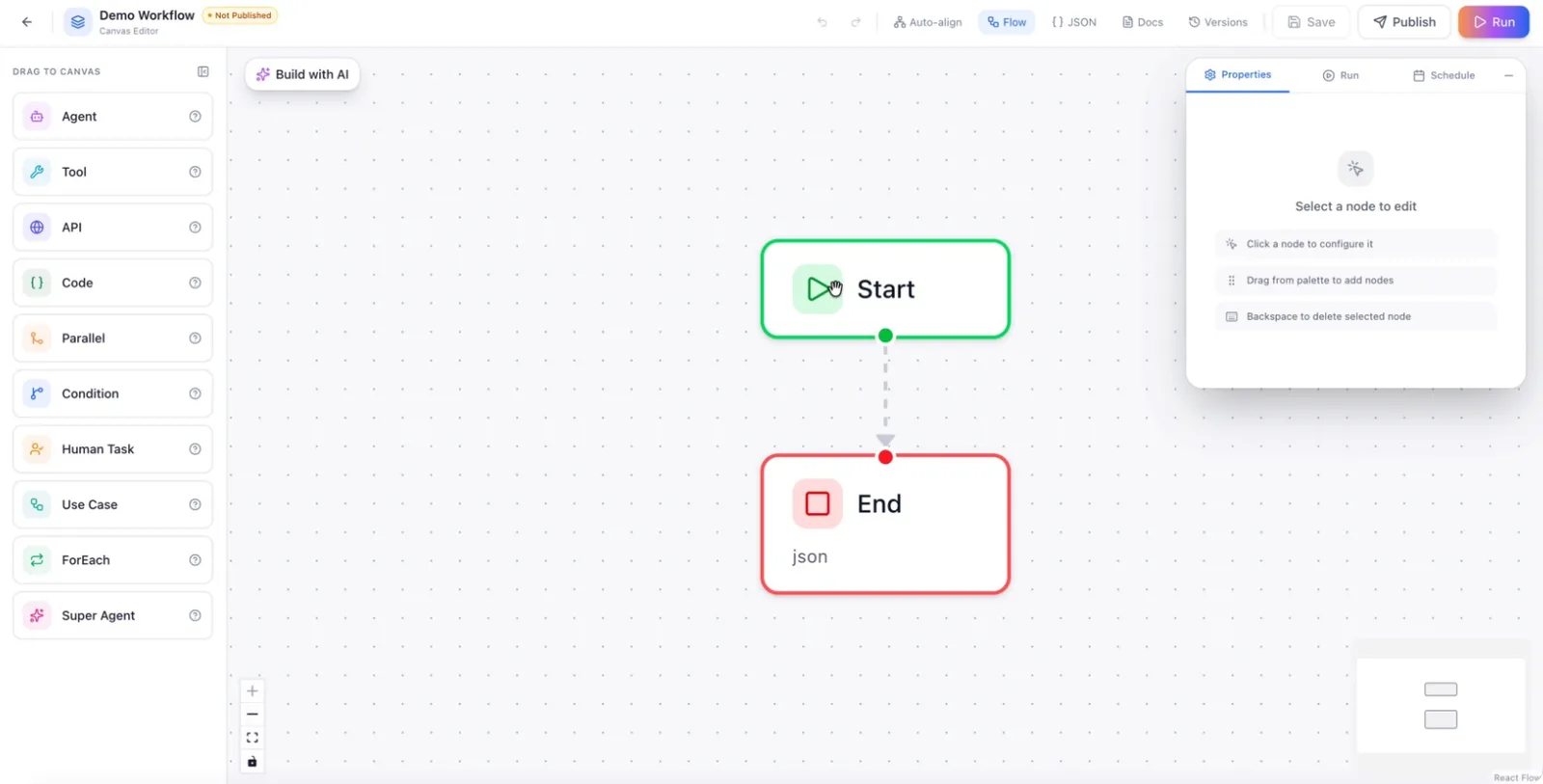
Step 1: Open the Start node Configuration
Click on the Start node in your workflow canvas to open its configuration panel.
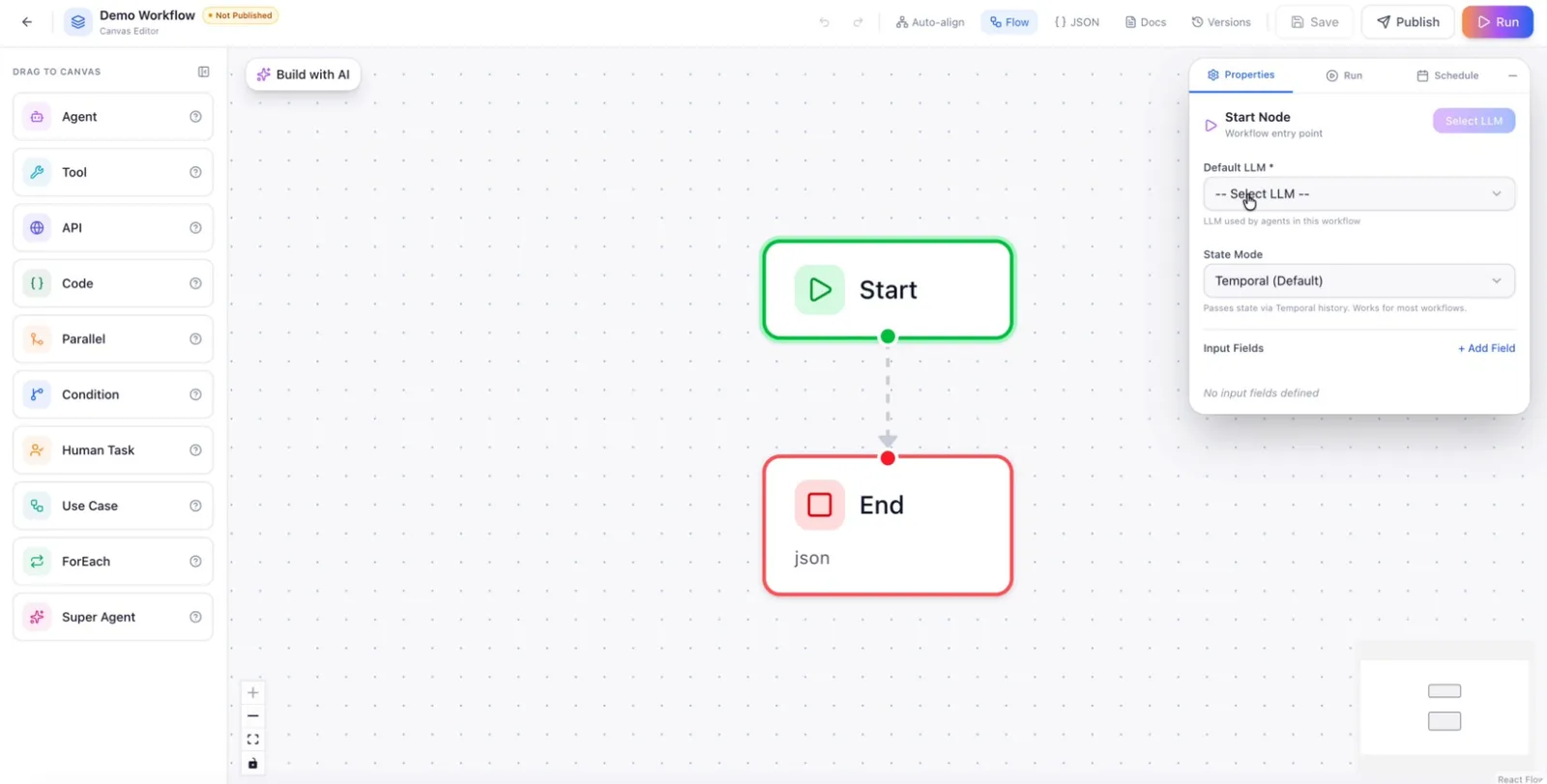
Step 2: Select the Default LLM
In the start node configuration, choose the default LLM from the available list of models. This LLM will be used as the primary model for the flow unless overridden later.
Step 3: Choose the State Mode
Configure the state mode for data transfer between nodes.
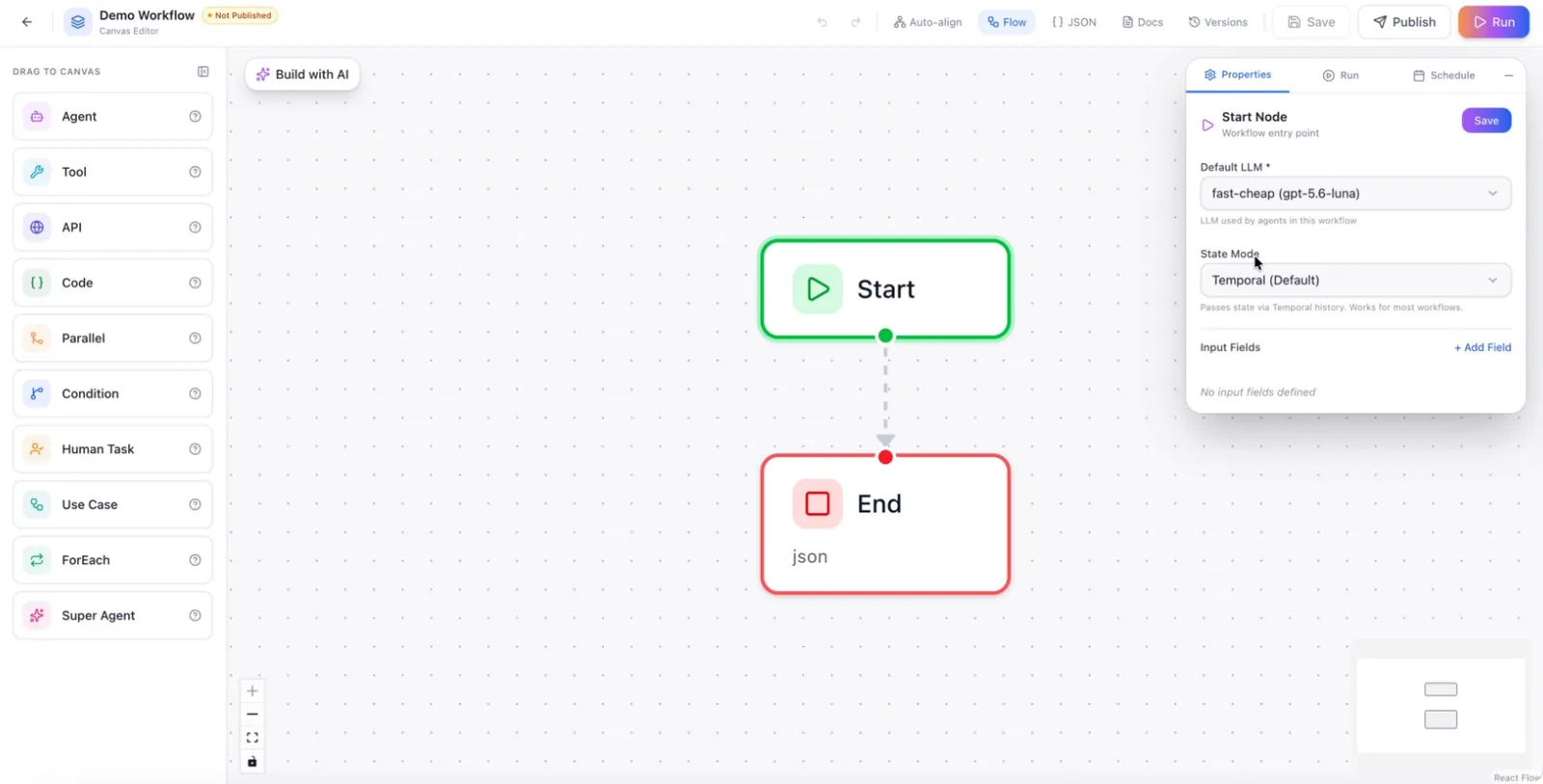
- Temporal:
- Use when the data to be transferred is relatively small (up to around 4 MB).
- Suitable for lightweight, transient data passing between nodes.
- Redis:
- Use when you need to transfer large volumes of data between nodes.
- Provides temporary storage of data while it is being passed across different nodes.
I'll select Temporal mode as the default configuration for data storage while the data is transferred between nodes.
Step 4: Add an Input Field
To configure input fields for the start node, click Add field.
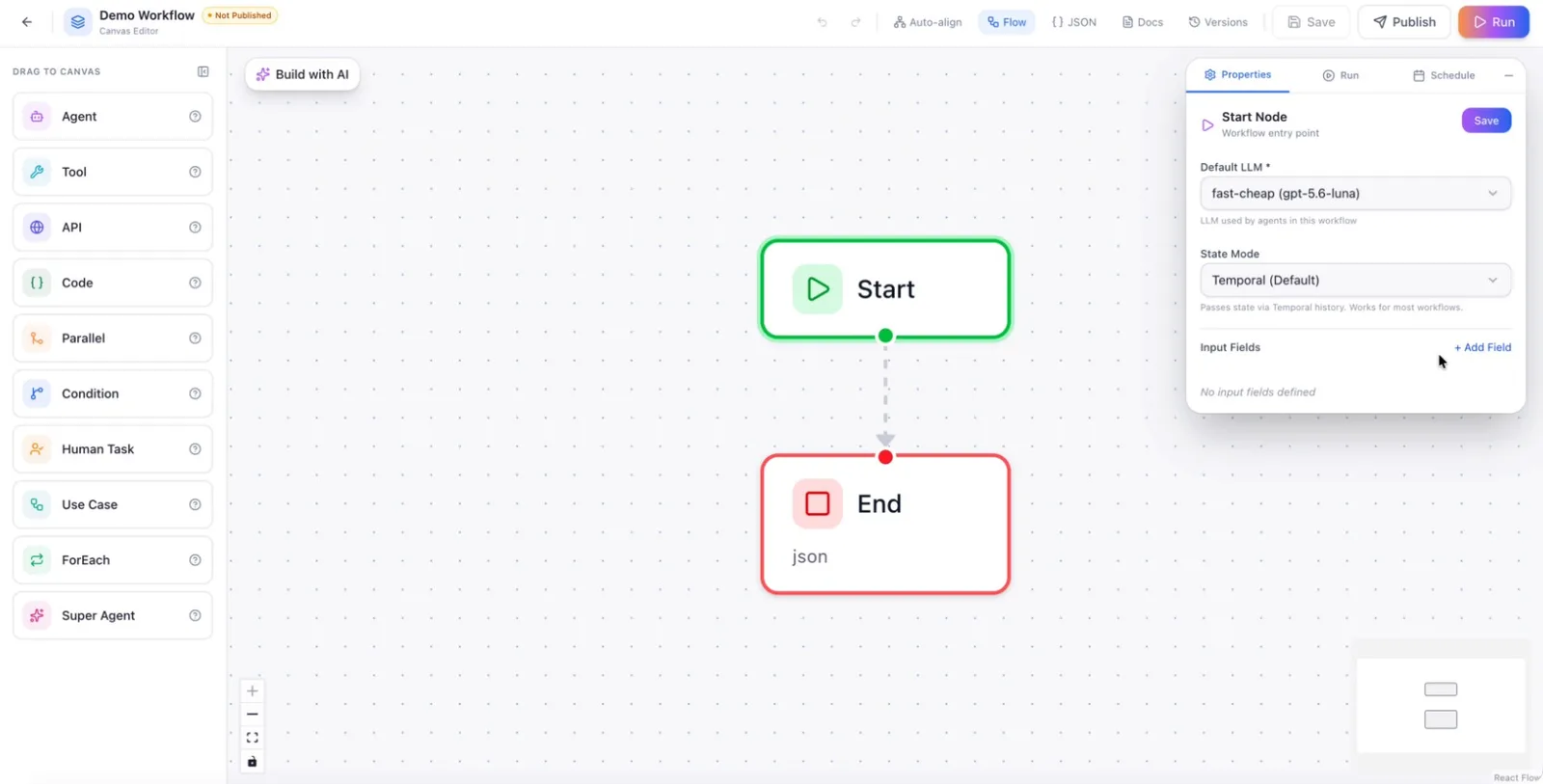
Enter a field name (for example, query), then select the field type from the dropdown.
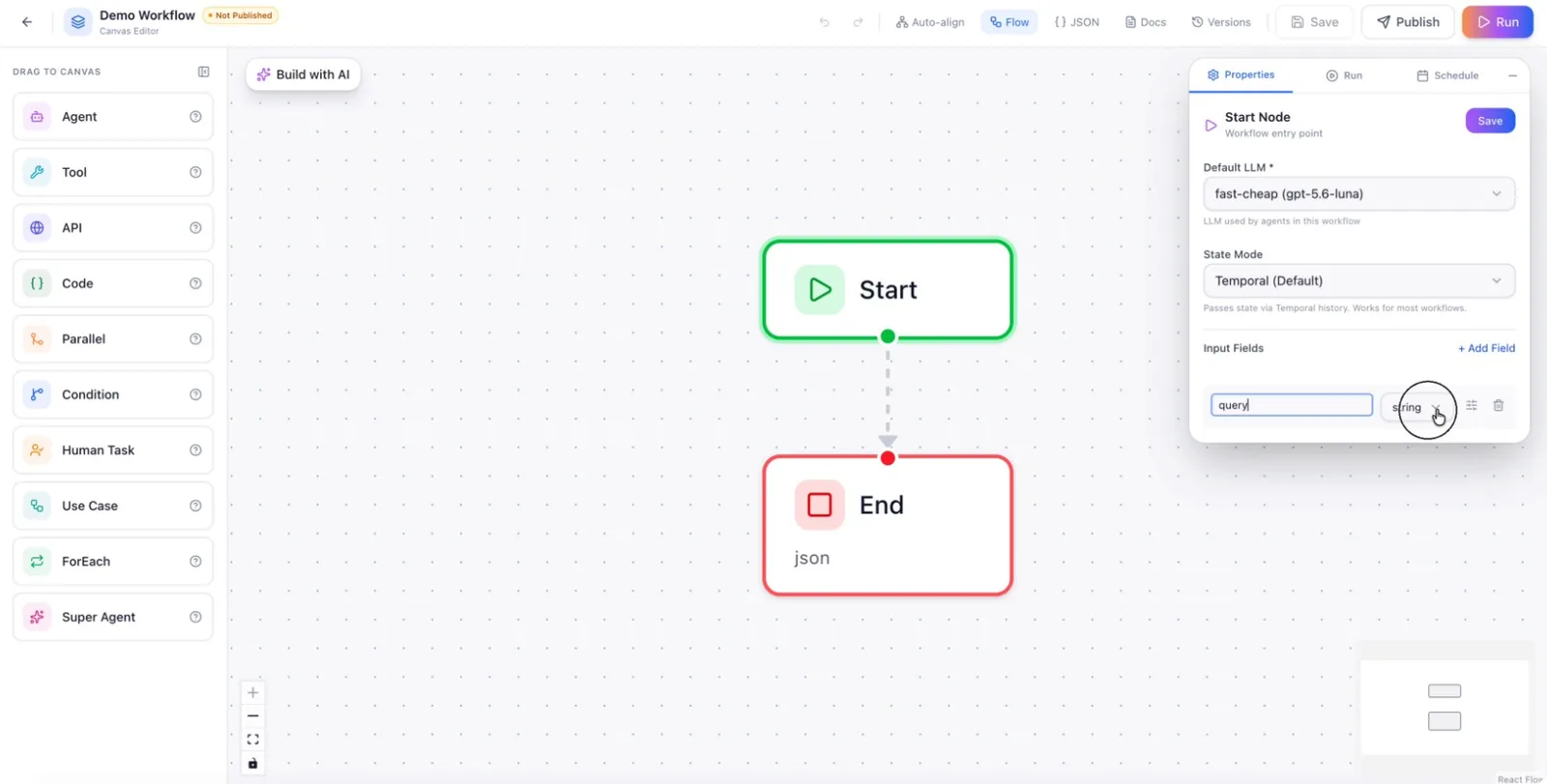
Available field types include: string, number, boolean, object, array, enum, file, image, and media.
You can also configure constraints for the field, such as:
- Marking it as required
- Setting minimum and maximum length (where applicable)
- Applying a regex pattern
- Specifying placeholder text and a label for how it appears in the UI
Step 5: Add a Number Field (Example: Retries)
Click Add field again to create another input field.
Set the field type to number (for example, a field named retries).
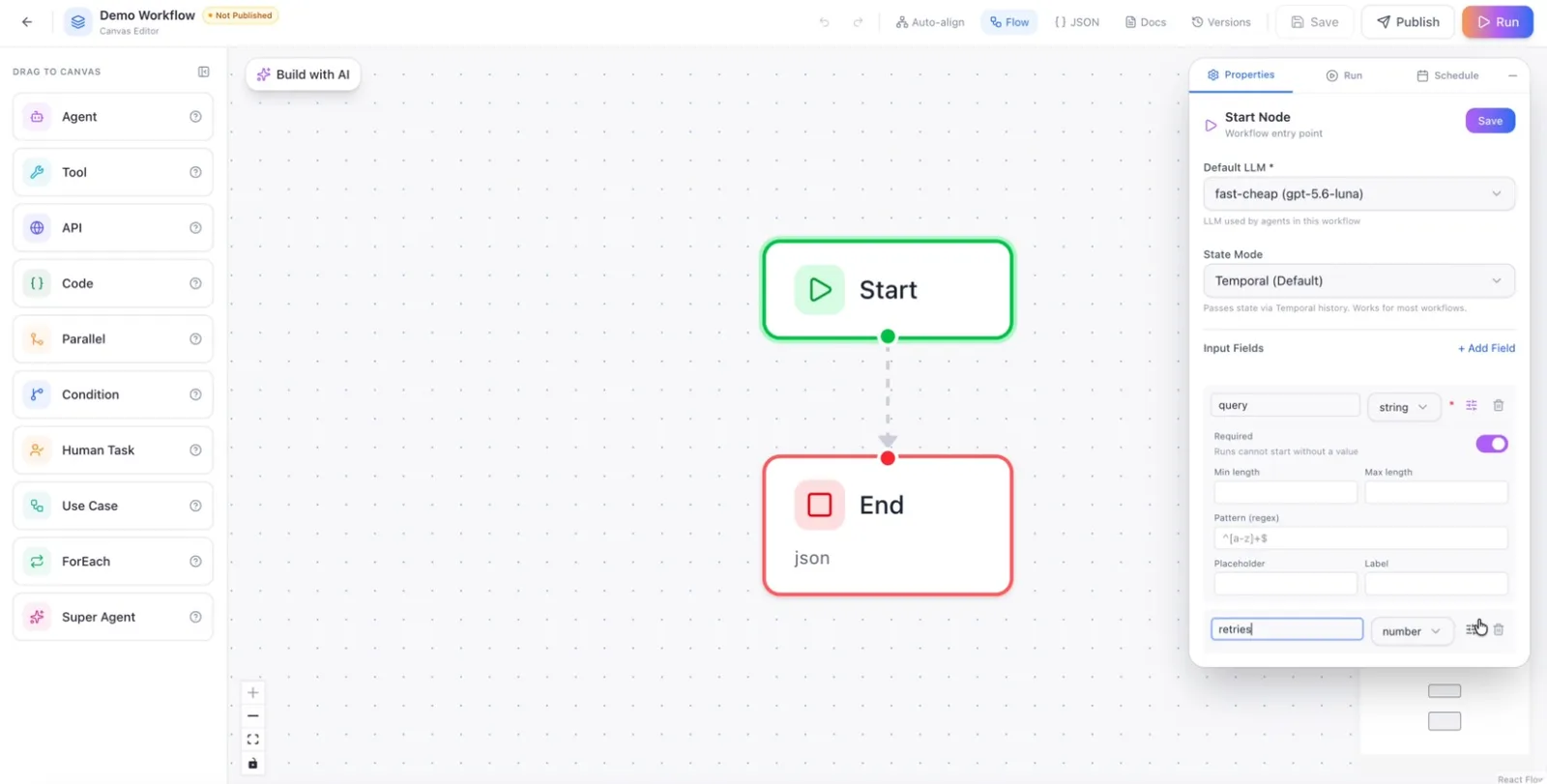
For a number field, configure constraints such as minimum and maximum values.
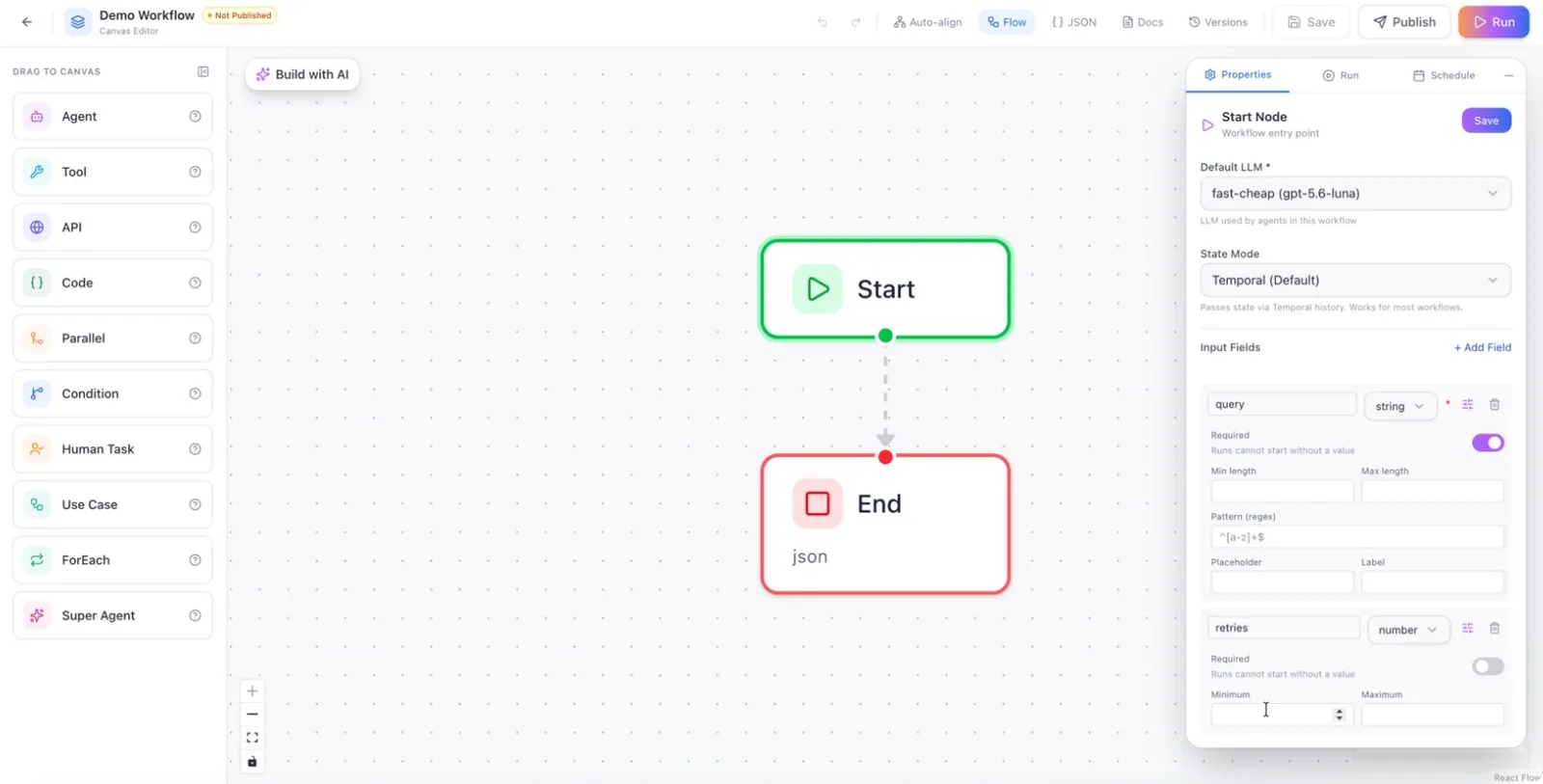
Step 6: Configure an Image Field
Add another field and set its type to image.
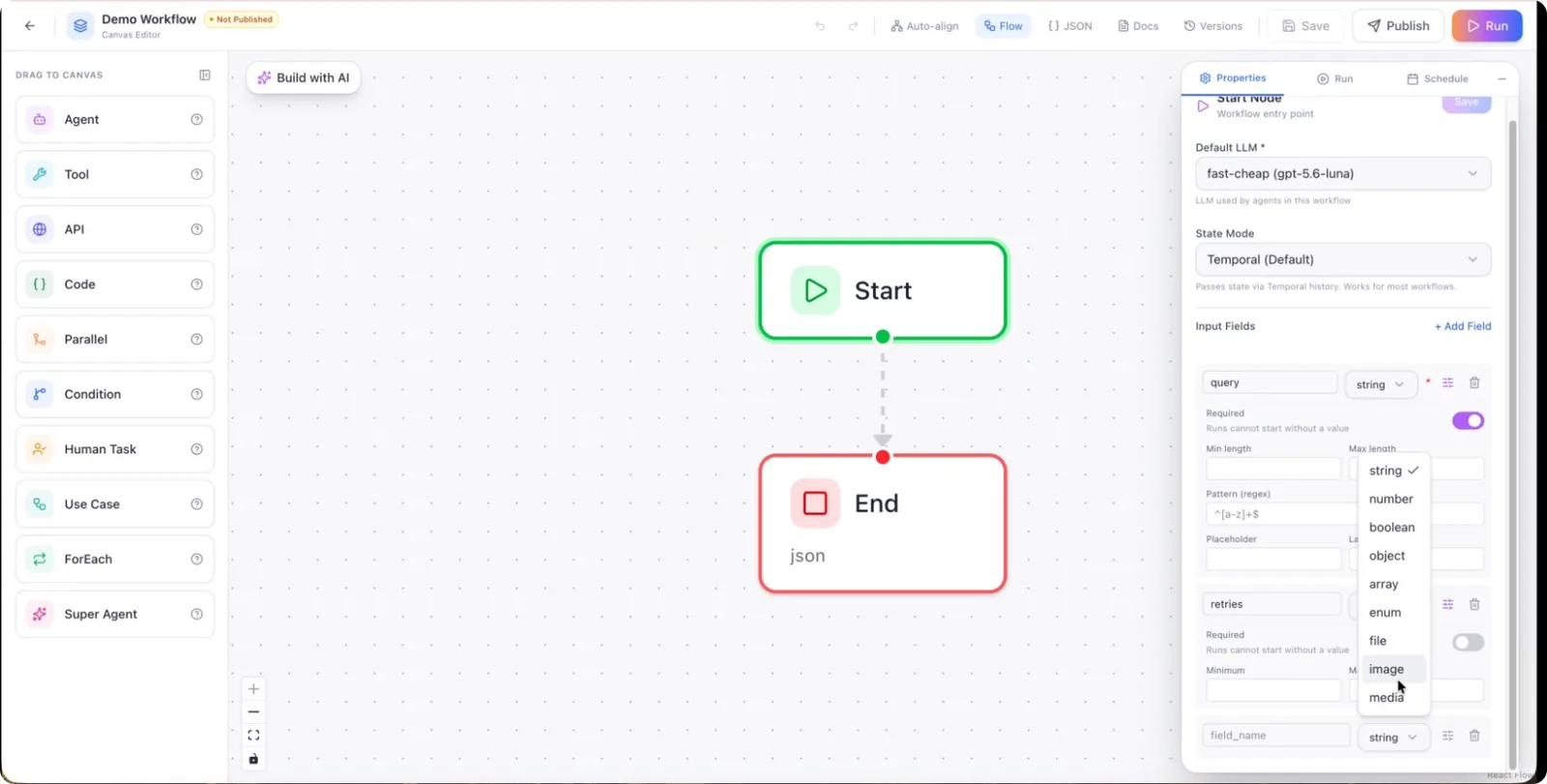
In the image field configuration, you can define:
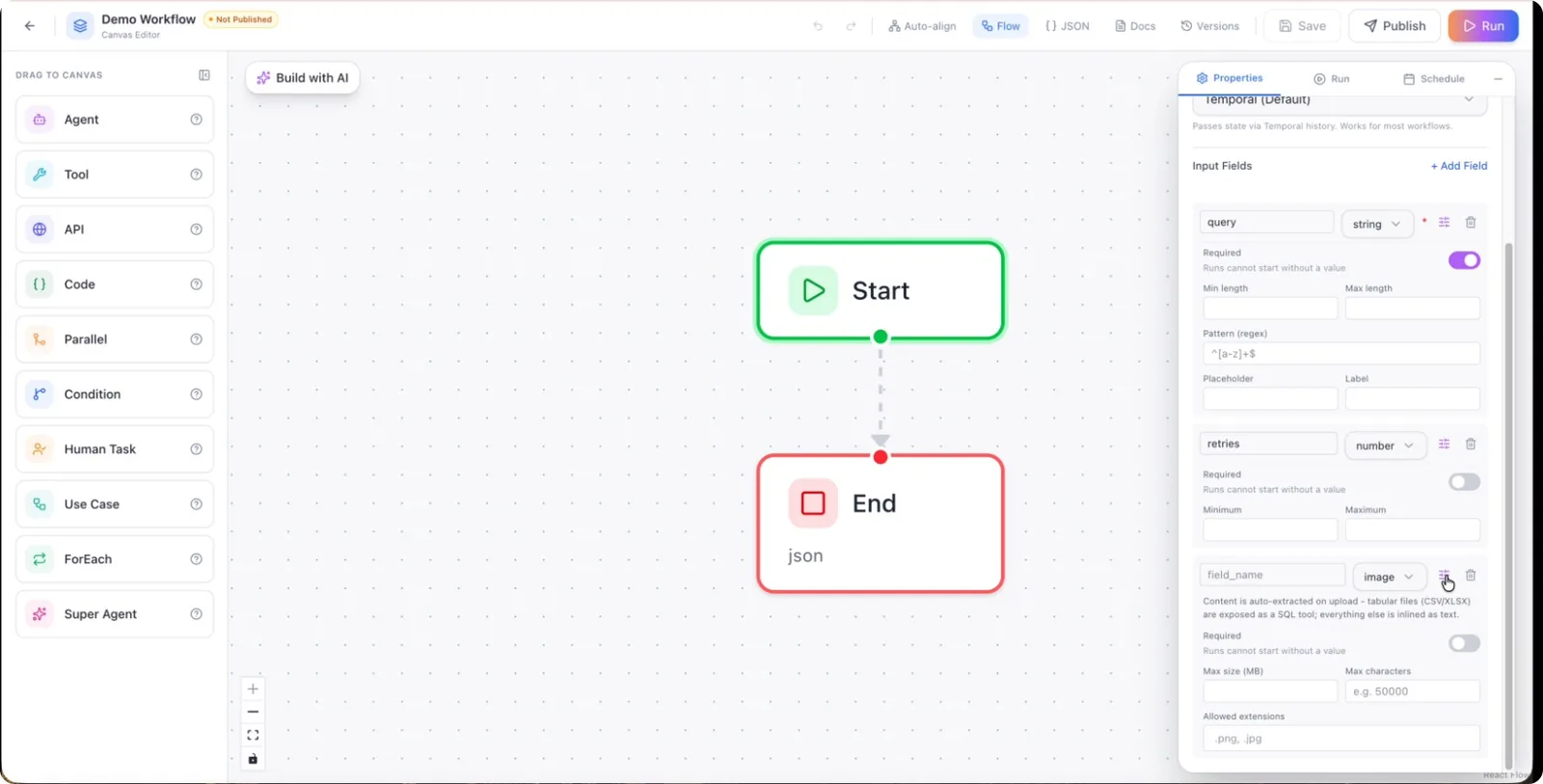
- Maximum file size
- Maximum number of characters (for associated metadata, if applicable)
- Allowed file extensions
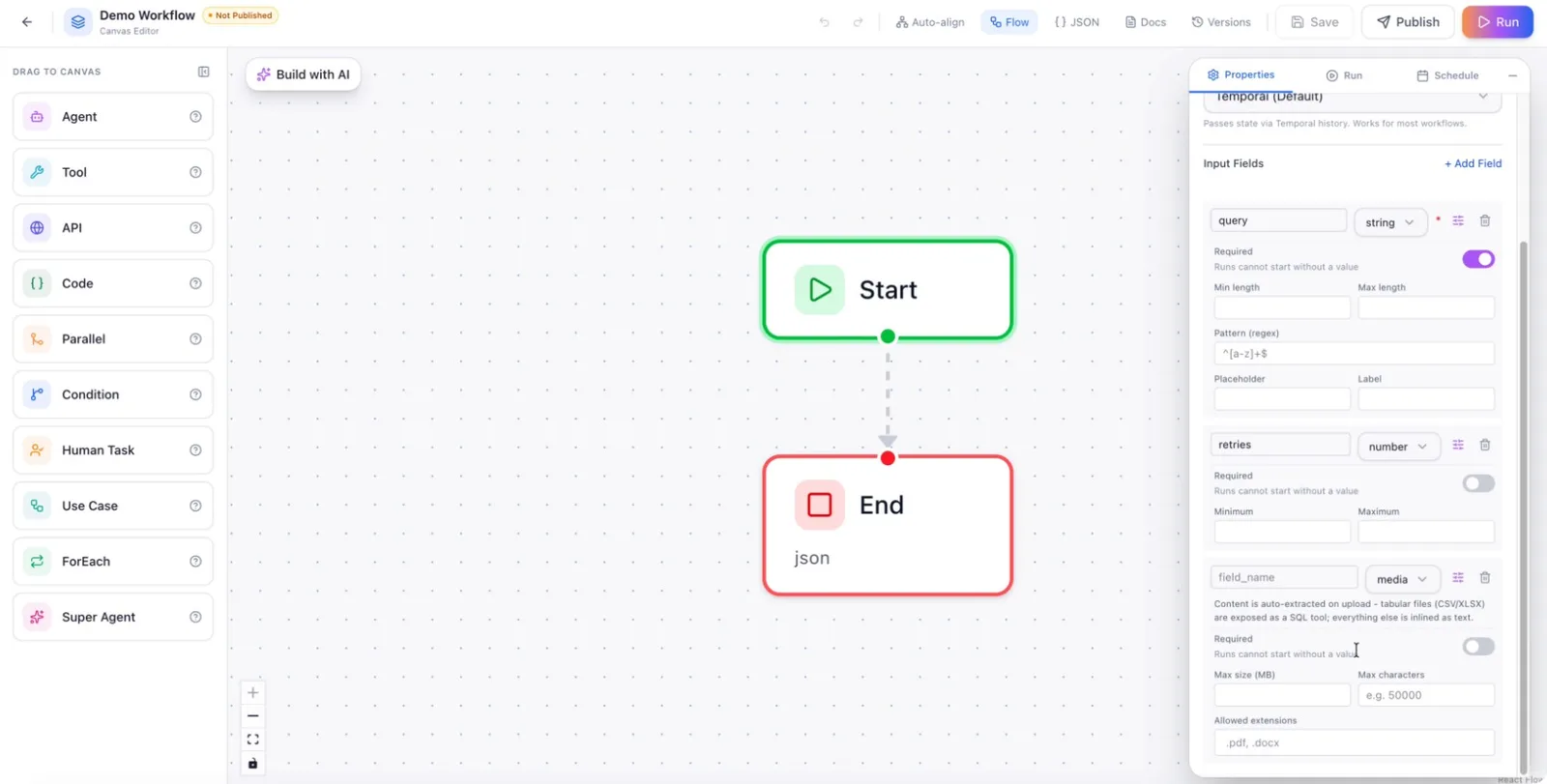
Step 7: Configure a Media Field
Set a field type to media to accept media files (such as audio or video). Configure the available media-specific options as presented in the UI.
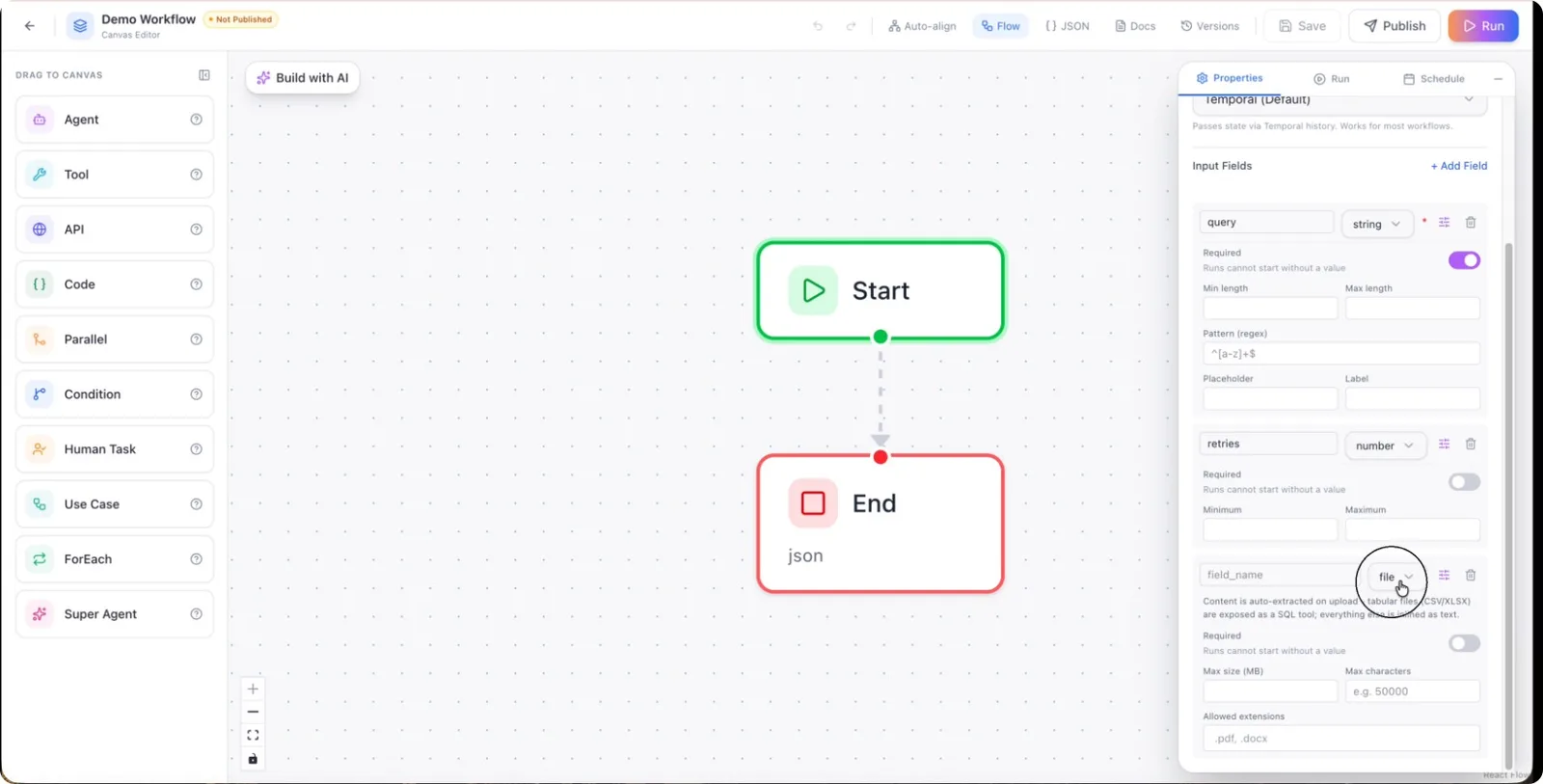
Step 8: Configure a File Field
For a file field type, similar configuration options are available as for image and media fields (e.g., max size, extensions).
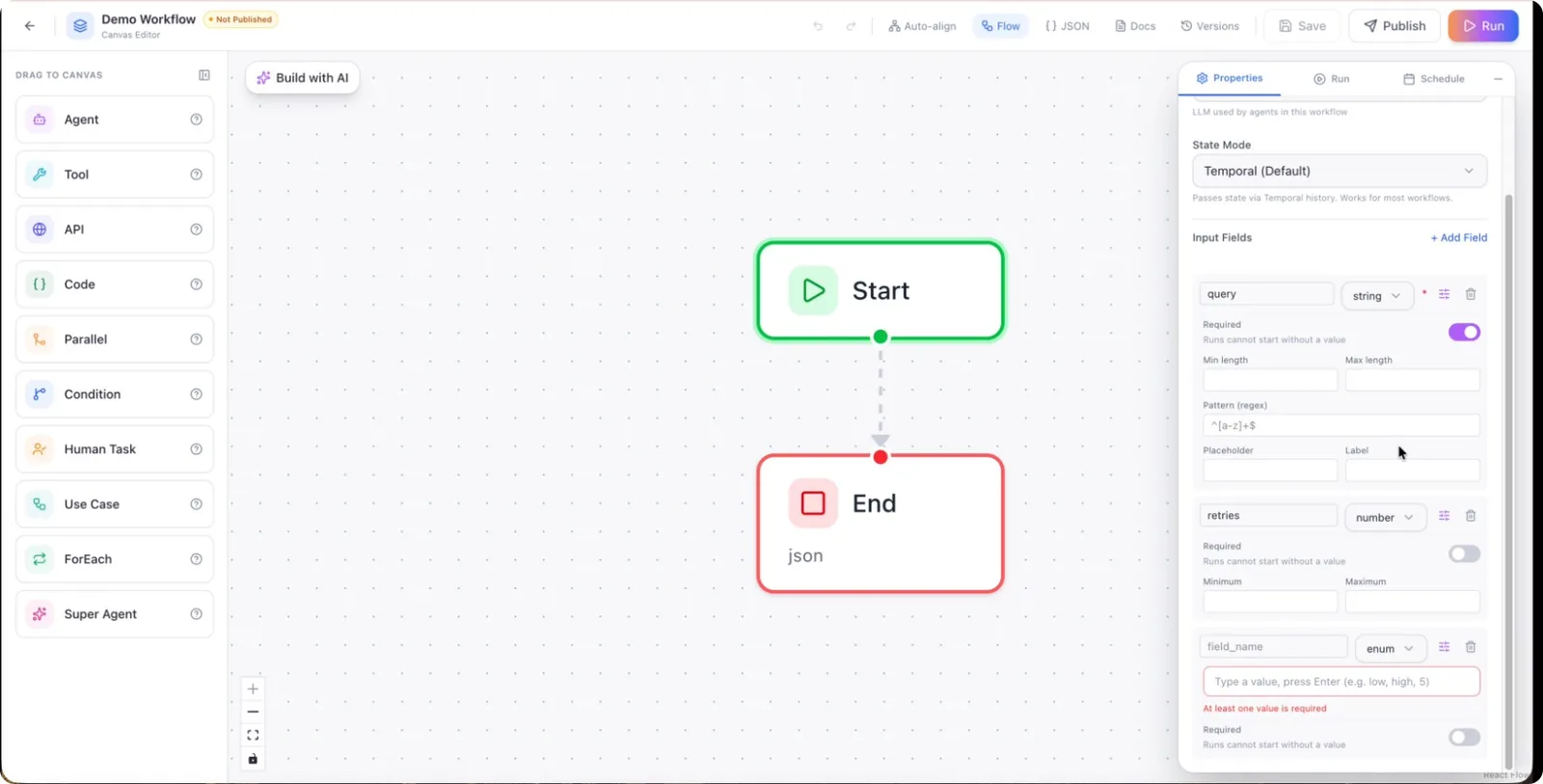
Step 9: Configure an Enum Field
For an enum field type, specify the list of allowed values that the user can choose from.
Step 10: Configure an Array Field
For an array field type, define:
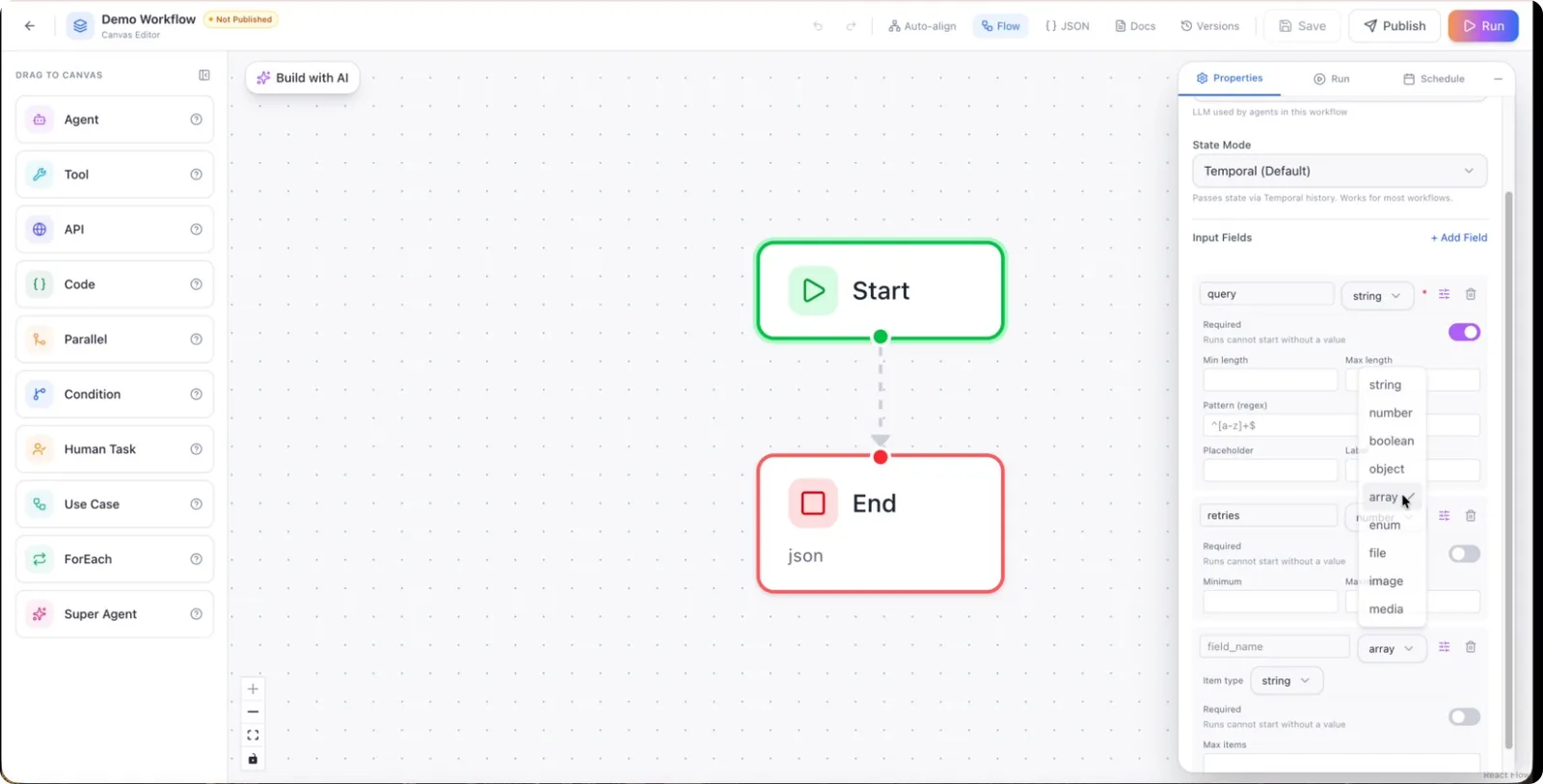
- The type of items in the array (e.g., string, number)
- The maximum number of items allowed
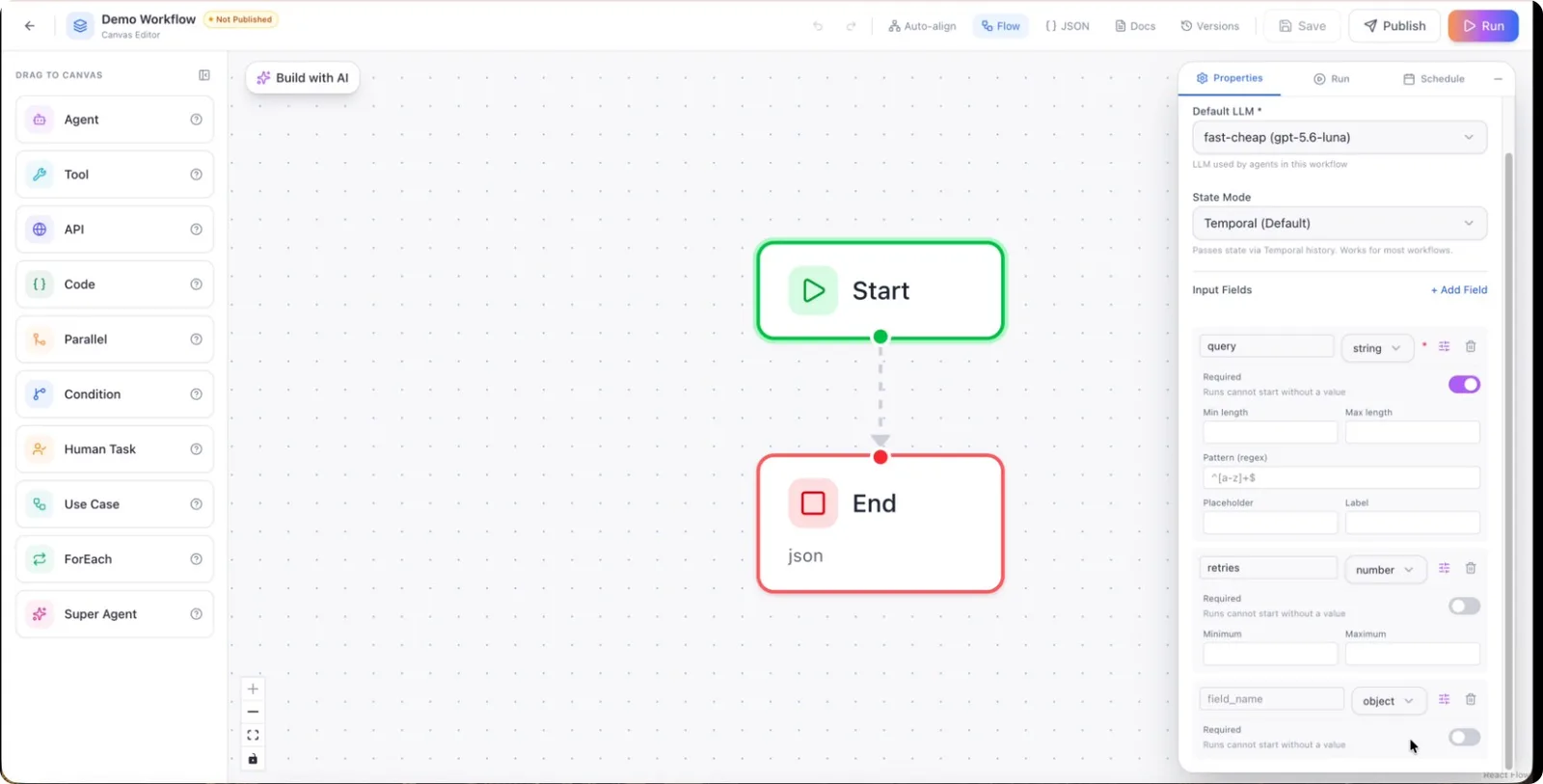
Step 11: Configure an Object Field
For an object field type, specify whether the field is required or optional.
Step 12: Configure Boolean and Number Fields
For a Boolean field type, define whether it represents a true/false value and mark if it is required.
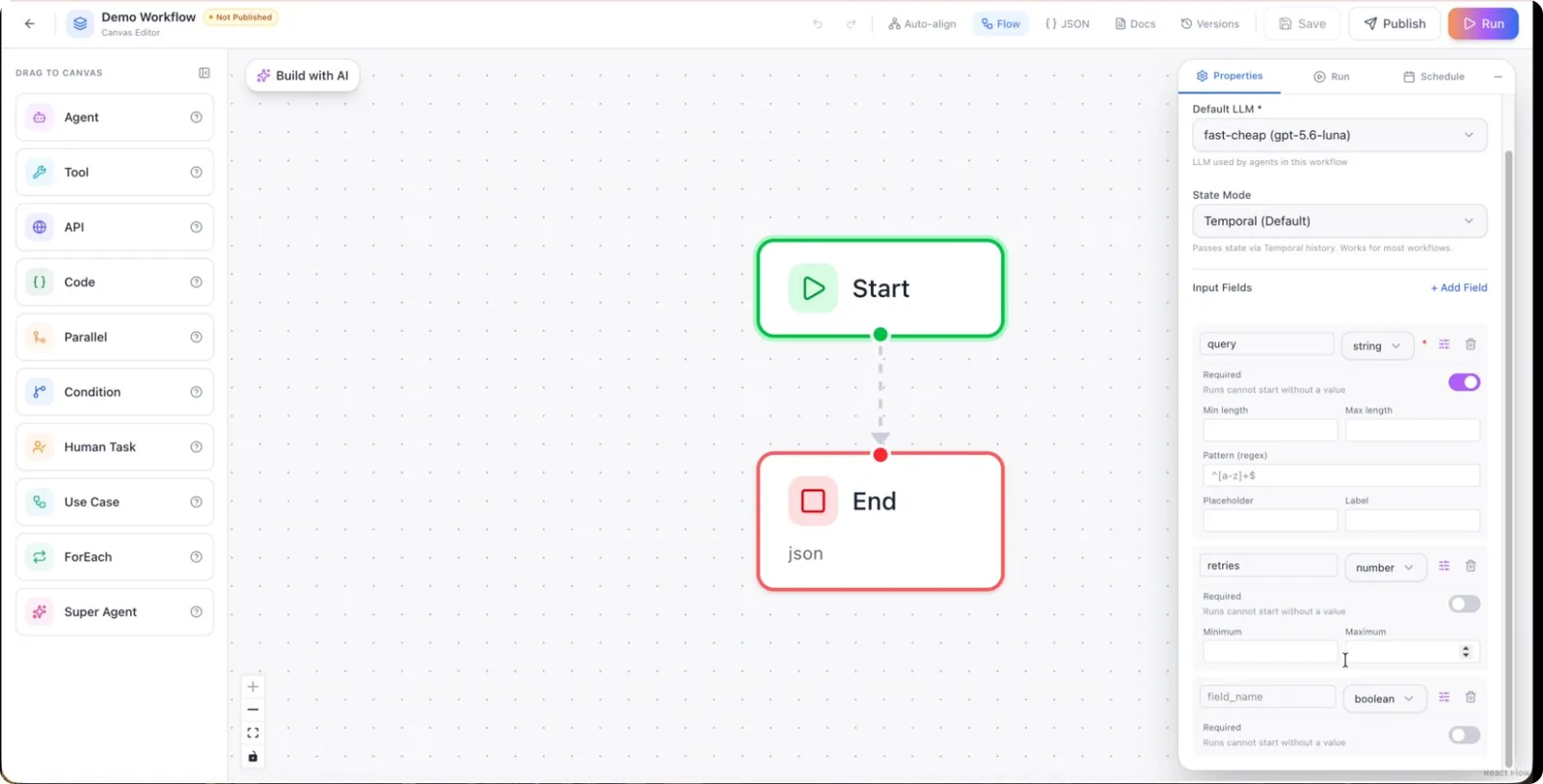
These configurations complete the setup of the Start node, including LLM selection, state mode, and input field definitions.