

Node Explained · Lesson 5 of 12
TOOL Node: Deterministic Tool Execution
Call a system or MCP tool with no model in the loop. Pick the tool, whether that is a database query, a web search or a calendar, watch the configuration change to match it, and set a timeout so a slow tool cannot stall the run.
What You Will Learn
- What a TOOL node actually is, and why it costs nothing in model tokens
- Mapping its inputs from the tool's own schema, the same way as any other step
- Reading the exact request that went out and the exact response that came back, recorded on the step
- The pattern worth learning: the tool fetches, the agent interprets, and no single node does both
- The choice that matters: a TOOL node when you know the call has to happen, agent-attached tools when the agent should decide whether it happens
Step by step guide
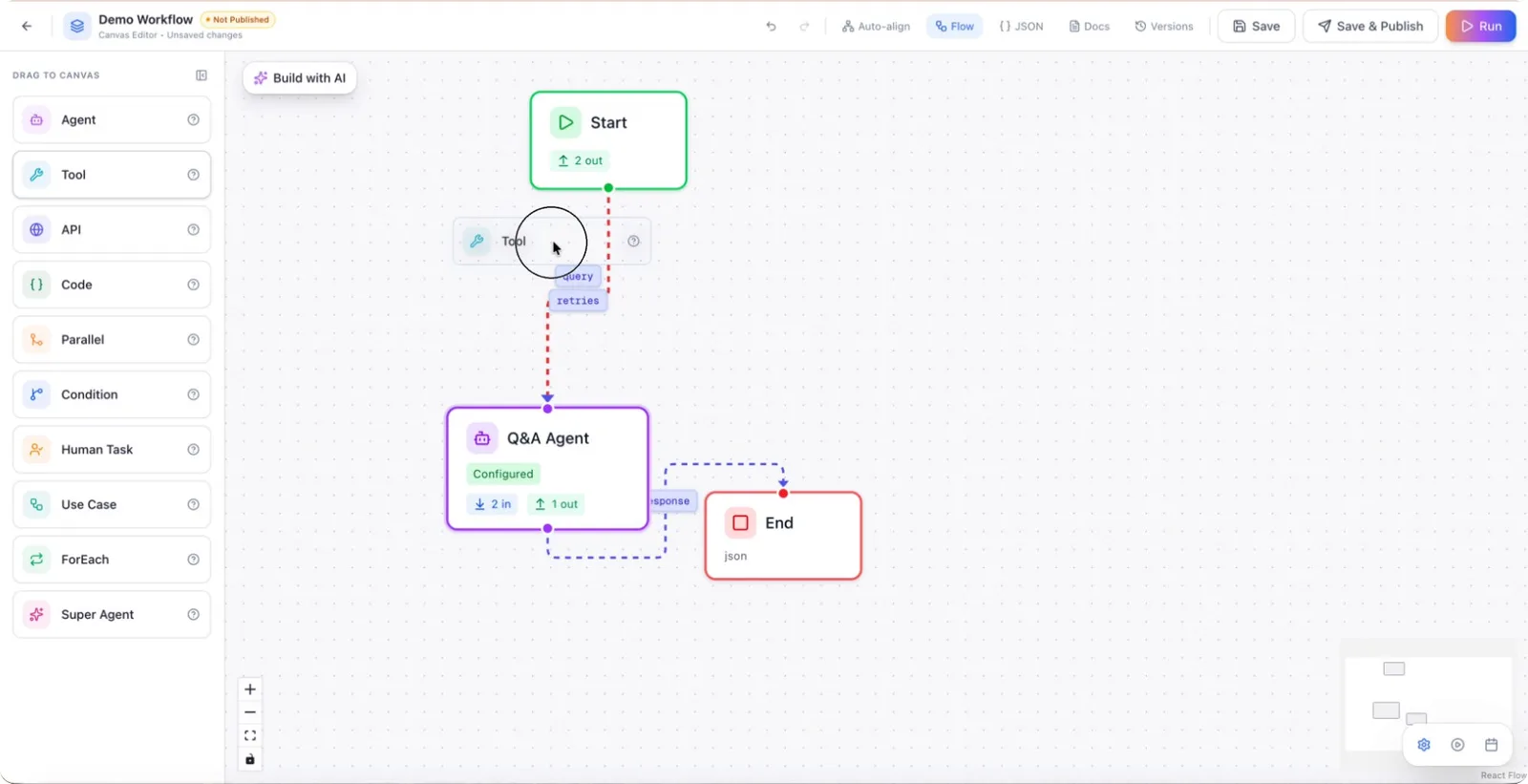
Step 1: Add a Tool Node to Your Workflow
Drag and drop the Tool node into your workflow canvas.
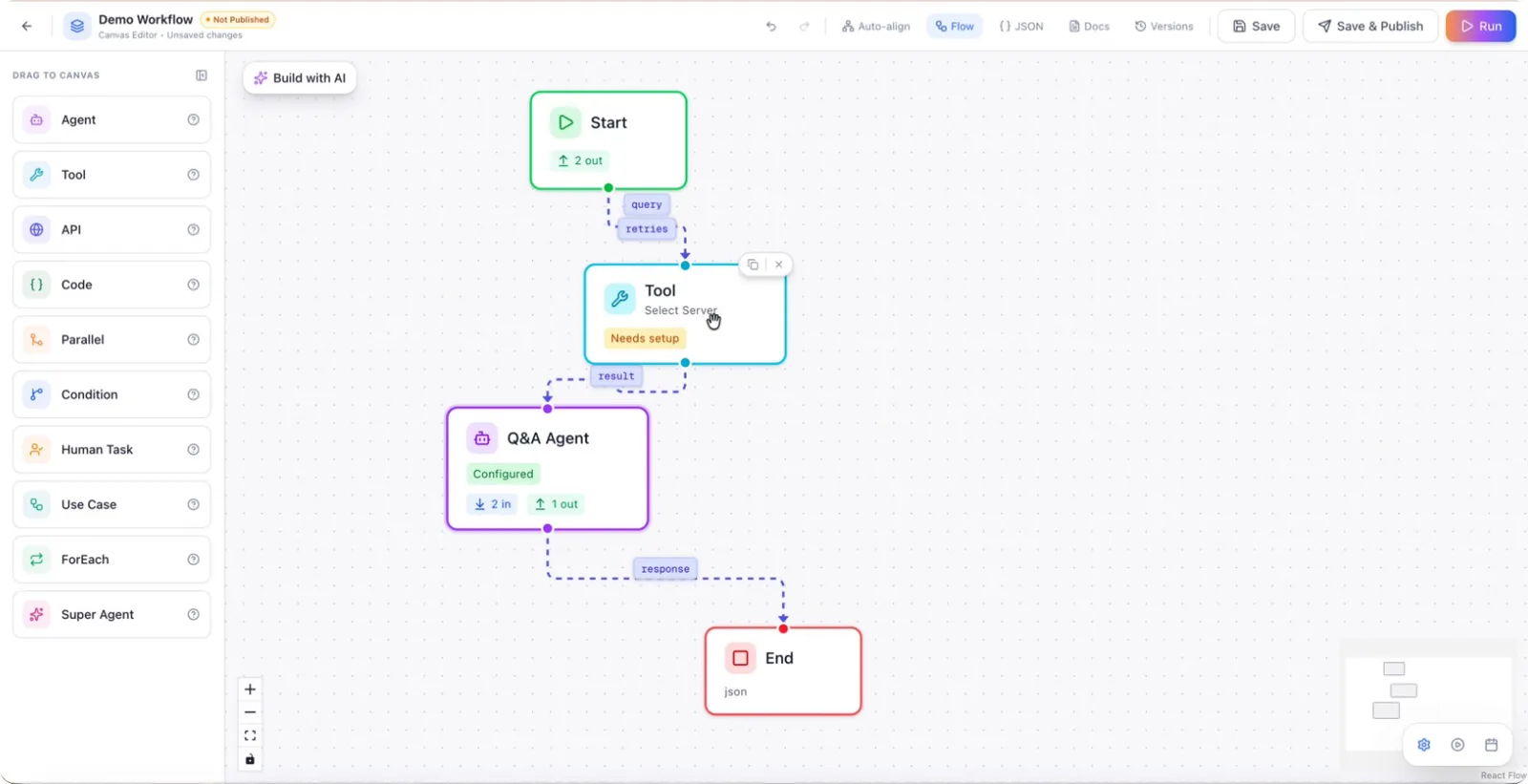
Once placed, click on the Tool node to open its configuration panel.
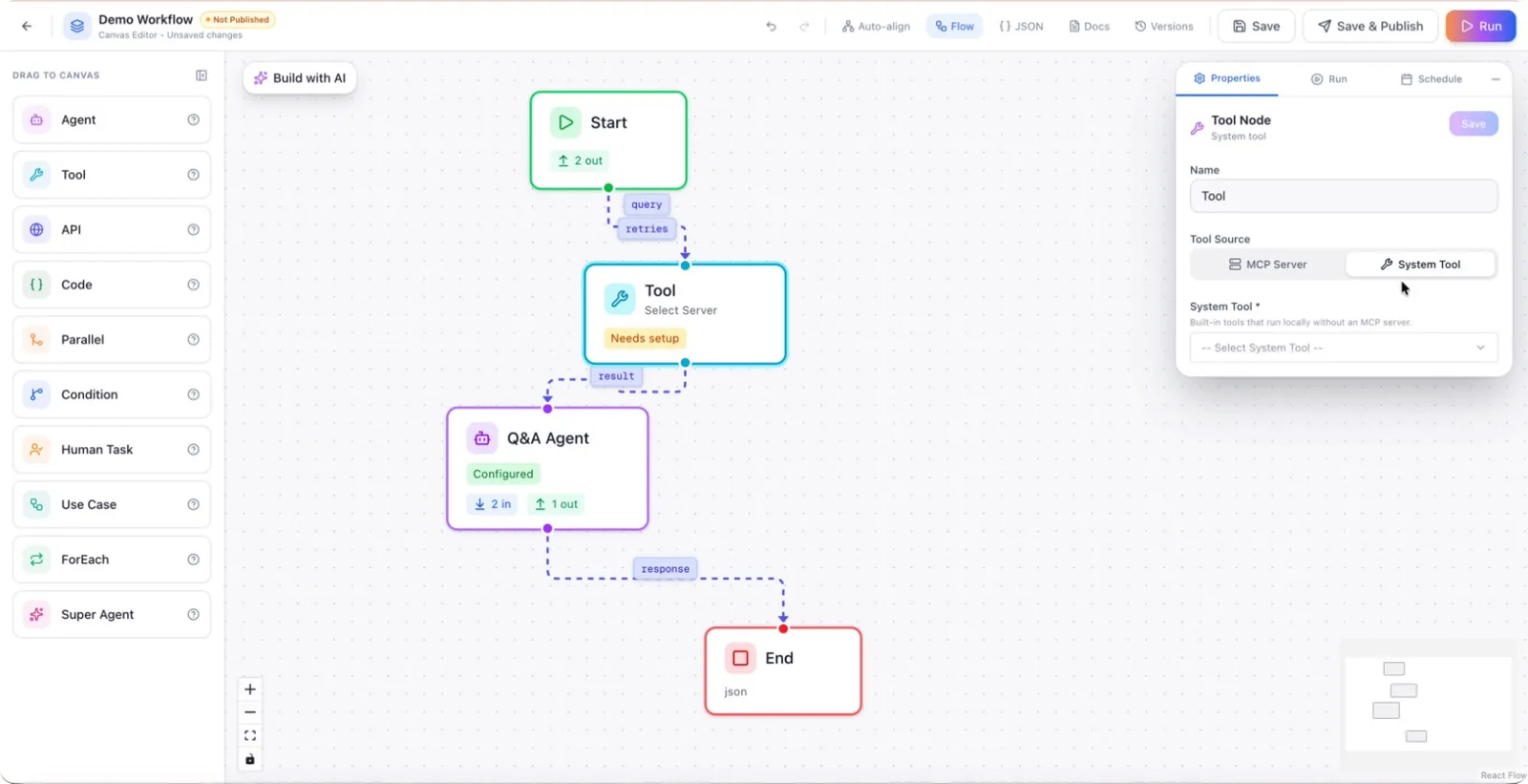
Step 2: Review Available System Tools
In the configuration panel, you will see a list of available system tools, such as:
- Get current time
- Perform a calculation
- Read a file
- Write a file
- Edit a file
- Execute code
- Run grep/grok operations
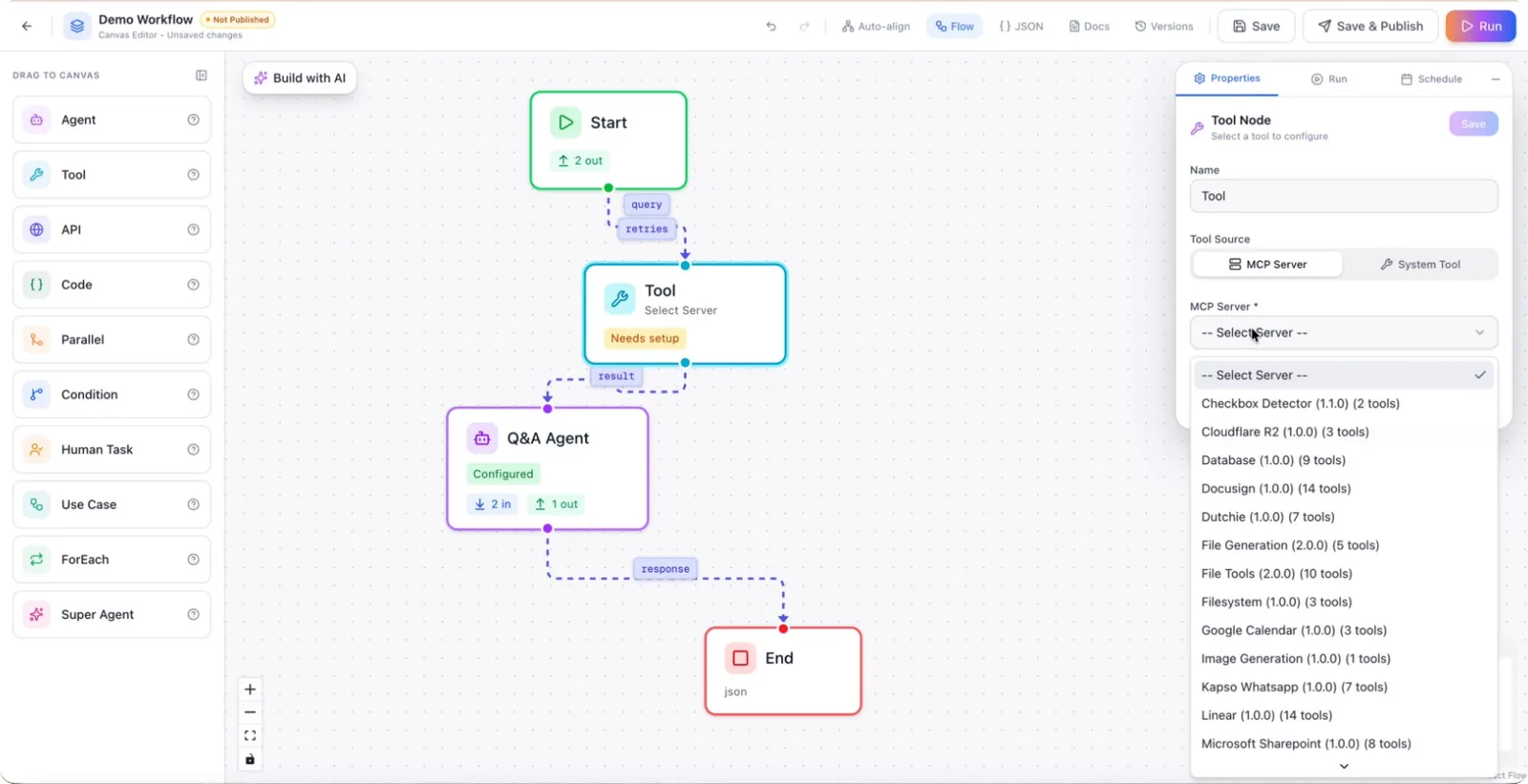
You will also see tools exposed from MCPs (Model Context Protocol).
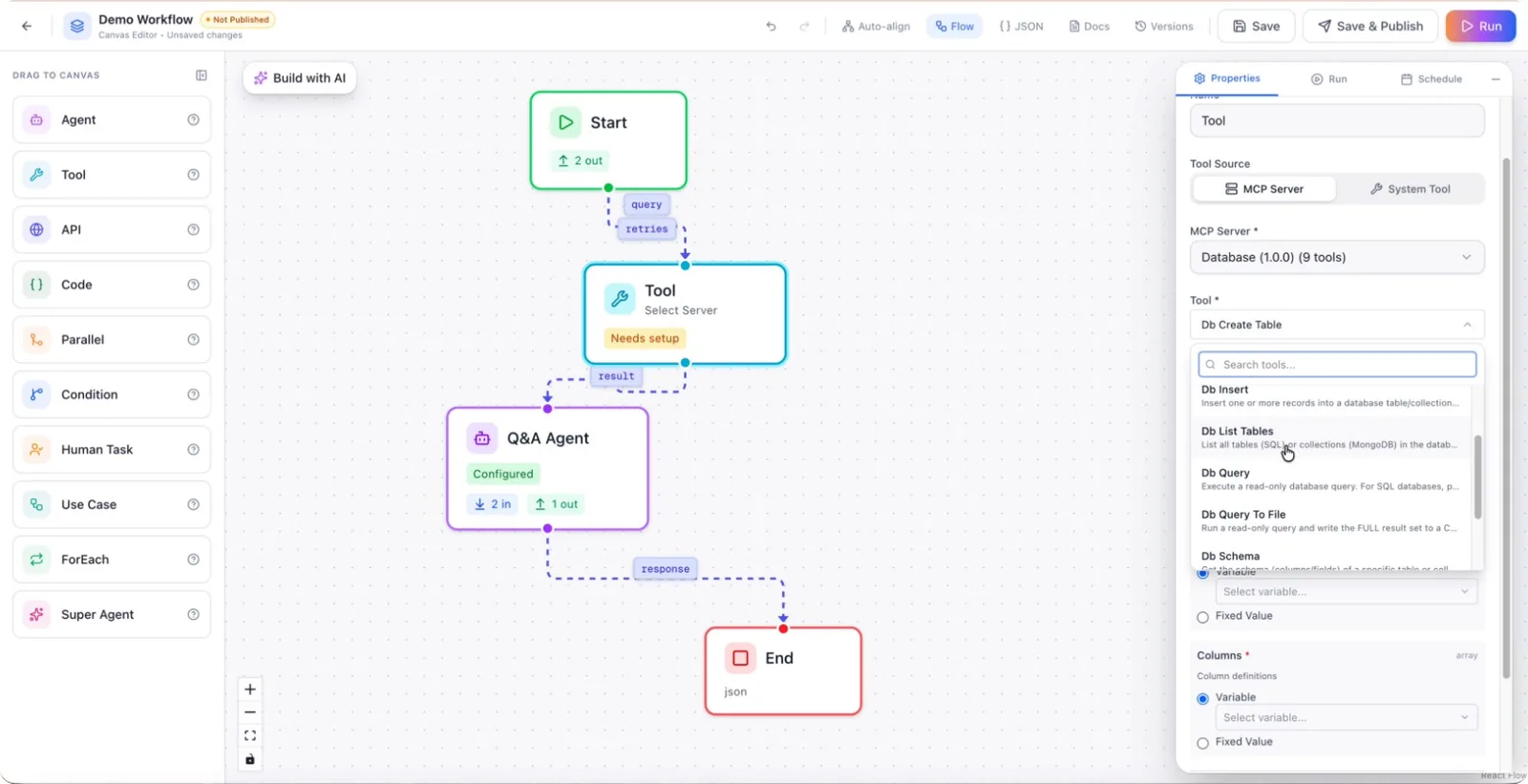
Step 3: Select a Database Tool
From the tool list, select a category such as Database.
Within this category, choose a specific tool, for example DB Query.
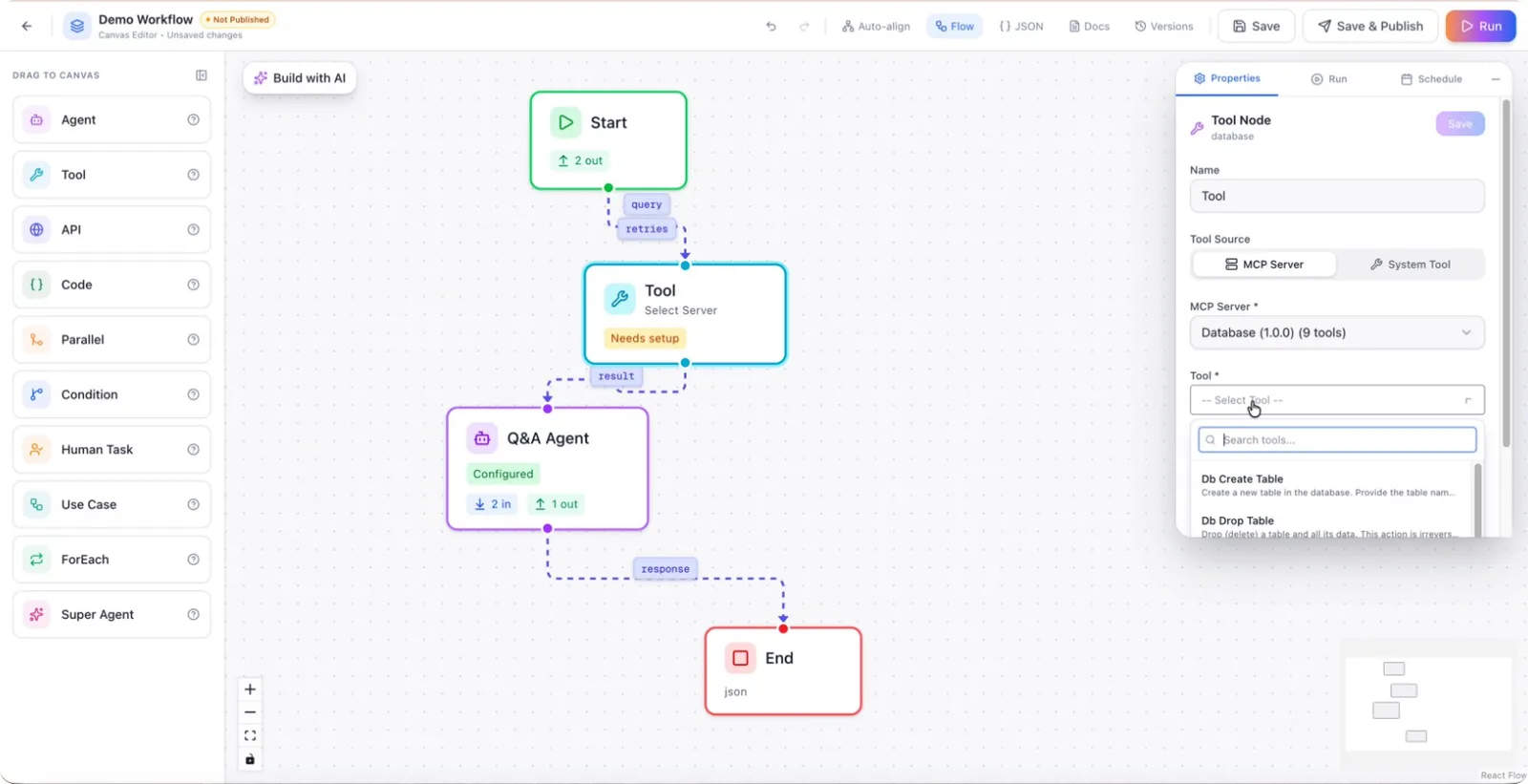
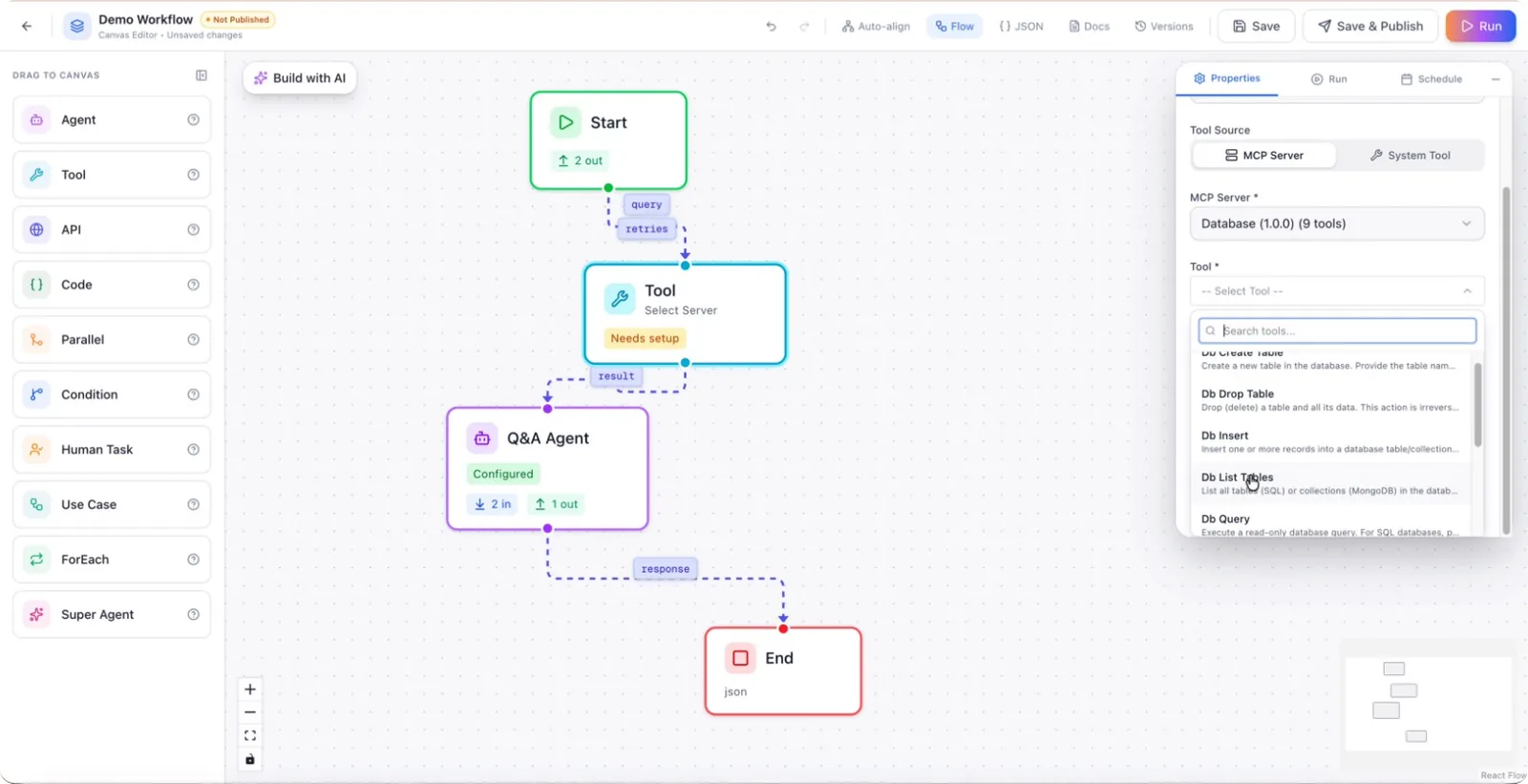
The configuration options displayed will depend on the tool you selected.
Step 4: Configure Different Database Operations
If you select a tool like DB Create, the node will prompt you for configuration specific to creating records, such as input mapping, columns, and related fields.
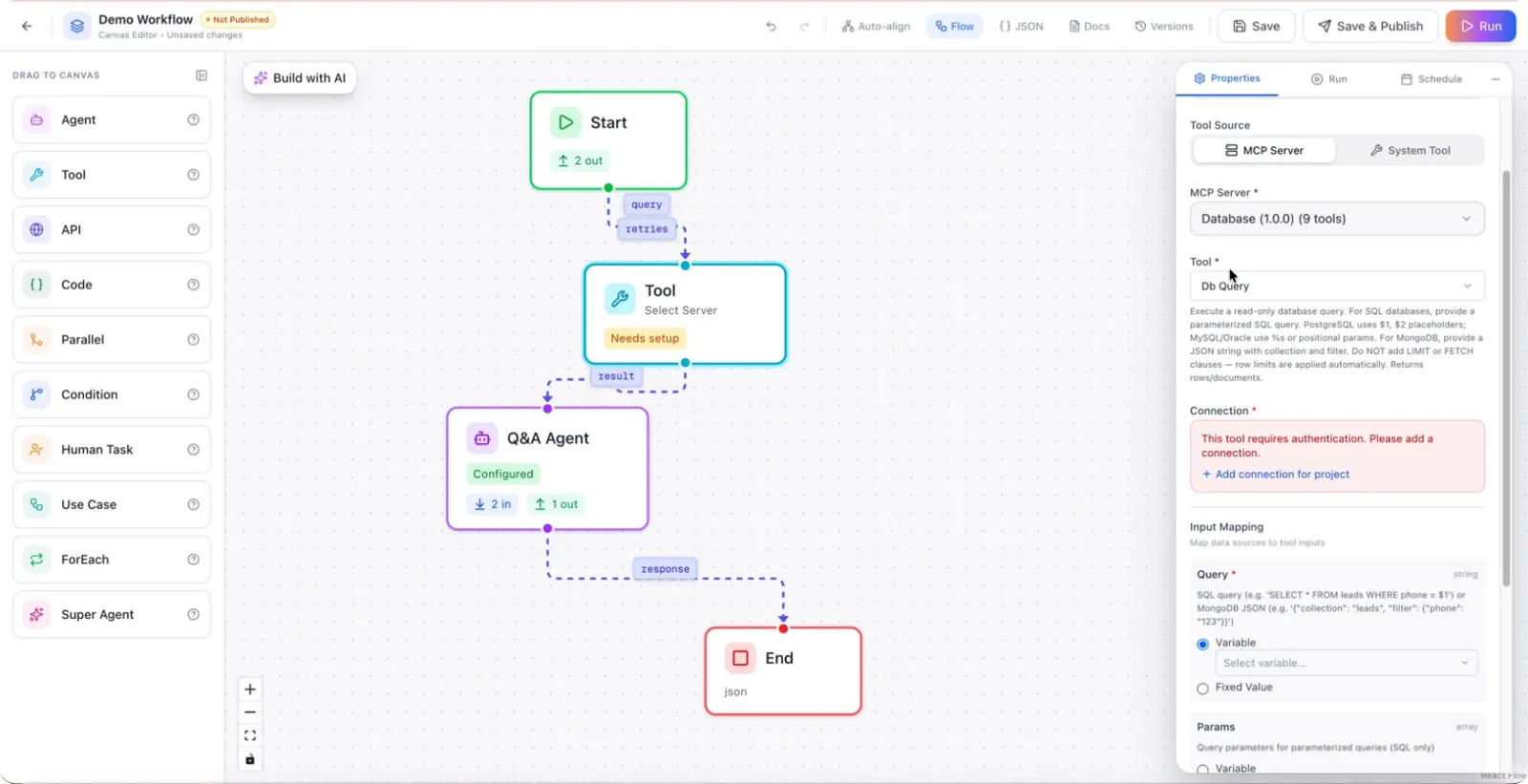
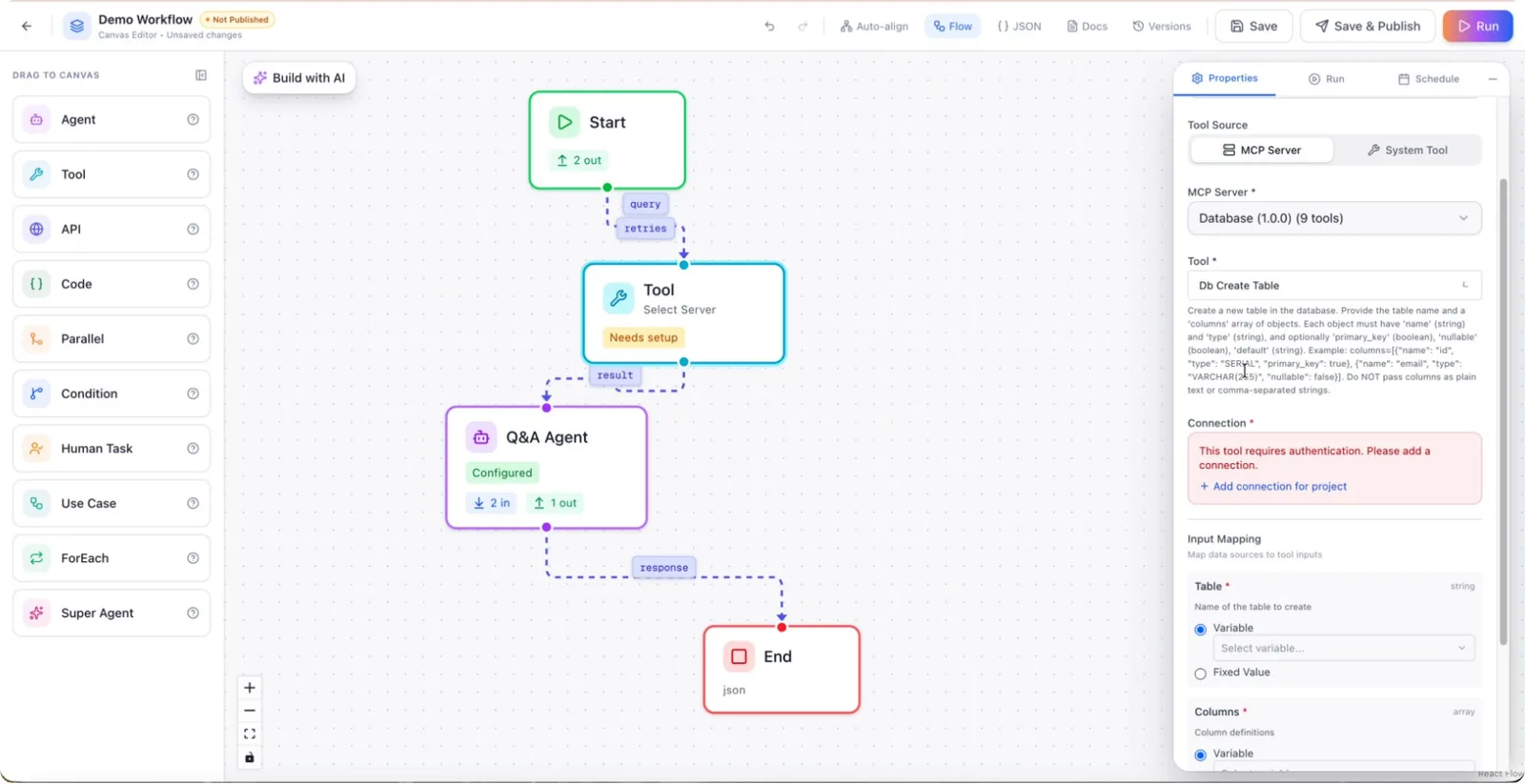
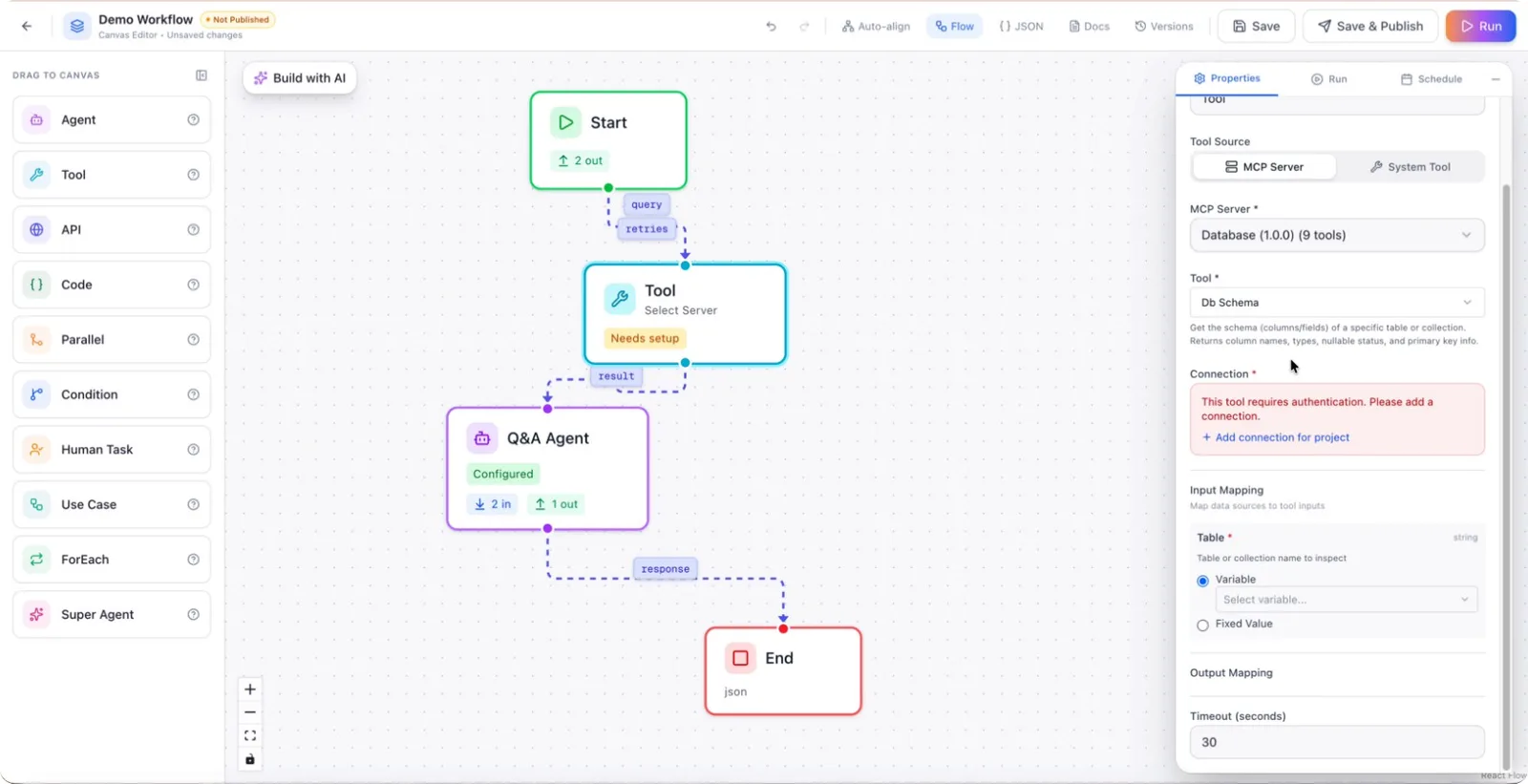
If you instead choose DB Schema, the node will show options relevant to inspecting or managing the database schema.
Step 5: Configure Web Search Tools
To use a web search tool, select a web search option from the tool list.
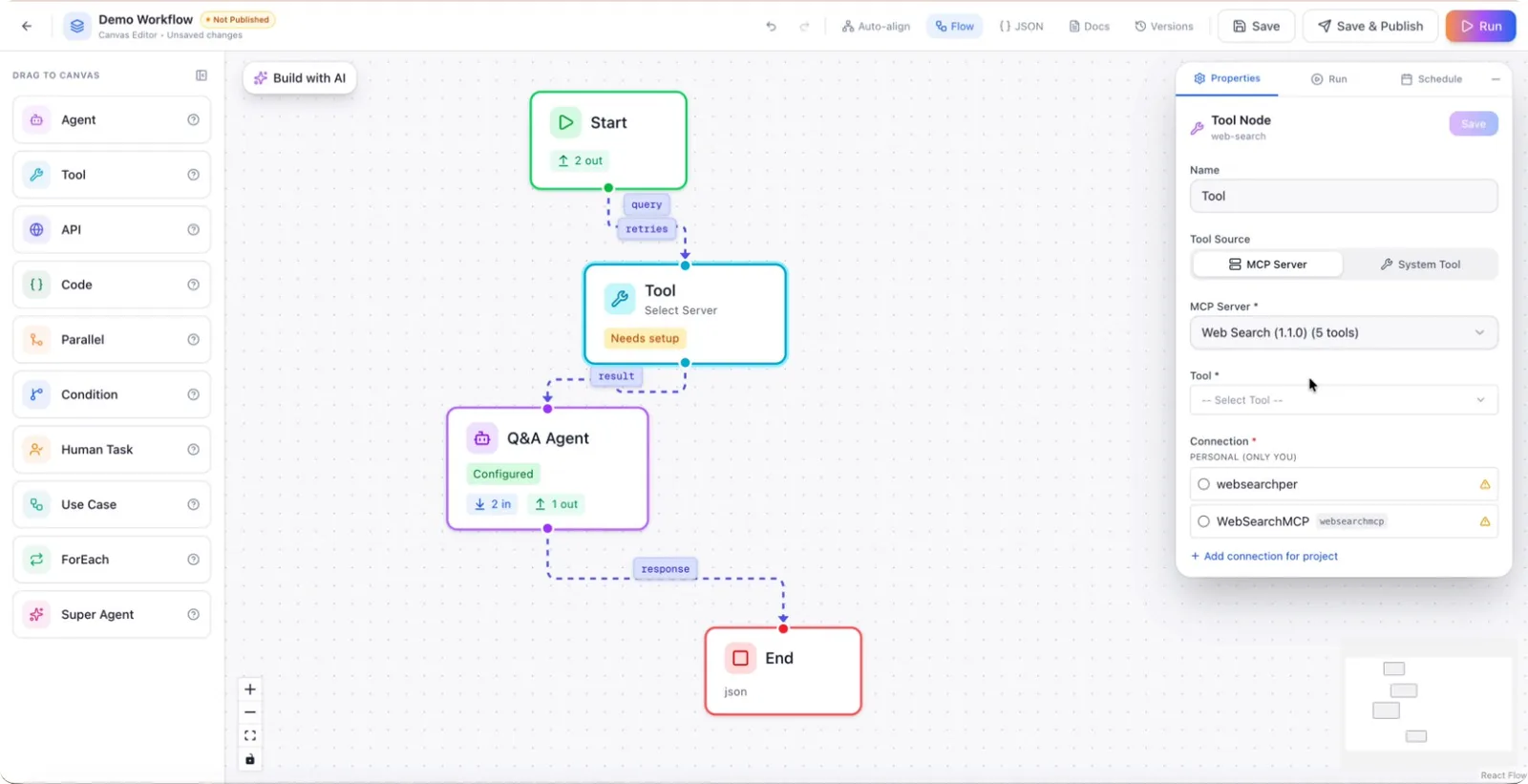
For example, if you select Perplexity, the node will display the required connections and parameters such as country, query, and max result.
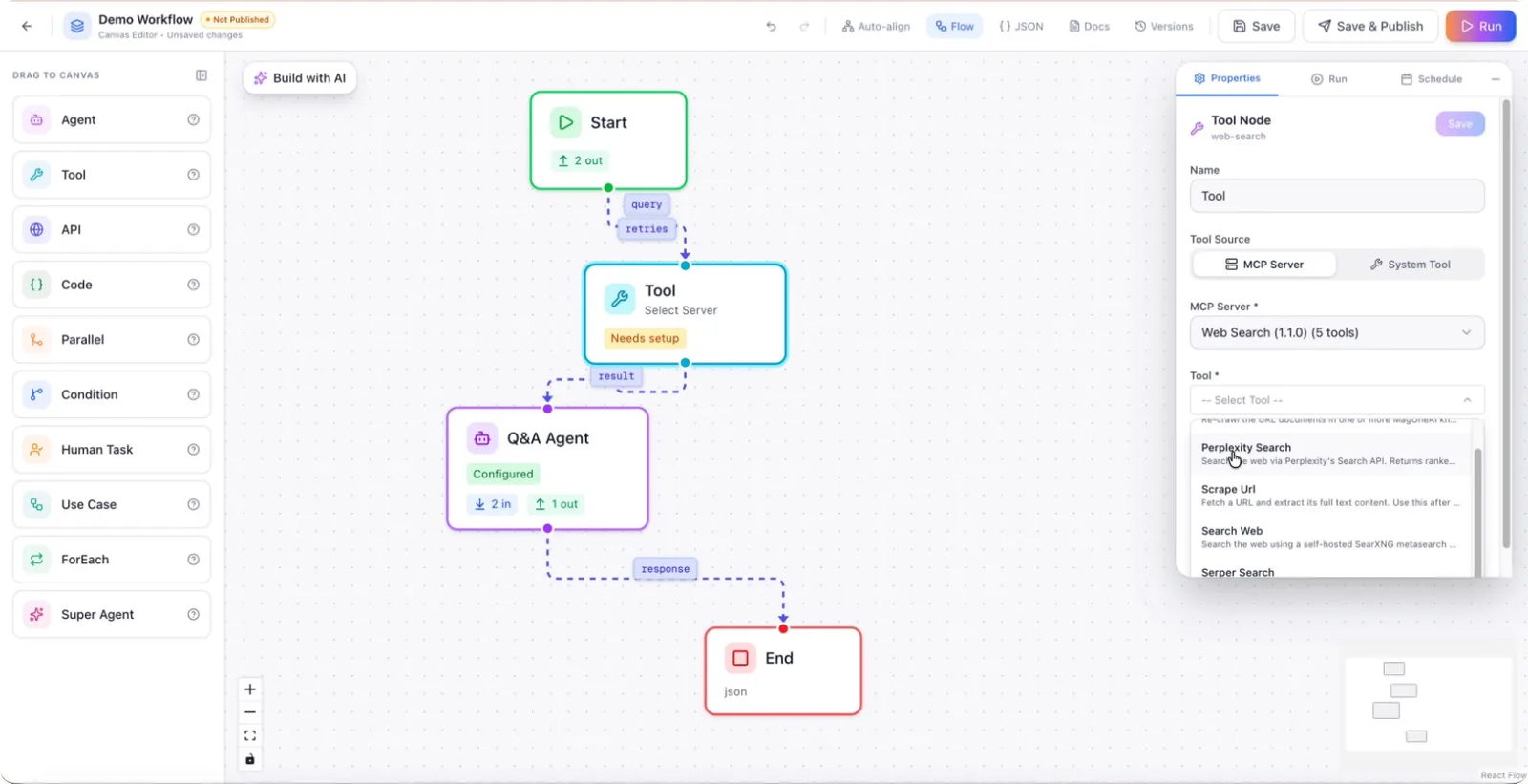
If you choose a different search tool like Search Web, you will see a different set of fields, such as query, region, and engines.
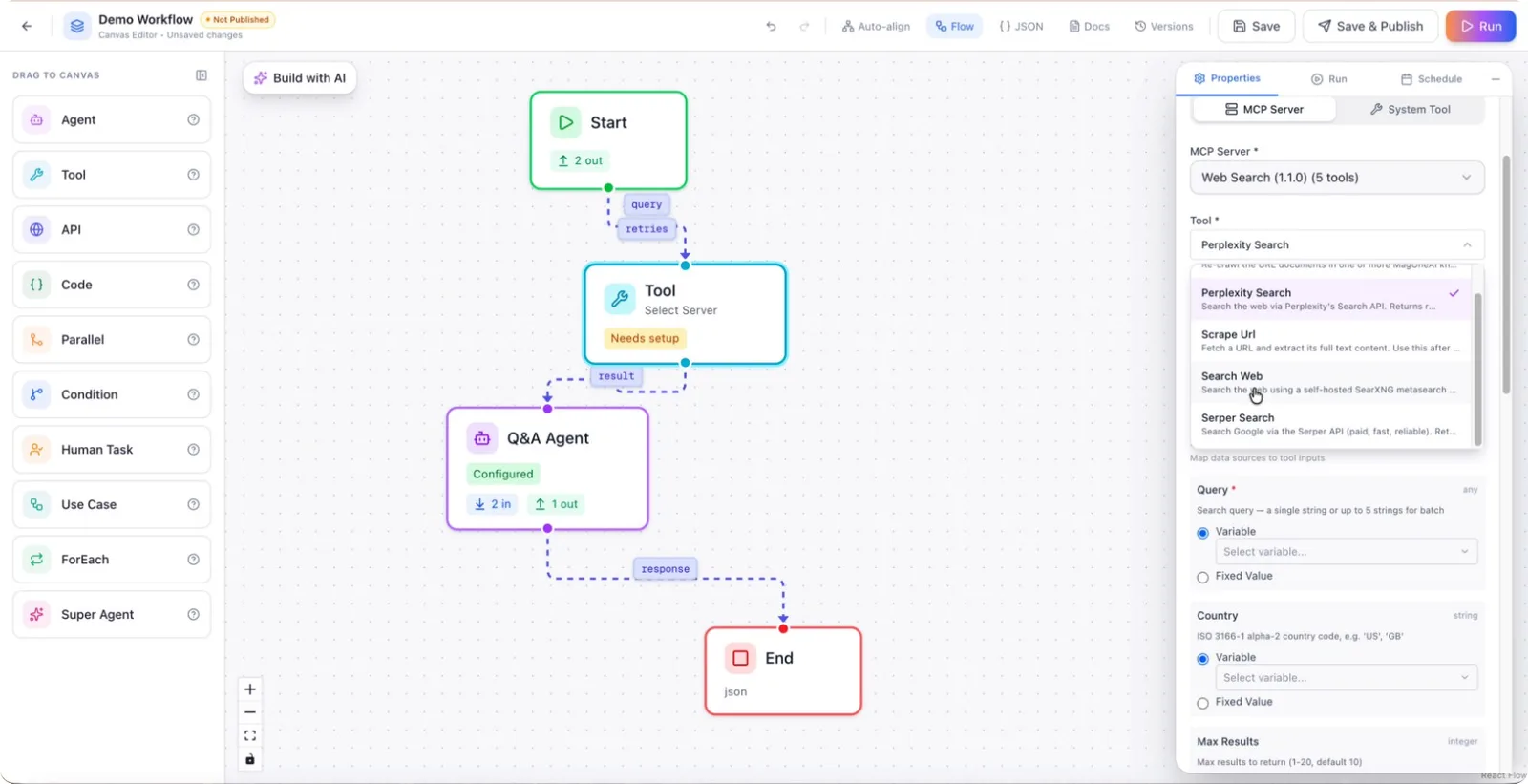
Step 6: Use MCP Tools and Set Timeouts
You can also configure other MCP tools, such as Google Calendar, or any custom MCP tool you have created, directly inside the Tool node.
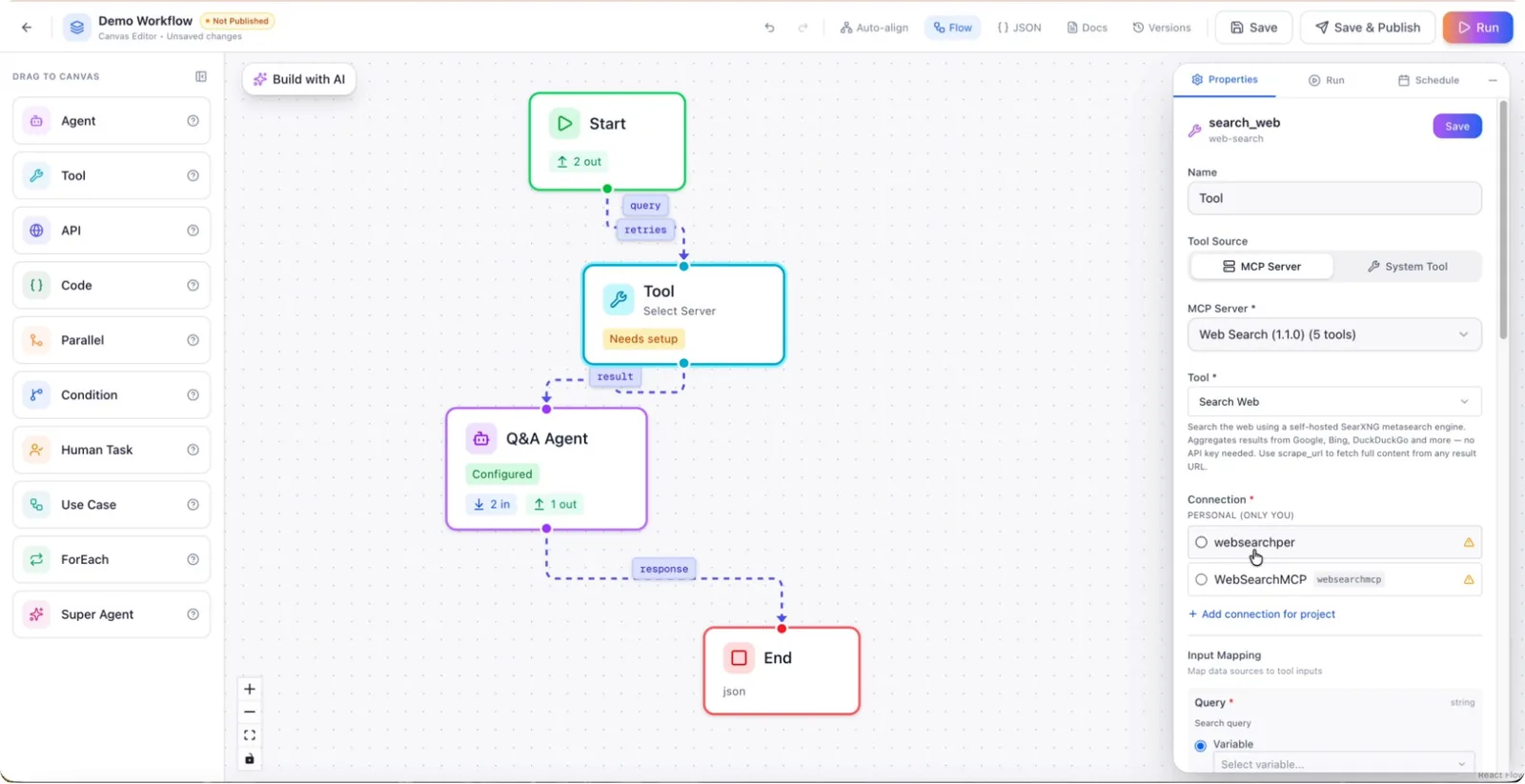
The configuration options will always adapt to the specific tool selected. Additionally, you can set a timeout value so that if a tool does not respond within the specified time, the node will stop waiting and return an appropriate response based on the timeout behavior.