

Node Explained · Lesson 8 of 12
CONDITION Node: Rule-Based and AI-Based Routing
Branch a workflow three ways: compare a variable, evaluate an expression, or let a model sort the input into buckets you name. Includes match-per-route, for several branches out of a single node.
What You Will Learn
- Splitting the path and expressing a rule such as large claims go to a person, small ones auto approve
- Why an expression is the right answer for anything numeric or exact: free, instant and correct every single time
- The second mode, for when the decision is genuinely about meaning: is this complaint angry, is this an invoice or a receipt
- Listing your categories explicitly instead of leaving classification open ended
- Always proving both branches, because one run only demonstrates half of them
- The rule to take away: never use a model to compare two numbers
Step by step guide
Step 1: Add a Conditional Node to Your Workflow
Drag and drop the conditional node into your workflow canvas where you want to branch the flow.
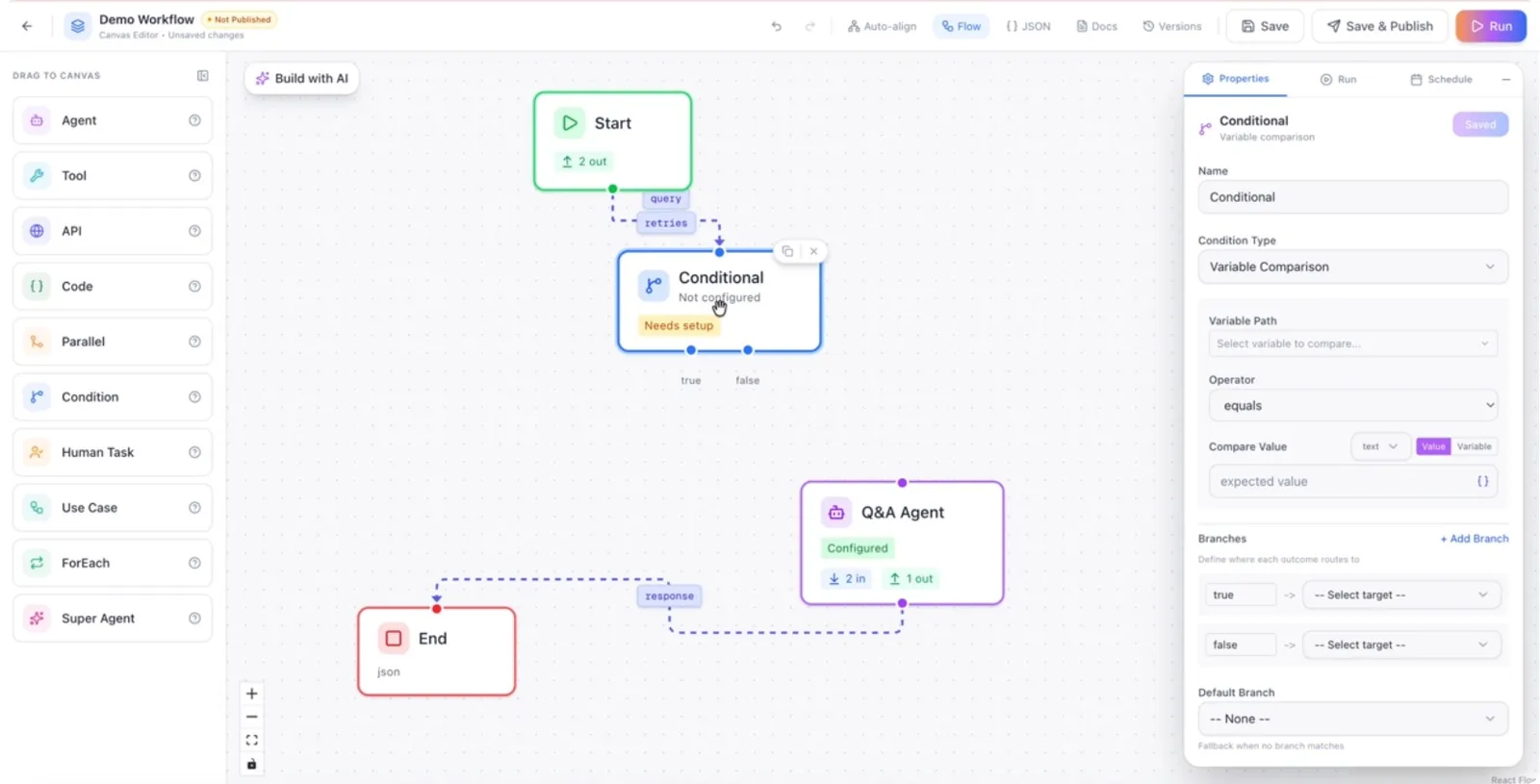
Step 2: Review the Available Condition Types
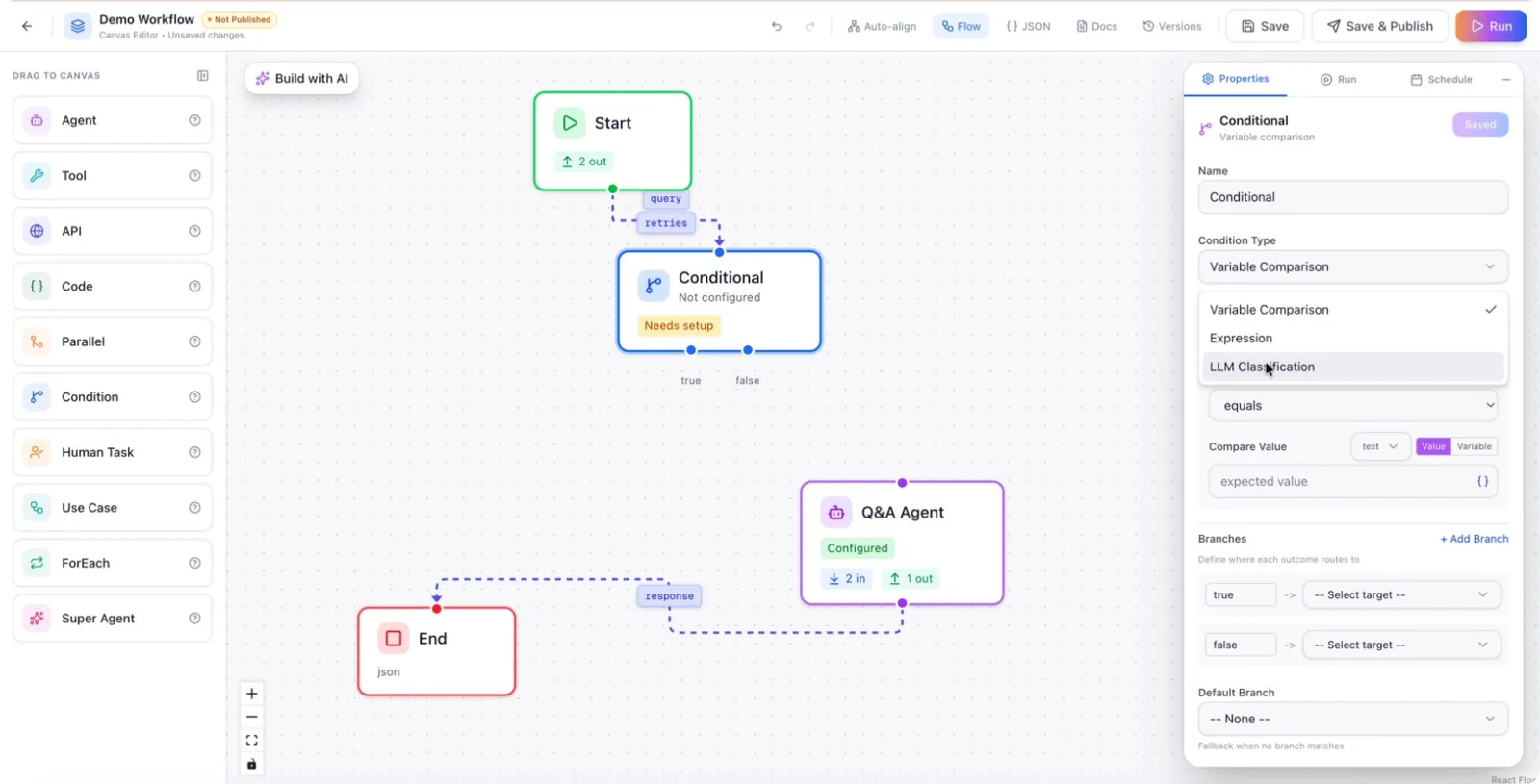
Open the conditional node configuration panel to see the supported condition types. You can choose from:
- Variable comparison
- Expression
- LLM classification
Step 3: Configure a Variable Comparison Condition
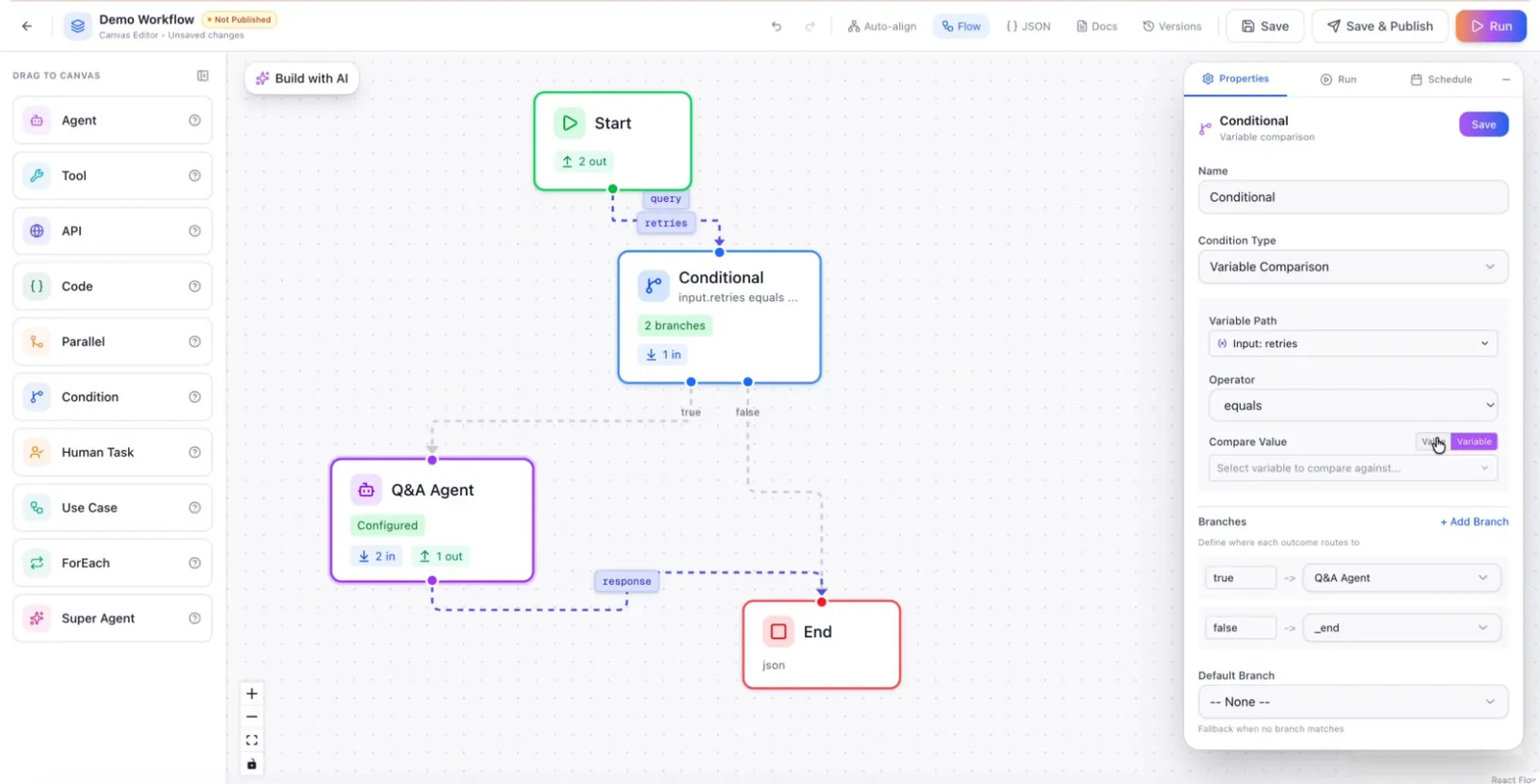
Start by selecting the Variable comparison condition type.
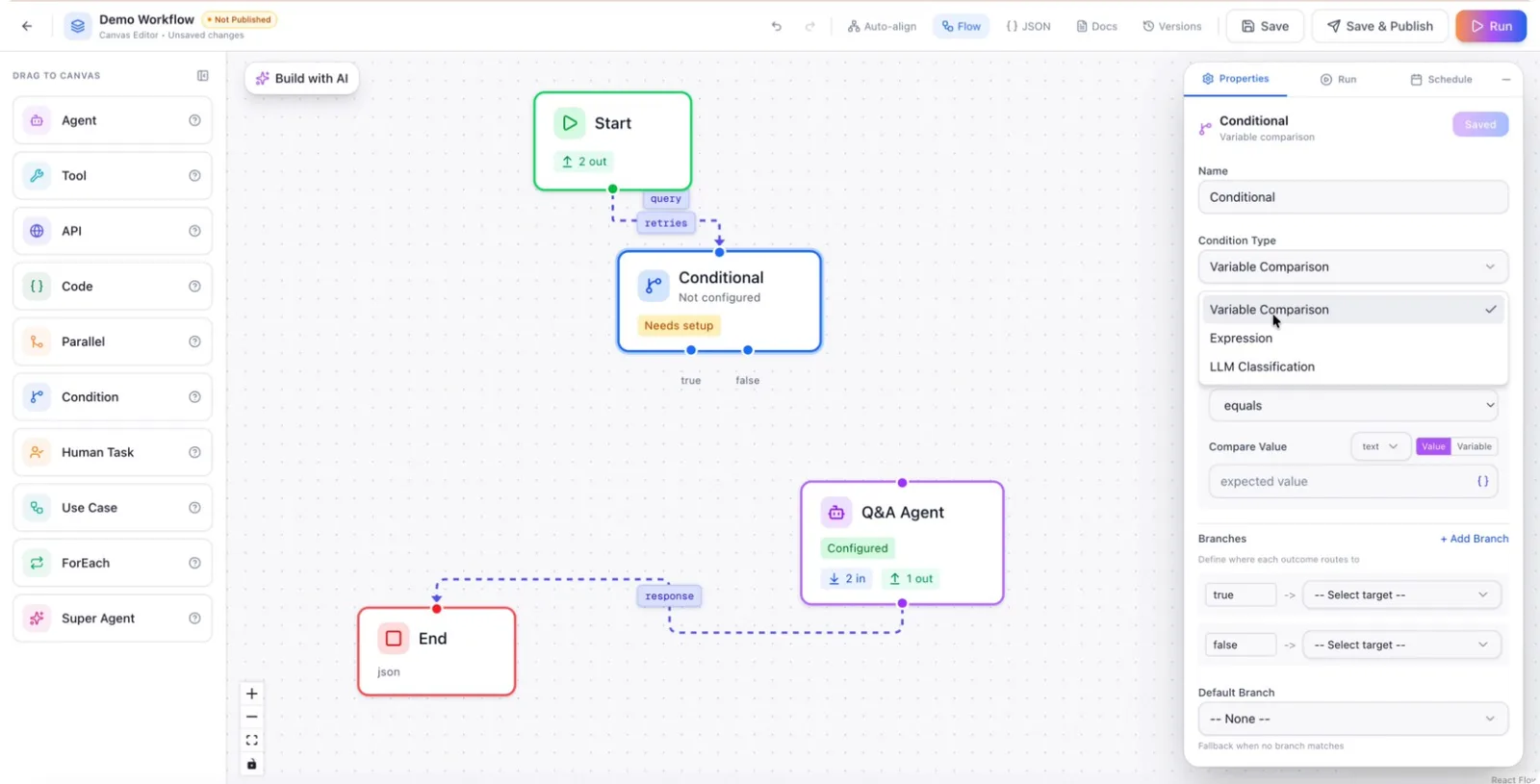
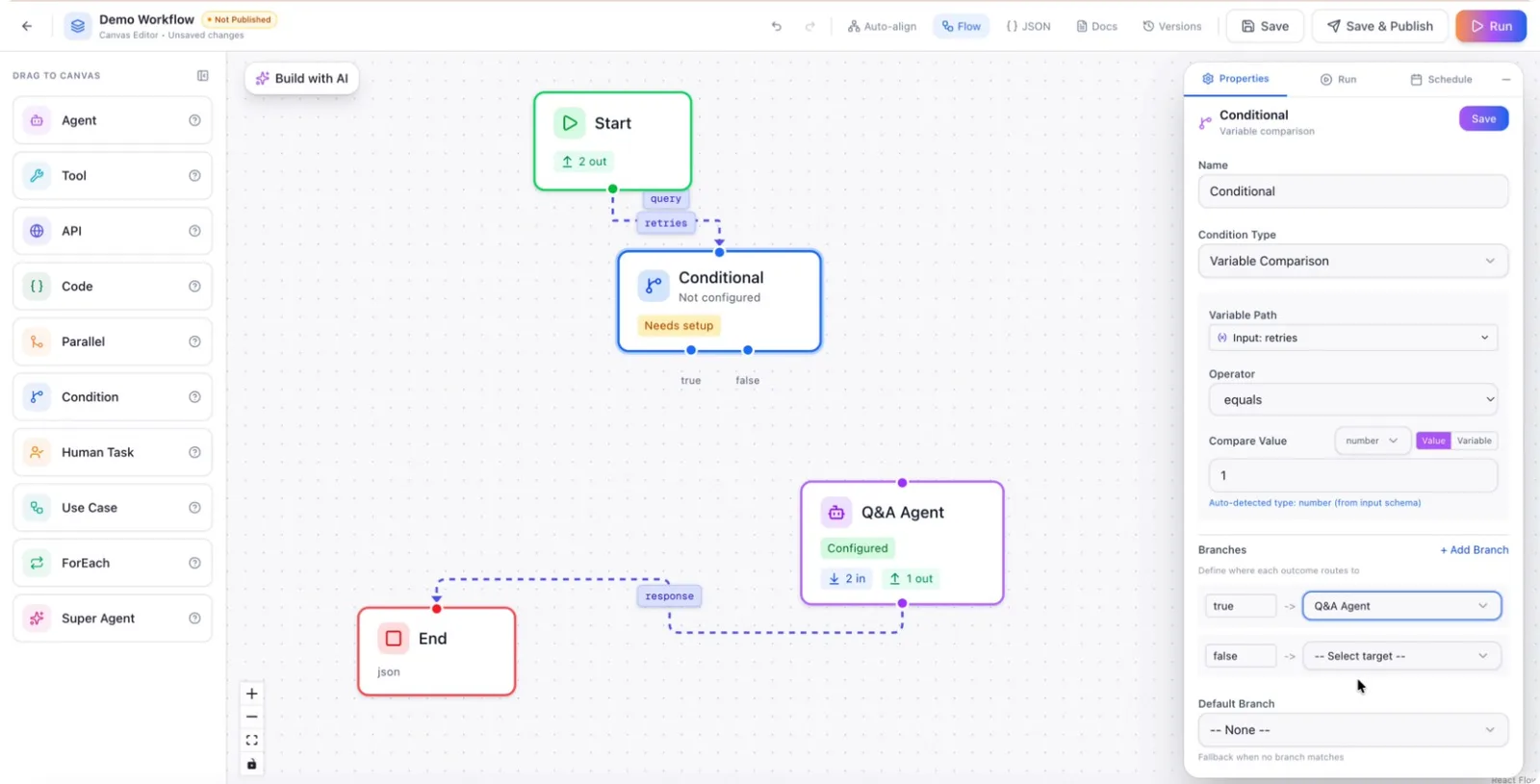
Choose the variable you want to compare.
For example, select the retries variable and set a rule such as:
If retries is equal to 1**, route to the Q&A agent; otherwise, route to the End node.**
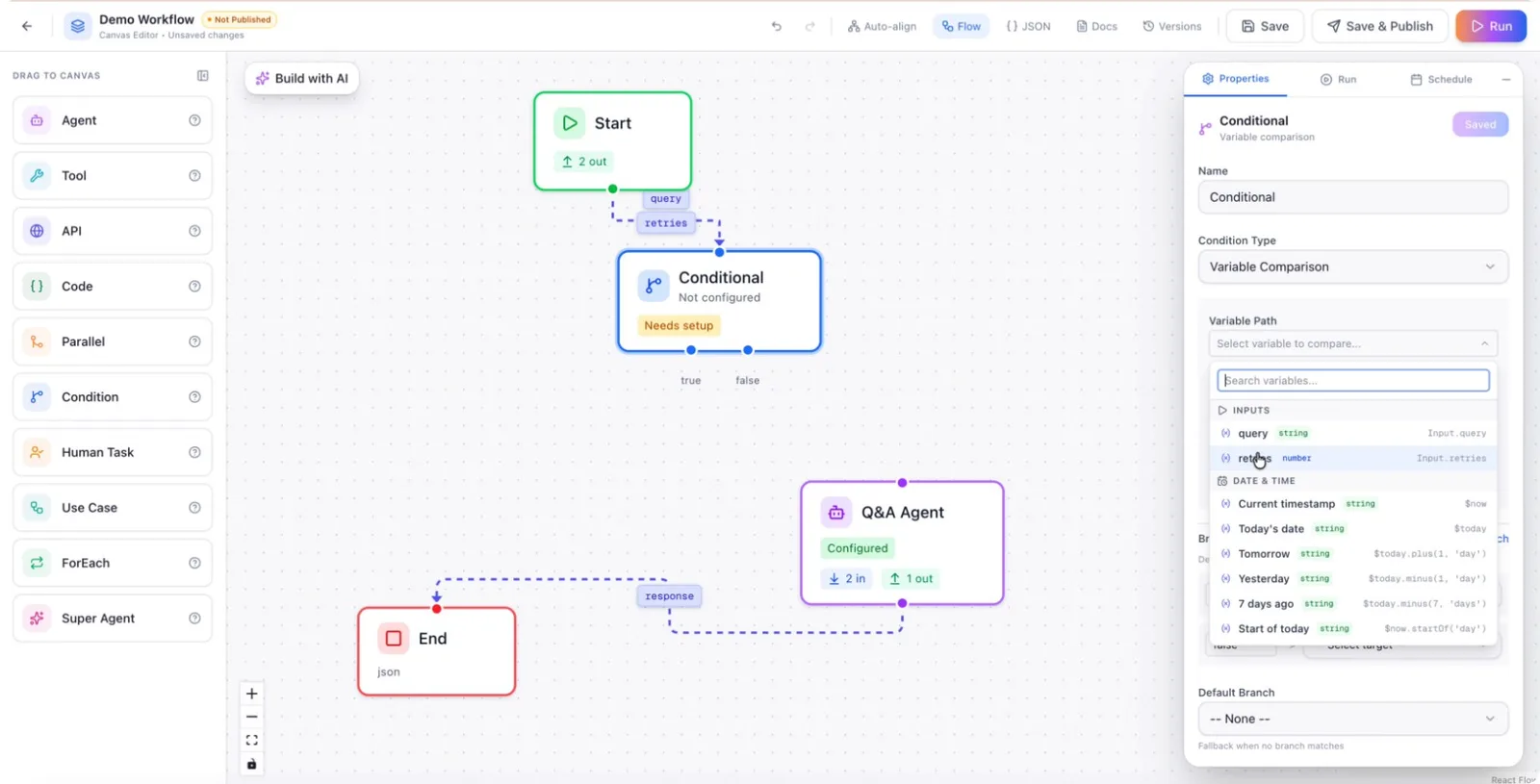
Configure the branch that goes to the Q&A agent when the condition is met.
Then configure the alternative branch that goes to the End node when the condition is not met.
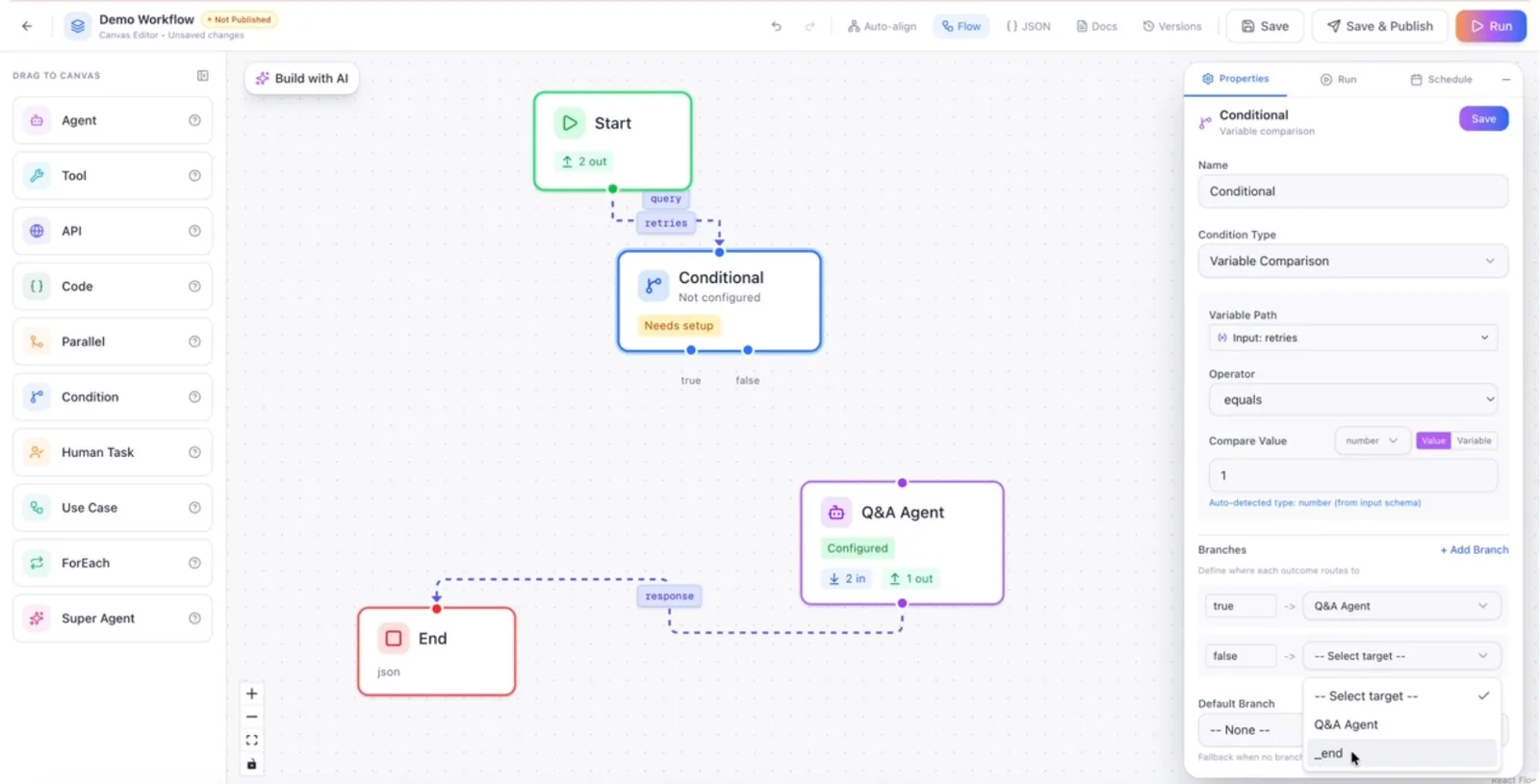
Save the configuration to apply these routing rules.
Step 4: Set Data Types and Comparison Values
Adjust the data type of the variable as needed (e.g., number, string, boolean) to ensure accurate comparisons.
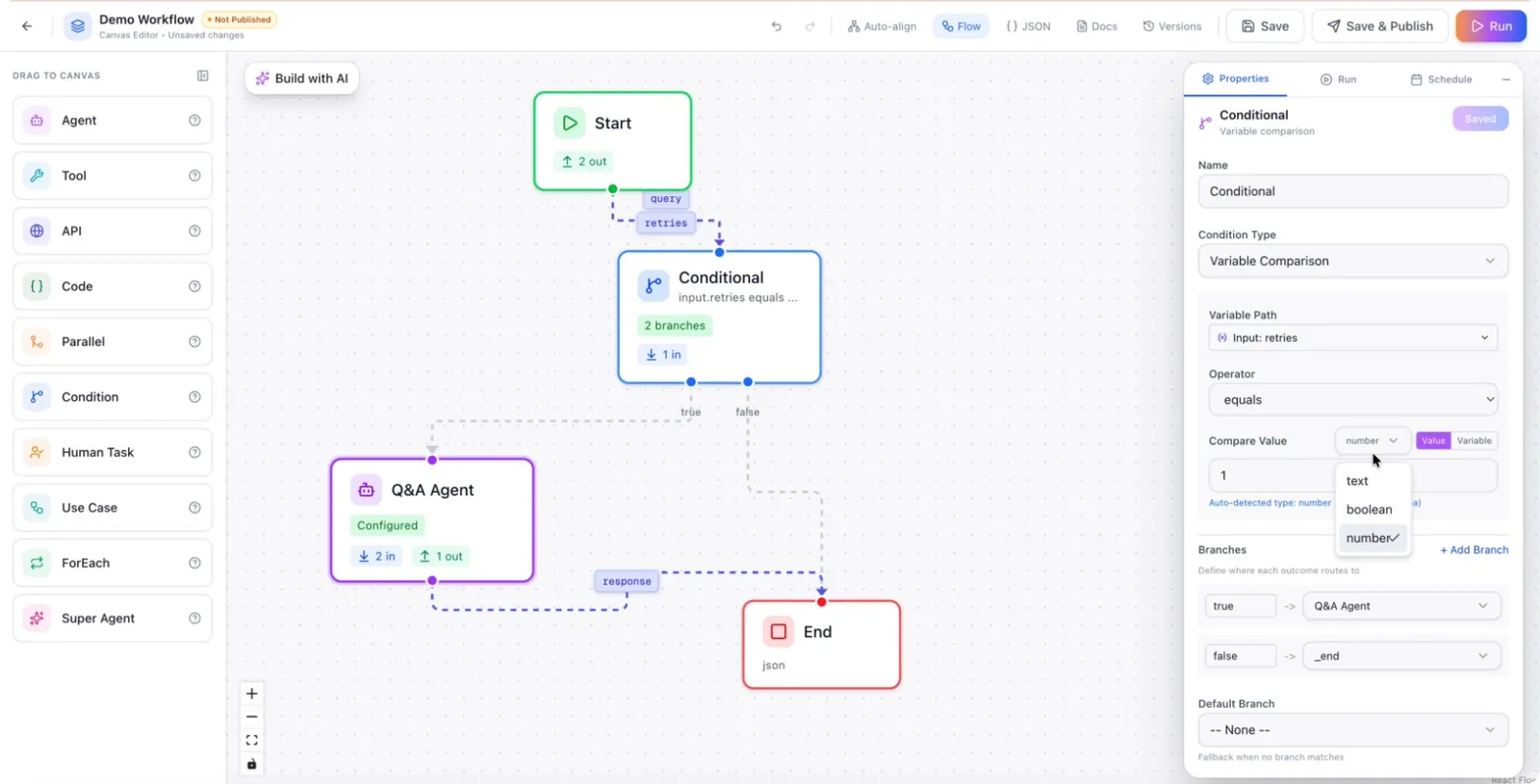
Specify whether you are comparing against a literal value or another variable.
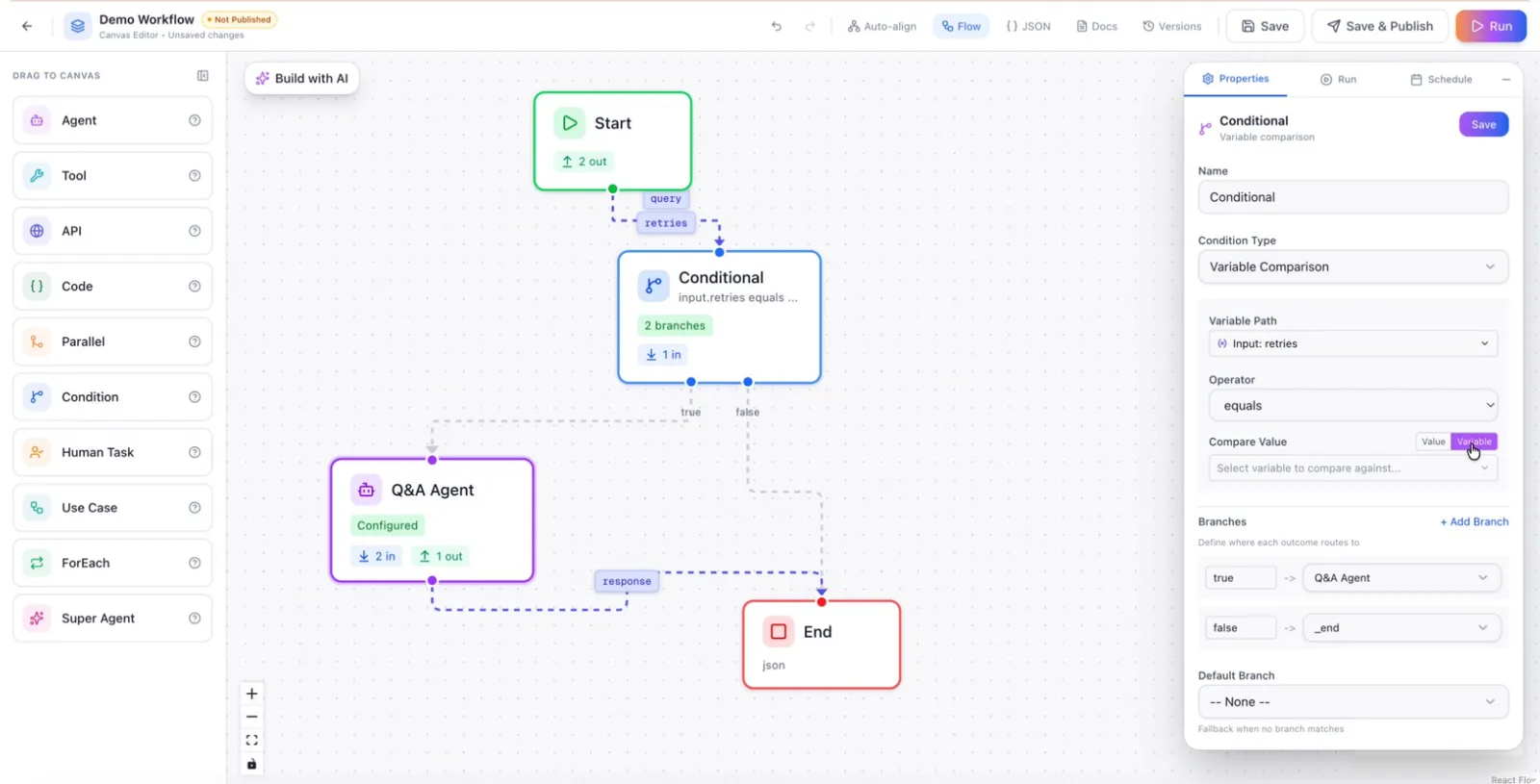
You can also compare the selected variable with another variable in the workflow.
Step 5: Use Expression-Based Conditions
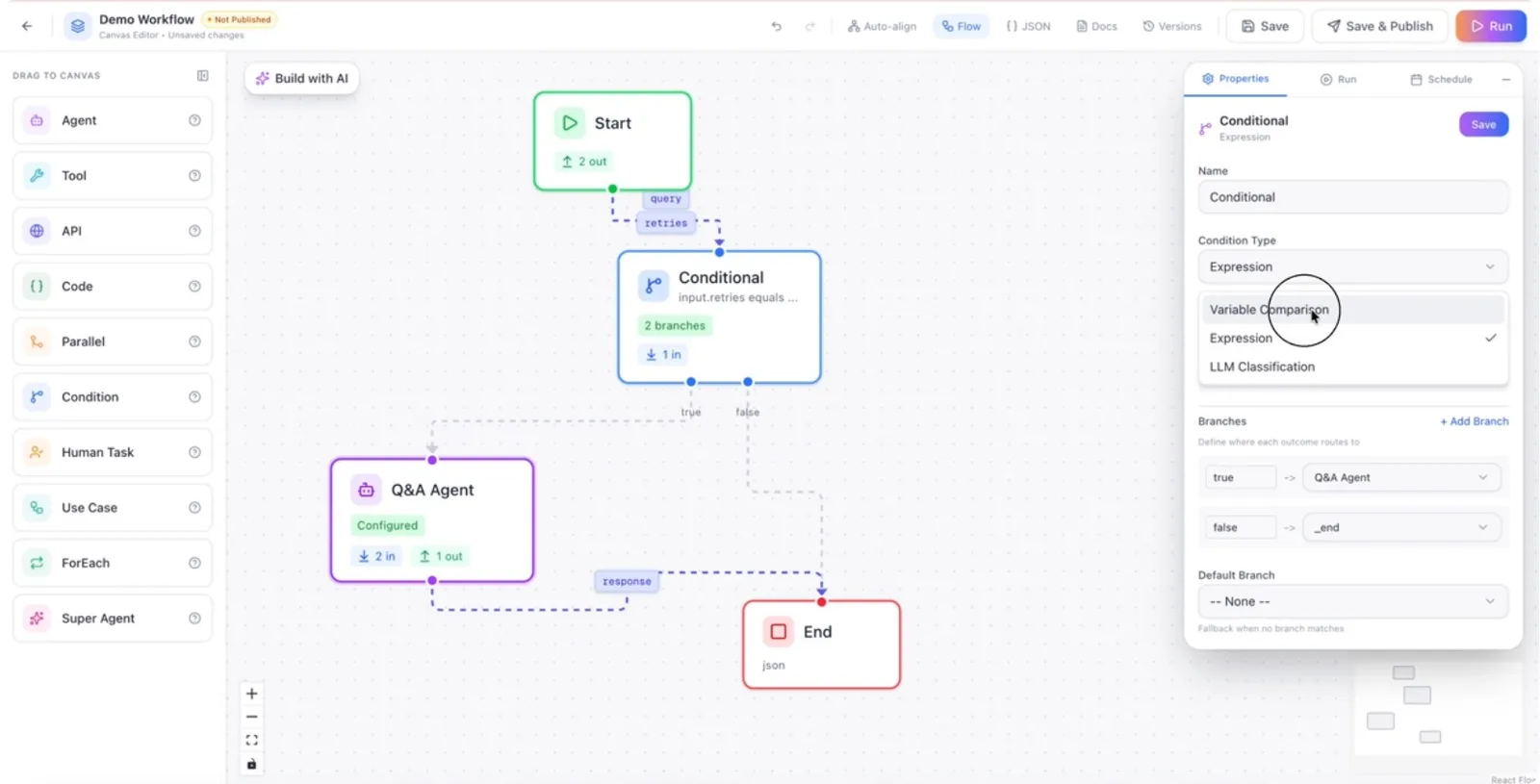
If you need more complex logic, switch to the Expression condition type.
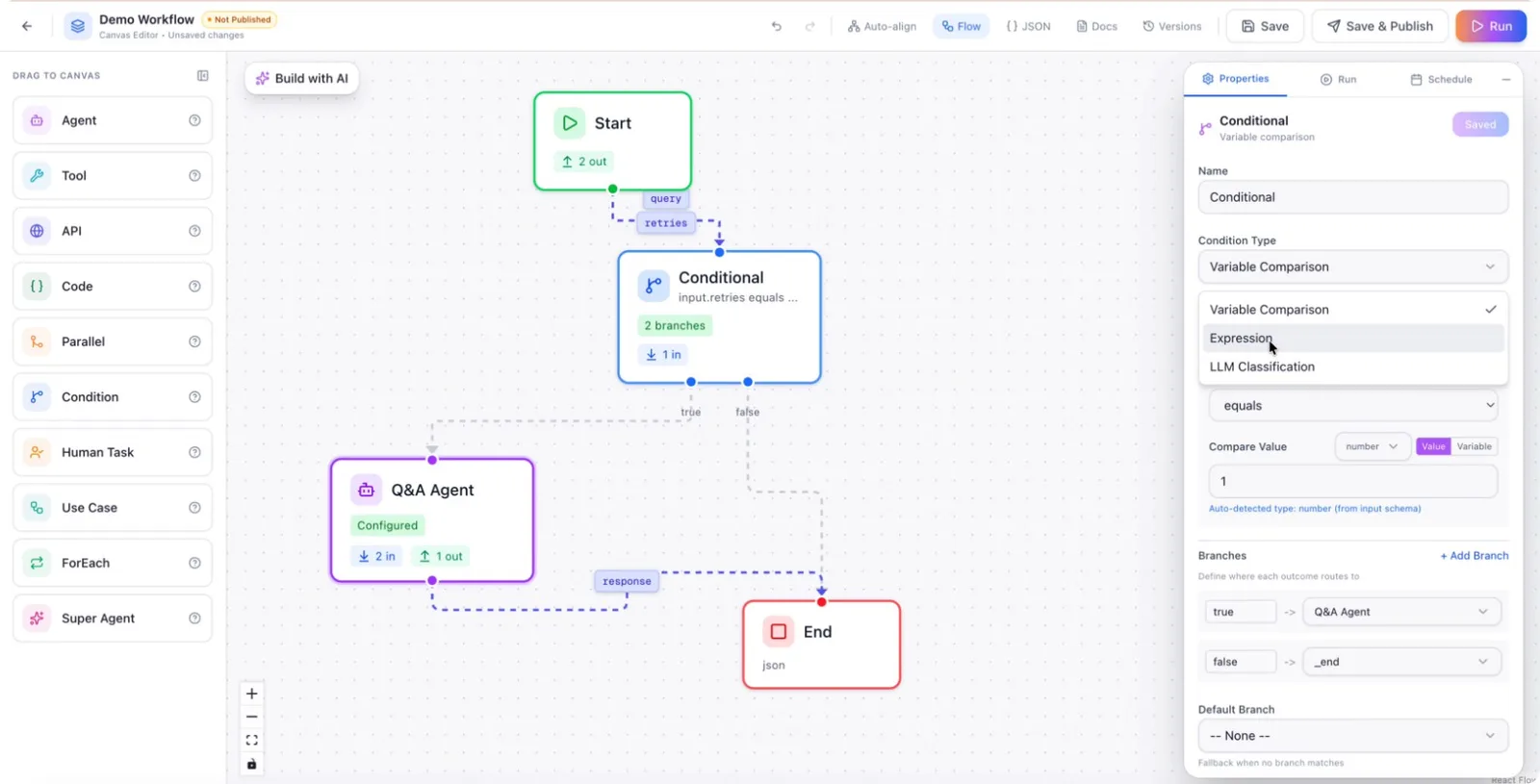
For example, define an expression like input.retries > 10. If this expression evaluates to true, route the flow to the Q&A agent; otherwise, route it to the alternative branch.
Step 6: Configure Match-Per-Route Variable Comparisons
Instead of a single expression, you can return to Variable comparison mode and enable match per route to define multiple value-based routes.
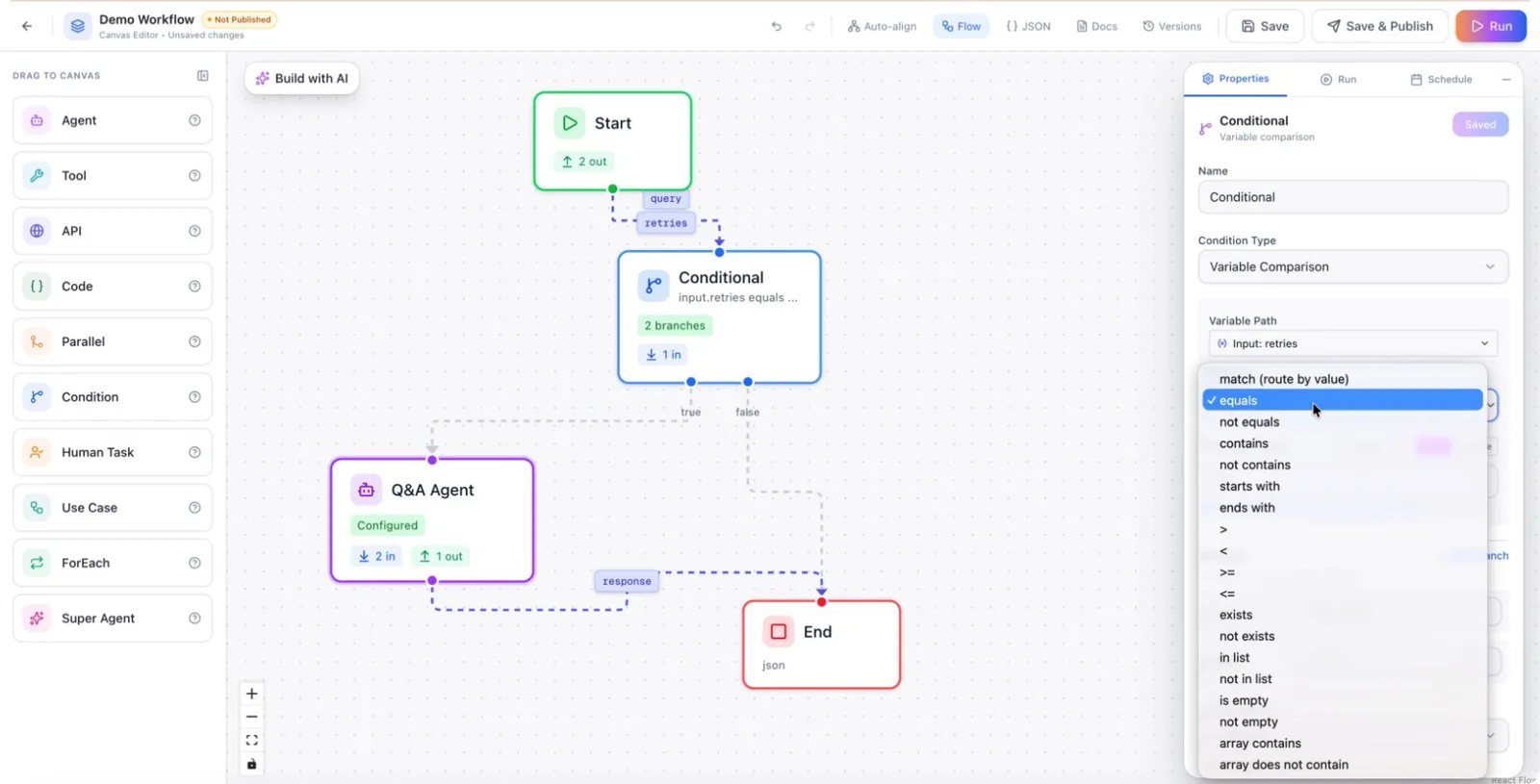
For example, you can create separate branches when the retries value is:
102
Then assign different branches or target nodes for each of these values.
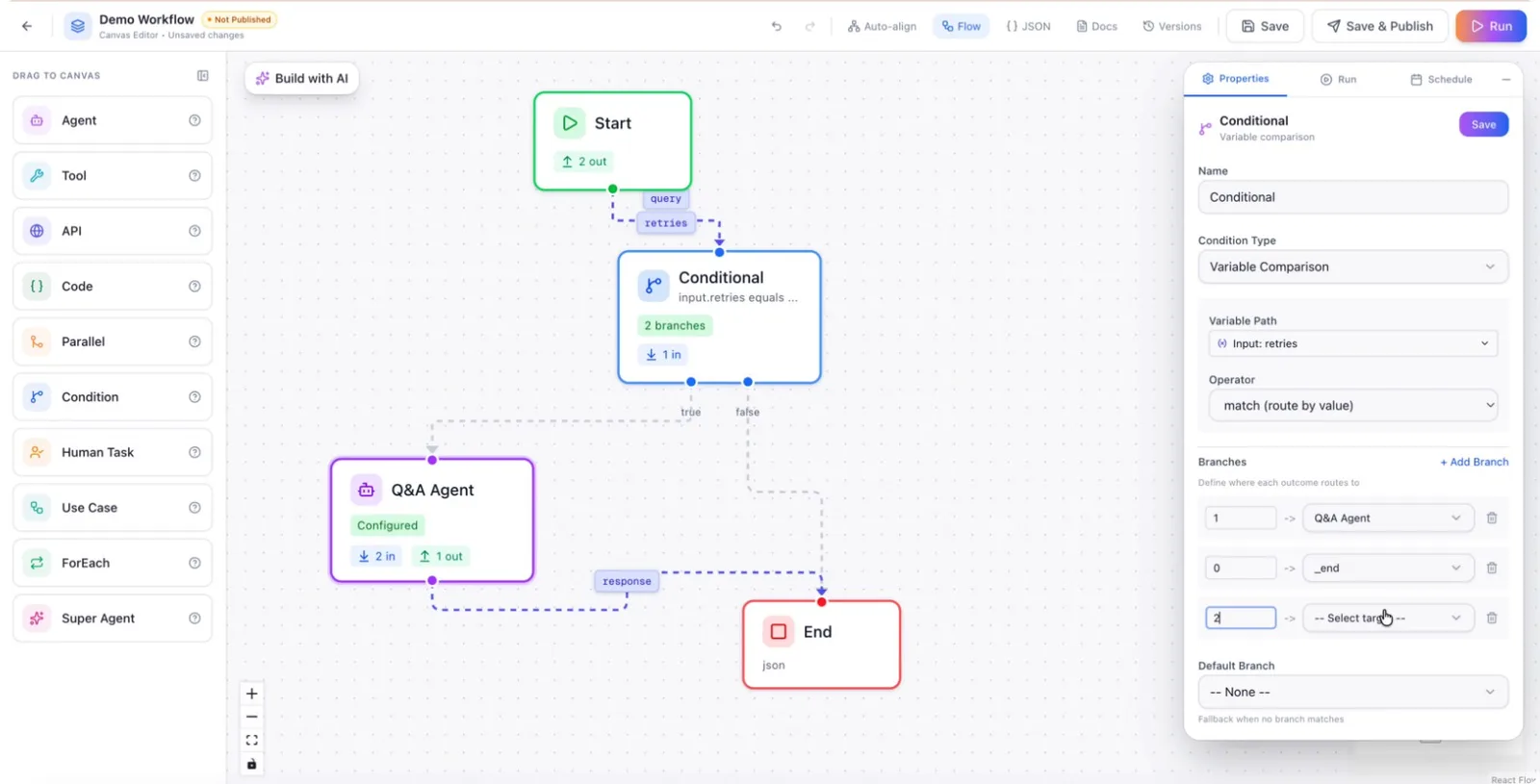
This makes it easy to manage multiple conditional paths from a single node.
Step 7: Configure Expression Branches (True/False)
Switch to the Expression condition type again to handle boolean-style expressions that return true or false.
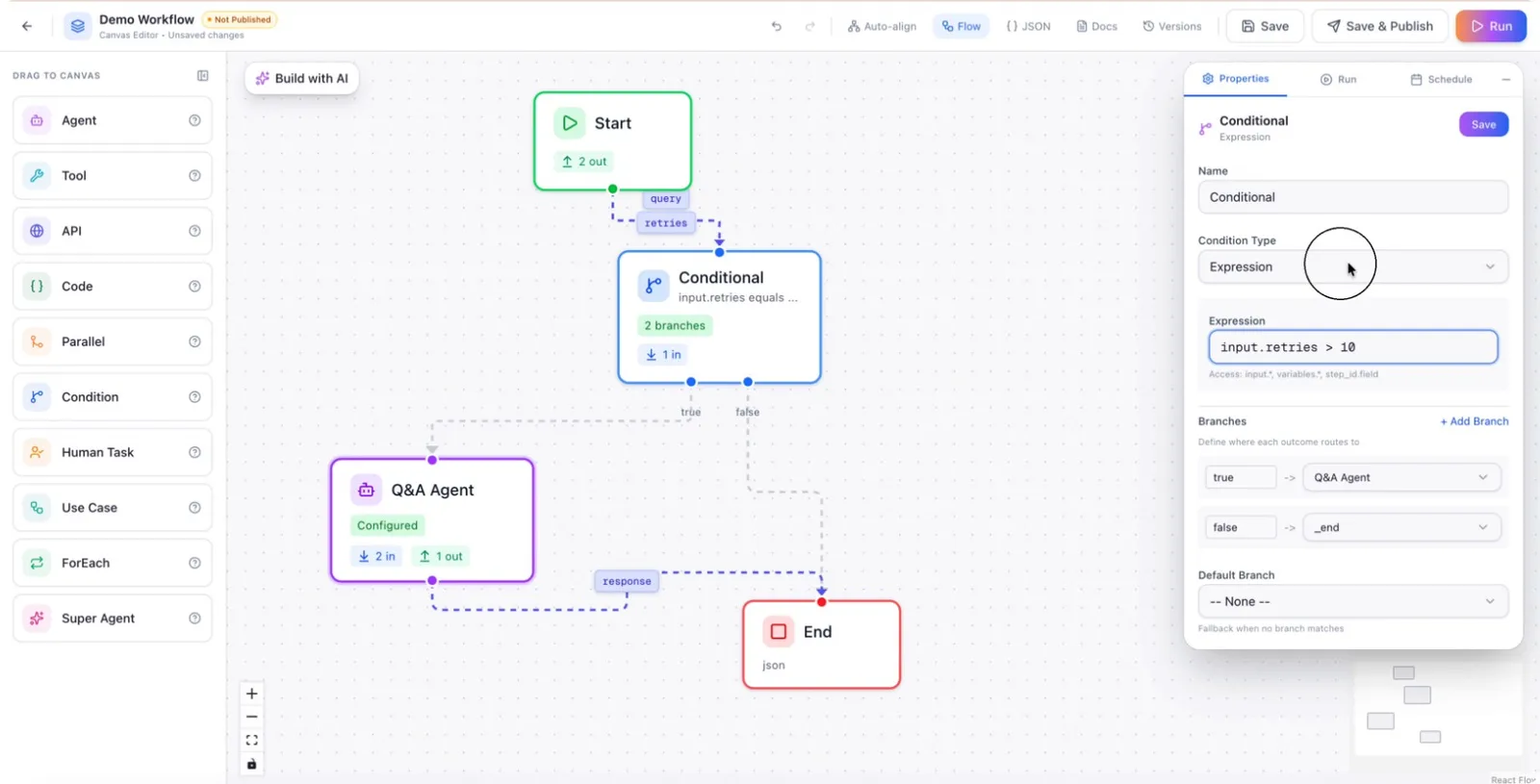
Set up your expression and map the true and false outcomes to different branches. You can clear any previous configuration and enter any expression needed for your logic.
Step 8: Use LLM Classification for Dynamic Routing
Select the LLM classification condition type when you are unsure of exact output values and want the system to classify user input into predefined categories.
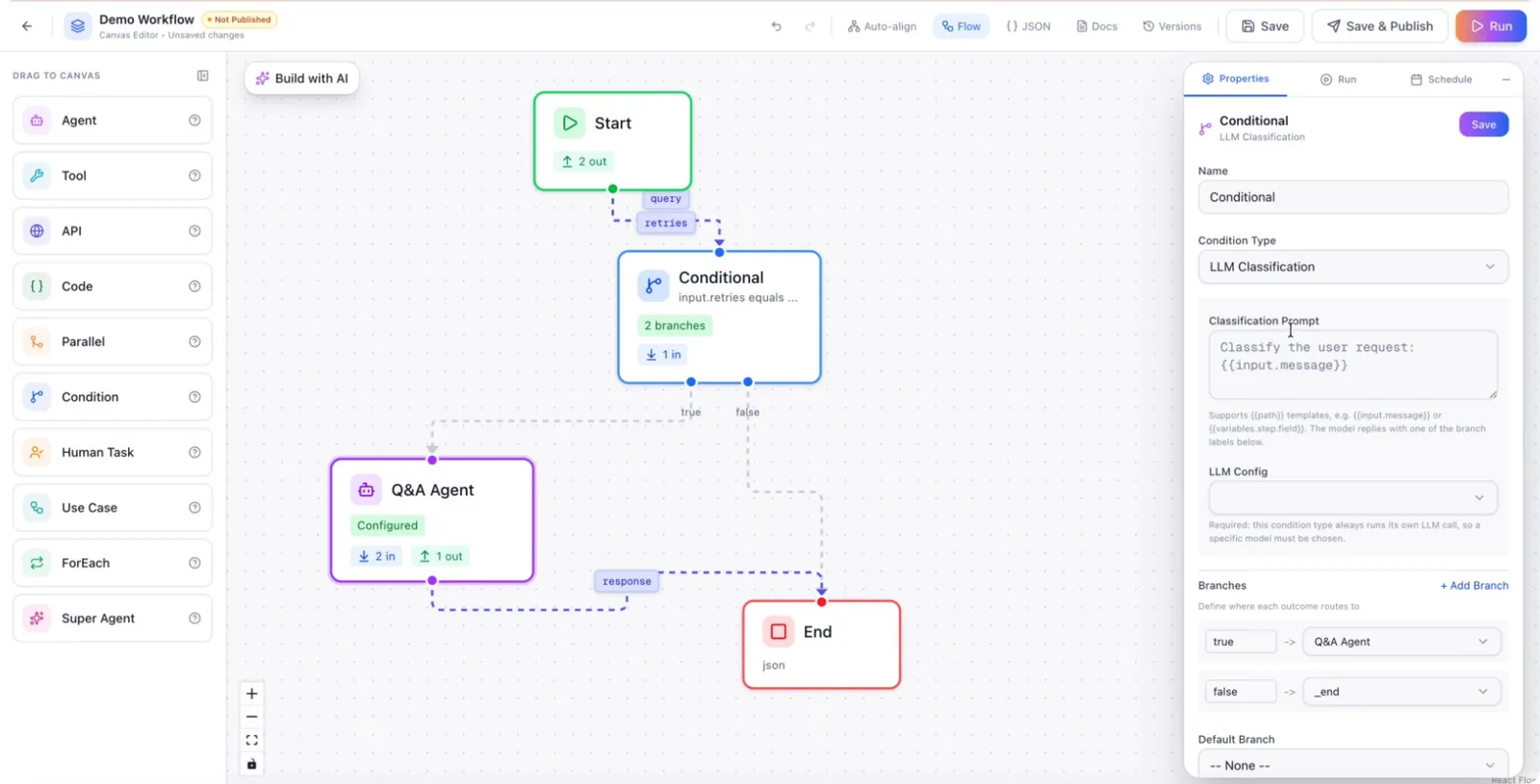
Write a prompt that instructs the LLM to classify the user request into specific buckets (for example: billing, technical support, sales). The LLM will classify the request into one of these buckets, and you can:
- Select the appropriate LLM configuration (model, parameters).
- Map each classification bucket to a different branch in the workflow.
This makes the conditional node dynamic and allows it to route the request or workflow to a specific path based on the condition logic you configured.